

Have you ever updated your website, only to find that nothing seems to change? Frustrating, right? You tweak a design, fix a bug, or publish new content, but your website still shows the old version. That’s where website cache comes into play. Think of cache like a “shortcut memory” your browser or server uses to load websites faster. It’s helpful, until it starts showing outdated content. The good news? Learning how to clear website cache is usually a quick and effective fix.
In this guide, you’ll learn how to clear website cache and resolve common problems easily, even if you’re not tech-savvy. Let’s break it down step by step.
What Is Website Cache?
Website cache is stored data that helps your website load faster for visitors. Instead of loading everything from scratch, your browser or server saves copies of files like images, CSS, and HTML.
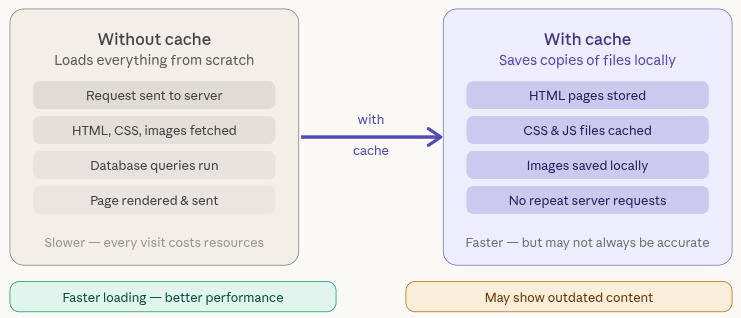
Imagine this: It’s like keeping a screenshot of a page instead of reloading it every time. Faster? Yes. Always accurate? Not really.
Why Cache Exists? And Why It Causes Problems
Cache is created to make websites load faster by storing temporary versions of files. It reduces the need to reload everything repeatedly, improving performance. However, when updates are made, cached data may still show the old version, leading to confusion and issues.
- It reduces loading time
- Saves server resources
- Improves user experience
These benefits help improve speed, reduce server load, and create a smoother browsing experience.
Common Issues Caused by Cache
Cache can sometimes prevent your website from showing the latest updates, making it appear broken or outdated. This often leads to confusion when changes don’t reflect immediately.
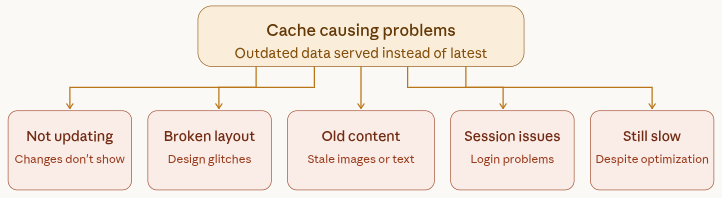
- Website not updating after changes
- Broken layout or design glitches
- Old images or content are still visible
- Login or session issues
- Slow loading despite optimization
When Should You Clear Cache?
Clearing cache is not something you need to do regularly, but it becomes important when your website doesn’t behave as expected. It’s often the first step to fix display or update-related problems.
- You update website content or design
- You install or update plugins/themes
- Your website behaves strangely
- Users report seeing outdated pages
Cache should be cleared whenever changes are made or when your website shows unexpected or outdated results.
Types of Website Cache Explained
Before clearing cache, it helps to know there are different types:
1. Browser Cache
Browser cache is a storage system within your web browser that saves parts of websites, such as images, CSS, and JavaScript files. This helps websites load faster when you revisit them because the browser doesn’t need to download everything again. It improves browsing speed and reduces data usage. However, sometimes it keeps older versions of files, which can prevent new updates from appearing. This is why you may not see recent changes on a website. Clearing browser cache forces the browser to load fresh content. It is often the first step in fixing display-related issues.
2. Server Cache
Server cache stores ready-to-use versions of web pages on the hosting server. Instead of processing every request from scratch, the server quickly delivers cached content to users. This reduces server load and improves website performance, especially during high traffic. It plays a key role in speeding up dynamic websites. However, if the cache is not updated, it may serve outdated content. This can cause confusion when recent changes are not visible. Clearing server cache ensures that the latest version of the website is delivered to visitors.
3. CDN Cache
CDN cache stores copies of your website on multiple servers located in different regions around the world. When a user visits your site, content is delivered from the nearest server, reducing load time. This improves speed, performance, and reliability for global audiences. It helps to reduce load on your server. However, cached files on CDN servers may not update immediately after changes. This can result in users seeing older versions of your site. Clearing CDN cache ensures updated content is served everywhere.
4. Application Cache
Application cache is managed by software or platforms like WordPress to store frequently accessed data. It helps reduce database queries and speeds up the delivery of dynamic content. This type of cache is often controlled by plugins or built-in tools. It improves performance and enhances user experience. However, when updates are made, cached data may not refresh automatically. This can cause issues like outdated content or broken layouts. Clearing the application cache ensures your website reflects the latest changes correctly.
Each type needs a different method to clear.
Website Cache Types Comparison Table
Here’s a quick comparison to help you understand different types of cache and when to clear them:
| Cache Type | Where It Is Stored | Purpose | When to Clear |
| Browser Cache | User’s browser | Faster page loading | When changes are not visible |
| Server Cache | Hosting server | Reduce server processing | After website updates |
| CDN Cache | Global CDN servers | Faster delivery worldwide | After content updates |
| Application Cache | CMS/Plugins (e.g. WordPress) | Speed up dynamic content | After plugin/theme changes |
How to Clear Browser Cache
Clearing browser cache removes stored files from your device, allowing the browser to load the most recent version of a website. It’s the quickest way to fix display-related issues.
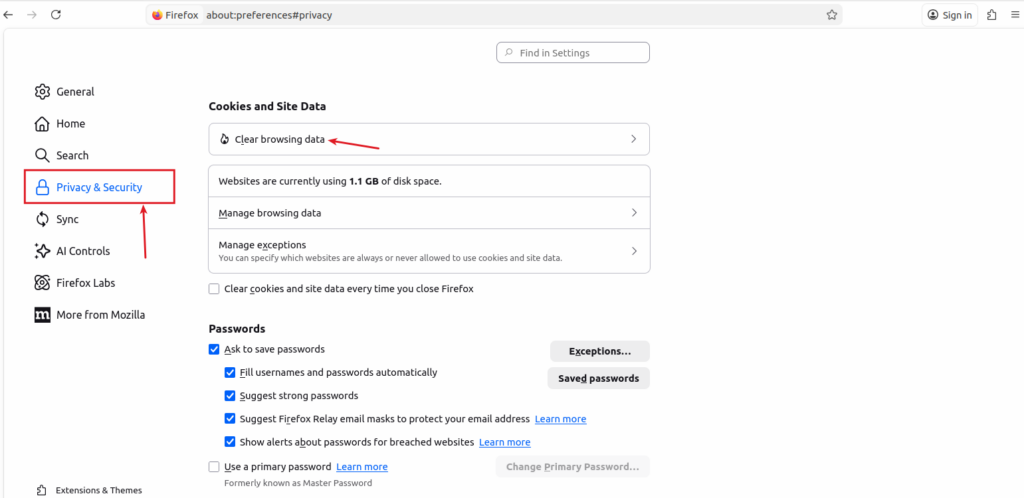
- Click the three dots at the top right or navigate to the options for any browser
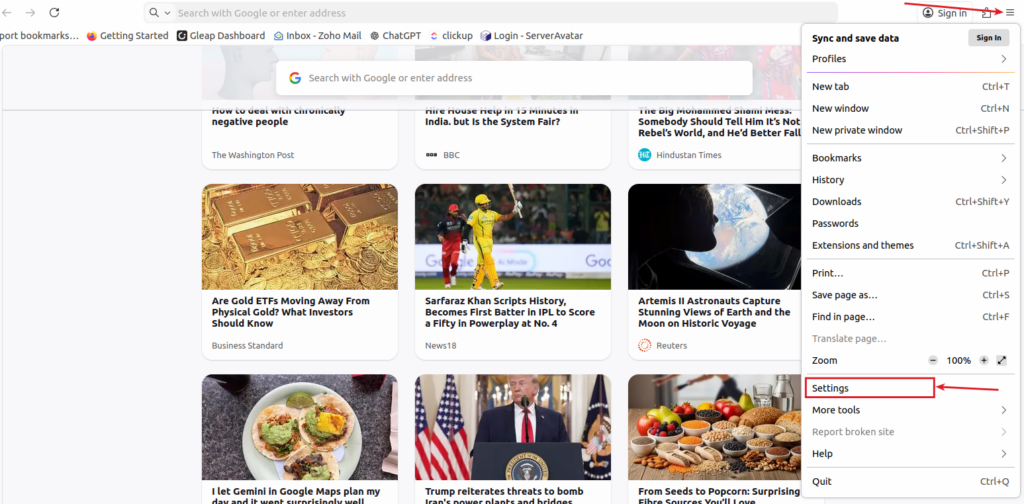
- Go to Settings >> Privacy and Security
- Click Clear browsing data
- Look for the option to clear the cached images and files and pages
- Click Clear data
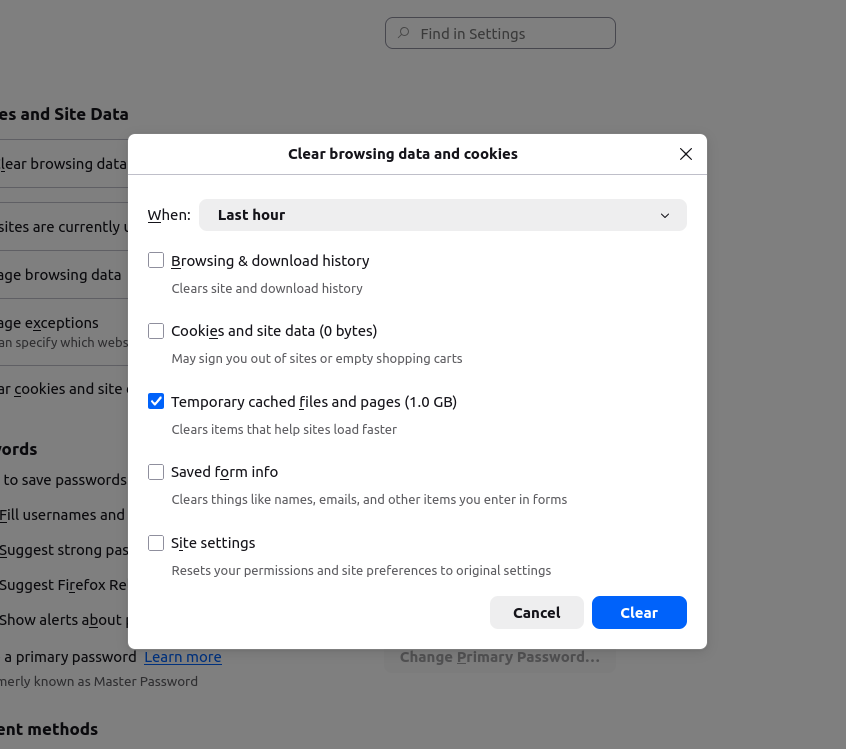
Shortcut: Press Ctrl + Shift + Delete
How to Clear Website Cache in WordPress
In WordPress, cache is usually handled by plugins that store static versions of your site for better performance. Clearing it ensures your latest changes are visible.
- Clear Cache
- Purge Cache
Simply click the clear or purge cache option in your plugin to instantly refresh cached data. These are some popular plugins that provide easy options to manage and clear cache with a single click.
- WP Rocket
- W3 Total Cache
- LiteSpeed Cache
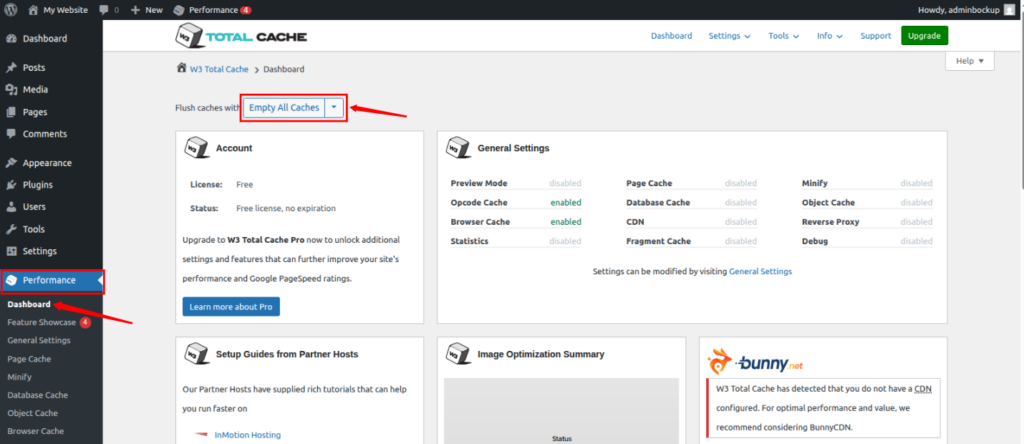
Clear Website Cache Using W3 Total Cache Plugin
- Log in to the WordPress admin dashboard, and navigate to the Performance >> Dashboard section of the W3 Total Cache plugin
How to Clear Server Cache
Server-level caching stores website data on the hosting server, which may still show old content even after other caches are cleared. Removing it ensures fresh data is served. You can easily clear the server-level cache by using your hosting panel or built-in tools.
Managing Server Cache Made Easier with ServerAvatar
If you’re managing servers manually, clearing cache and handling configurations can sometimes feel complicated. This is where ServerAvatar can make things much simpler.
ServerAvatar is designed to help you easily manage servers and deploy applications without dealing with complex server-level commands.
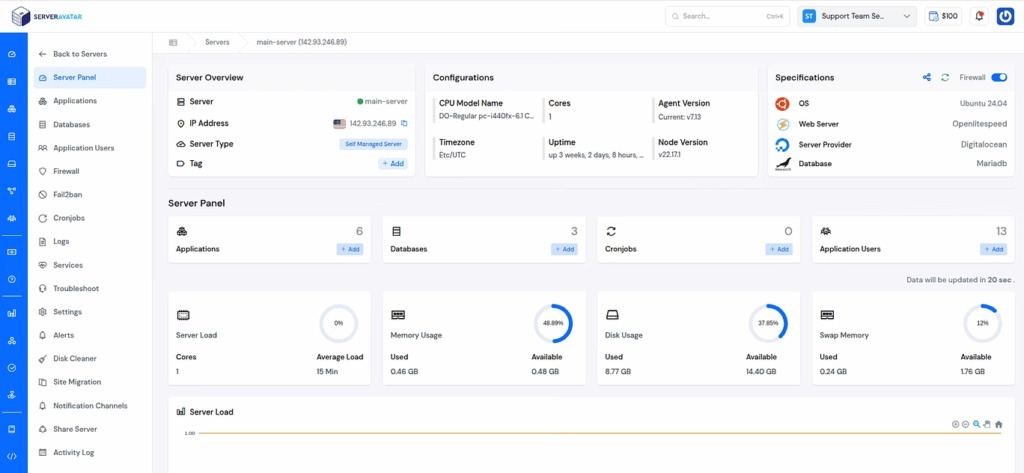
With ServerAvatar, you can handle PHP and Node.js applications, manage server settings, and integrate performance tools like Redis caching from a single dashboard. Instead of switching between multiple tools, everything is organized in one place, making server management more efficient and beginner-friendly.
If you are using ServerAvatar, it supports Redis caching at the server level. You can enable this by configuring a Redis caching plugin on your WordPress website and connecting it with the server-side Redis service. Once integrated, Redis helps manage and clear cached data more efficiently.
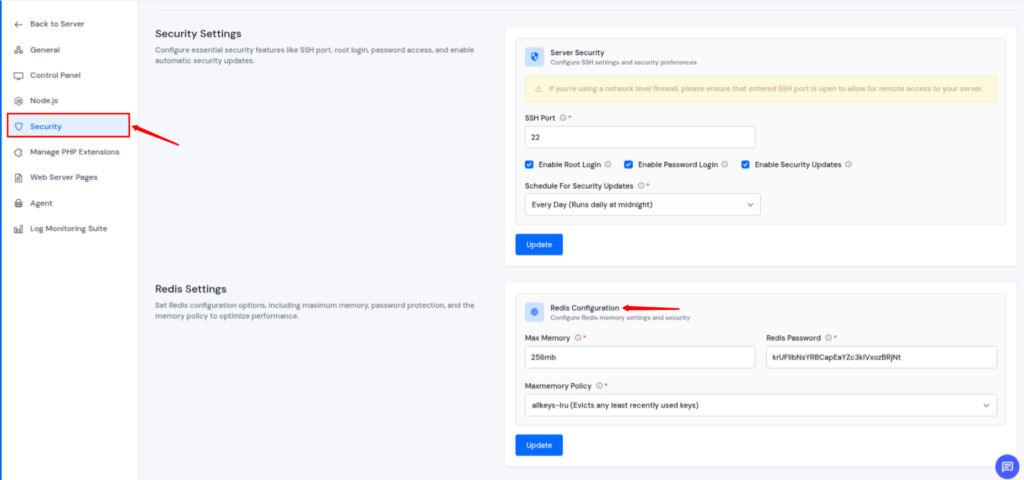
For a complete step-by-step setup, you can refer to the guide: How to Install and Configure Redis Cache on Ubuntu
How to Clear CDN Cache
A CDN stores cached content across multiple servers worldwide, which can sometimes deliver outdated versions of your site. Clearing it updates content globally.
Clearing CDN cache is quick and easy, just log in to your CDN dashboard, go to the caching settings, and click on the Purge Cache or Clear All Cache option. That’s all you need to do.
Example: Cloudflare users can clear cache with one click.
Quick Fix Checklist for Cache Issues
When facing website issues, following a checklist helps ensure no cache layer is missed. This approach resolves most problems quickly.
Before you panic, try this checklist:
- Clear browser cache
- Clear website/plugin cache
- Clear server cache
- Clear CDN cache
- Refresh using Ctrl + F5
This simple routine fixes 90% of cache-related issues.
Tips to Prevent Cache Problems
Preventing cache issues is easier than fixing them. Following simple practices helps keep your website running smoothly without unexpected errors.
- Use cache versioning (automatically refresh files)
- Set proper cache expiration rules
- Clear cache after updates
- Test your site in incognito mode
- Use reliable caching plugins
Think of it like cleaning your room regularly, it prevents bigger messes later.
Tools That Help Manage Cache Easily
Using the right tools can simplify cache management and save time. They allow you to monitor and control caching efficiently.
- Browser Dev Tools: Inspect cached files
- Caching Plugins: Automate cache clearing
- Hosting Dashboards: One-click cache control
- CDN Tools: Manage global cache
These tools act like your “control panel” for performance.

Beginner Mistakes to Avoid
Many beginners make small mistakes that lead to ongoing cache issues. Understanding these helps avoid unnecessary frustration.
- Clearing only browser cache (ignoring server/CDN)
- Forgetting to clear cache after updates
- Using too many caching plugins
- Not testing changes properly
- Ignoring mobile cache issues
Remember: Cache exists in layers, clear all of them if needed.
Conclusion
Website cache plays an important role in improving speed and performance, but it can also be the reason behind many common website issues. From outdated content to broken layouts, most problems are often caused by cached data not updating properly. The good part is that these issues are usually easy to fix by clearing cache at different levels, browser, server, CDN, or application. By understanding how cache works and following the right steps, you can quickly troubleshoot problems and keep your website running smoothly. Remember, a simple cache clear can save you hours of frustration.
FAQs
1. What happens when I clear website cache?
Clearing website cache removes stored temporary files so your website loads the most recent version instead of outdated content.
2. Will clearing cache delete my website data?
Clearing cache only removes temporary files and does not affect your actual website data, content, or database.
3. Why is my website not updating after making changes?
This usually happens because cached data is still being displayed, so clearing browser, server, or CDN cache can resolve the issue.
4. How often should I clear website cache?
You don’t need to clear it regularly, but it’s recommended after making updates or when your website behaves unexpectedly.
5. Do I need to clear all types of cache?
In some cases clearing only browser cache is not enough, so it’s best to clear server, CDN, and application cache as well.