

Your server is busy. Every second, processes are starting and stopping, users are logging in, databases are fielding queries, and HTTP requests are hitting your web server. Most of this happens without you noticing, until something goes wrong.
And something always goes wrong eventually. Maybe your site returns a blank white screen. Maybe SSH refuses your password even though you’re sure it’s correct. Maybe your database connection keeps timing out. When that moment hits, the first question any experienced admin asks is: what do the logs say?
That’s what this post is about. Not just what Linux logs are, but how to read them and use them. We will cover the types of logs captured, how to read log entries, and how ServerAvatar makes the whole process much easier because most of us don’t want to live inside a terminal.
If you are just getting started with server management, this is one of those skills that separates people who spend hours Googling error messages from people who open a log file and know exactly where to look.
TL;DR
- Linux logs are plain-text files that record everything happening on your server, from a user logging in to a package update failing
- They are your primary source of truth when something breaks, and the fastest path to figuring out what went wrong
- Logs live mostly in
/var/log/, but you don’t have to dig through the terminal every time, ServerAvatar lets you fetch, filter, and read them from a dashboard - This guide covers what logs actually are, why they matter more than most beginners realize, the different types you’ll encounter, and how to read them efficiently
What Exactly Is a Linux Log?
A Linux log is a record of events and activities that occur within a Linux system. These logs are created by the Linux kernel, system services, applications, and other processes running on the server.
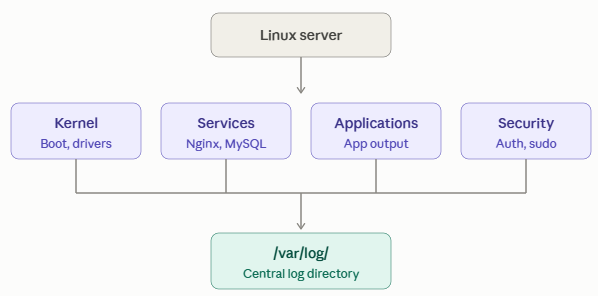
Logs help you understand what happened on your system instead of relying on guesswork. They can provide details about:
- User login and logout activity
- Successful and failed connection attempts
- Application errors and warnings
- Service startup, shutdown, and failure events
- System and kernel messages
- Unexpected shutdowns or system issues
- Security-related activity
Most Linux log files are stored in the following directory:
/var/log/Many logs are plain-text files that you can view using commands such as cat, less, or tail. Some logs use a binary format and require specific tools to read.
Linux logs are essential for troubleshooting issues, monitoring system activity, and identifying potential security problems.
For a detailed guide to server management, you may also find our guide on What Is Server Management? Key Practices and Benefits helpful.
Why Logs Matter More Than Most People Think
Linux logs are useful for more than major system failures. They can help you understand everyday server activity and identify issues before they become more serious.
For example, logs can help you:
- Check whether a cron job ran successfully
- Verify if a user attempted to access a service
- Investigate slow server performance
- Identify processes that may be using excessive resources
- Find errors related to applications or system services
Instead of guessing what caused an issue, logs provide records that help you understand what happened on your server. Although log files may initially look confusing, learning how to read and filter them makes troubleshooting much easier.
It is also important to ensure that the services you rely on are generating logs. Most Linux services enable logging by default, but some may limit or disable logging to reduce disk usage or improve performance. For production servers, verify that important services are recording the information you may need for monitoring and troubleshooting.
The Four Categories of Linux Logs
Most Linux log files fall into one of four broad categories. Knowing which category you are dealing with helps you find the right file faster.
Application Logs: Record activity related to installed applications, such as databases, mail servers, and scheduled tasks. These logs are often the first place to check when an application-related issue occurs.
System Logs: Store information about the Linux kernel and core system processes, including system startup, hardware detection, power events, and kernel warnings.
Service Logs: Track background services that support system operations, such as authentication services, cron jobs, and DNS services. They can help identify why a service failed or stopped working.
Event logs are specialized records that track specific kinds of activity. Failed login attempts, security events, audit records, these fall here. On a production server, event logs are often the most security-sensitive.
Knowing whether an issue is related to an application, the system, a background service, or a security event can help you decide which log to check first.
What Your Server Is Actually Recording
Let’s talk about what kind of information you will find inside these log files. This is where most beginners get lost, not because the content is complicated, but because they don’t know what they’re looking at.
A typical log entry has a few standard components: a timestamp, a hostname, the name of the service or process that generated the entry, and the actual message. Some logs also include a process ID, a log level (like INFO, WARNING, ERROR), and sometimes a priority value.
Here’s a real example from an authentication log:
Jul 31 04:22:15 server sshd[4821]: Failed password for invalid user admin from 203.0.113.42 port 44322 ssh2That entry tells you the exact time, the server hostname, the service (sshd), the process ID, what happened (failed password), which account was targeted (invalid user “admin”), the IP address making the attempt, and the port and protocol used.
Now imagine you’re looking at that entry and you recognize the IP. Is it a legitimate user who forgot their password? Or someone probing your server? With context, and a few more entries, you can tell the difference. Logs make it possible.
Most log files follow a similar pattern, even if the exact format varies. Once you’re comfortable reading one type of auth log, you’ll find MySQL logs, Apache logs, and kernel logs follow comparable structures.
Common Linux Log Files and Their Uses
The following table provides a quick overview of common Linux logs and the information they contain:
| Log Type | Common Location or Command | Main Purpose |
|---|---|---|
| Authentication Logs | /var/log/auth.log or /var/log/secure | Login attempts, SSH activity, and sudo events |
| MySQL Logs | Varies by configuration | Database errors, connections, and service activity |
| Kernel Logs | dmesg or /var/log/kern.log | Hardware, drivers, and kernel-level events |
| Web Server Logs | /var/log/nginx/, /var/log/httpd/, or server-specific paths | HTTP requests and web server errors |
| Mail Logs | /var/log/mail.log or /var/log/maillog | Email delivery and mail-server activity |
| Cron Logs | Distribution-dependent | Scheduled task and cron-job activity |
| Boot Logs | /var/log/boot.log | System startup and service-loading events |
The Log Files You Should Know About
Linux systems can generate many different log files, but you do not need to memorize all of them. Knowing the purpose of the most commonly used logs can help you find and troubleshoot issues faster.
Authentication Logs located at /var/log/auth.log on Debian and Ubuntu or /var/log/secure on RHEL and CentOS systems. These logs record login attempts, SSH activity, sudo commands, and other authentication-related events.
If you are troubleshooting SSH login issues, check our guide on How to Fix SSH Connection Refused Error
MySQL Logs record database activity, including connections, errors, startup and shutdown events, and other database-related information. They can help diagnose database connection issues or MySQL service failures.
Kernel Logs available through dmesg or /var/log/kern.log. These logs contain information about hardware detection, device drivers, network interfaces, and low-level system errors.
Web server logs web servers such as Apache, Nginx, and OpenLiteSpeed maintain their own logs. They usually include:
- Access logs: Record incoming requests and server activity.
- Error logs: Record server errors and issues that occur while processing requests.
Mail logs usually stored in /var/log/maillog or /var/log/mail.log. These logs record email delivery activity, SMTP transactions, spam filtering events, and mail server errors.
Cron logs track scheduled tasks and cron job activity. They can help verify whether a scheduled job ran and identify problems related to its execution.
To learn more about creating and managing scheduled tasks, see our guide on How to Schedule Tasks with cron in Linux.
Boot logs commonly stored in /var/log/boot.log. These logs record system startup activity, including services that started successfully or failed during the boot process.
You rarely need to check every log file. When an issue occurs, identify whether it is related to authentication, an application, a service, the system, or another component, then review the most relevant log first.
How to Read Log Files Without Losing Your Mind
Large log files can contain thousands of entries, so opening them with cat may make them difficult to read. Instead, use Linux commands that help you view, search, and monitor logs more efficiently.
- Monitor logs in real time with
tail -f
This command displays the latest log entries and automatically shows new entries as they are added. It is useful when reproducing an issue and monitoring what the system records. - Use
grepto search for specific information
You can search for an error message, IP address, failed login, or other keywords. You can also use:grep -ifor case-insensitive searchesgrep -vto exclude matching lines
- Use
lessto read large log files
Thelesscommand allows you to scroll through a log file, search for specific text, and navigate without loading the entire file into memory.
When reviewing logs, avoid treating every ERROR entry as a critical issue. Some messages may be harmless or informational. Check the surrounding entries, how often the error appears, and whether the same message is repeated.
Over time, you will become more comfortable identifying important patterns and separating useful information from routine log activity.
For more advanced log filtering and system-journal queries, refer to the official journalctl documentation

A Practical Example: Debugging a “Site Is Down” Scenario
Let’s walk through a realistic scenario so you can see how this works in practice.
Suppose a website is not loading. Instead of checking every log file, work backward from the problem and review the most relevant logs step by step.
1. Check the web server error logs
Look for issues such as:
- HTTP 500 errors
- PHP fatal errors
- Connection failures
- A sudden increase in errors at a specific time
2. Review the MySQL logs
If the web server logs do not reveal the cause, check whether the database is working correctly. Look for:
- MySQL service crashes
- Failed database connections
- Incorrect database credentials
- Resource-related errors
3. Check the system logs
If the web server and database appear to be working normally, review the system logs for signs of resource exhaustion. For example, the server may have run out of memory, causing the Linux OOM killer to stop a process.
By checking the logs in a logical order, you can narrow down the possible causes and identify the actual issue more efficiently. This approach helps you troubleshoot based on evidence instead of guessing.
And here’s the thing, this whole process is much easier when you don’t have to SSH in and manually open each file. Which brings us to ServerAvatar.
How ServerAvatar Makes Log Management Actually Usable
Managing logs through the command line can be time-consuming. You need to know the correct log file paths, use commands to search or filter entries, and review information across multiple files.
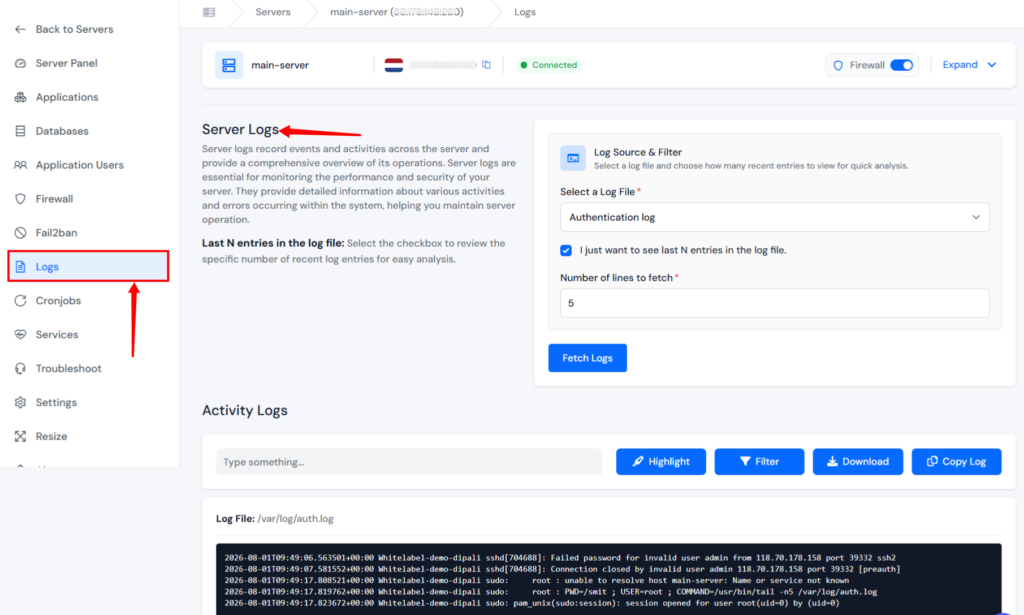
ServerAvatar takes a different approach. Instead of digging through directories on the command line, you can fetch, view, filter, and download server logs directly from the ServerAvatar dashboard. With ServerAvatar, you can:
- View logs without manually navigating through server directories
- Access authentication, MySQL, kernel, mail, Let’s Encrypt SSL, system error, event log, web server logs, and PHP FPM logs from one place
- Fetch recent log entries or retrieve the complete log file
- Search and filter log information more easily
- Copy important log entries or download logs for further analysis
ServerAvatar also makes web server logs easier to access.
Just navigate to the Logs section from the server panel and select a log file. It also provides an option to fetch entries of a log for a required number of lines.
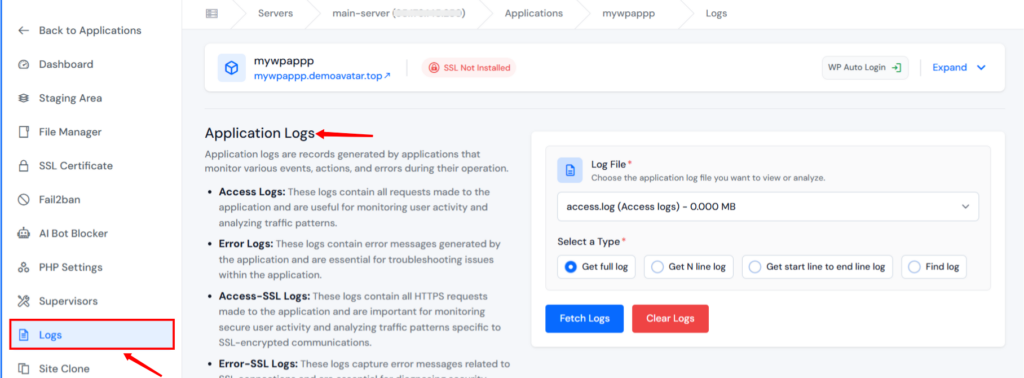
For application-level troubleshooting, ServerAvatar provides access to:
- Access logs: Record requests received by your application
- Error logs: Capture failed requests, HTTP errors such as
404and500, and application-related issues
You can fetch all log entries, view the latest lines, select a specific line range, or search for a particular term using the Find option.
ServerAvatar does not replace the need to understand Linux logs, but it makes log management more accessible. By reducing the need to memorize log paths and command-line options, it helps you investigate server and application issues more efficiently.
It’s no substitute for understanding how to read logs, a skill that’s still essential. But it removes the friction that makes beginners avoid logs in the first place.
Key Takeaways
- Linux logs are plain-text records of everything happening on your server, the first place to look when something breaks
- Most important logs live in
/var/log/and fall into four categories: application, system, service, and event logs - Common files you’ll use often: auth logs, MySQL logs, kernel logs, web server logs, mail logs, and cron logs
- Learn
tail -f,grep, andless, these three commands handle 90% of what you’ll ever need to do with log files - Not every ERROR is a crisis; look at frequency, pattern, and context before concluding something is actually broken
- ServerAvatar gives you a cleaner way to access and manage server and application logs without memorizing file paths or command-line syntax
Conclusion
Logs are one of those things that beginners tend to avoid and experienced admins swear by. The gap between those two groups isn’t talent, it’s familiarity. Once you understand what logs are recording, why they matter, and how to find what you’re looking for, server troubleshooting stops being a guessing game and starts being a process.
You don’t have to memorize every log file on your system. Start with the ones that matter most for your setup, learn to read them efficiently, and build the habit of checking logs when things go wrong. That habit alone will save you hours of frustration.
And if you want a simpler way to keep track of what’s happening across your servers, without switching between terminals and log files, ServerAvatar’s built-in log management is worth exploring. It won’t teach you how to debug, but it removes enough friction that you can focus on the actual problem instead of hunting for the right file.
FAQs
How do I find a specific error in a Linux log file?
Use grep to search for the error text. For example, grep "ERROR" /var/log/syslog will find all lines containing “ERROR” in the syslog file. You can combine it with flags like -i for case-insensitive matching or -B 3 to include three lines before the error for context.
How often should I check my server logs?
You don’t need to read them daily if nothing is broken. The practical approach is to check logs when something goes wrong, and to review auth logs periodically for suspicious activity, especially if your server is publicly accessible over SSH.
Can I delete old log files to free up disk space?
You can, but be careful. Never delete log files directly while a service is running, it can cause issues. Use logrotate to automatically rotate, compress, archive, and remove old log files. ServerAvatar also has disk usage monitoring that can alert you when logs are consuming too much space.
What’s the difference between system logs and application logs?
System logs record events from the Linux kernel and core operating system, things like boot sequences, hardware detection, and kernel warnings. Application logs record activity from specific software running on your server, your web server, database, mail server, or custom applications.
Does ServerAvatar support all types of Linux logs?
ServerAvatar provides direct access to the most commonly used server logs from its dashboard, including authentication, MySQL, kernel, Let’s Encrypt, mail, and web server logs. For application-specific logs, the Application Logs feature lets you access access and error logs for each application you have deployed.
About the Author
Meghna Meghwani is a technical writer focused on Linux, Ubuntu, VPS hosting, server management, WordPress, PHP, Node.js, cloud hosting, and DevOps. She creates beginner-friendly tutorials, practical hosting guides, troubleshooting articles, and server security content designed to help developers and businesses manage applications and servers more efficiently.