

A successful WordPress website requires more than just publishing content. Behind the scenes, WordPress uses WP-Cron to handle automated tasks like publishing scheduled posts, sending emails, checking updates, and running plugin-related actions. Learning how to manage WordPress Cron Jobs effectively helps ensure smooth website performance and reliable automation.
While WP-Cron works well for many websites, it is not always the most reliable option. Since it depends on website traffic to trigger scheduled jobs, tasks can be delayed on low-traffic websites or become inefficient on busy websites.
This is where ServerAvatar’s WordPress Toolkit simplifies cron management. Instead of setting up cron jobs manually through the server terminal, you can control WordPress cron execution using an easy-to-use dashboard. You can switch between WP-Cron and Server-Side Cron, trigger pending events manually, and ensure your scheduled tasks run exactly when they should.
In this guide, you will learn how WordPress cron jobs work and how to manage them efficiently using ServerAvatar’s WordPress Toolkit.
TL;DR
- WordPress uses WP-Cron to run scheduled tasks.
- WP-Cron depends on website visits to trigger jobs.
- Server-Side Cron offers more reliable scheduling.
- ServerAvatar lets you switch between WP-Cron and Server-Side Cron from the WordPress Toolkit.
- You can manually run pending cron events for testing and troubleshooting.
- No command-line configuration is required.
What Are WordPress Cron Jobs?
A cron job is simply a scheduled task that runs automatically at specific intervals. In traditional Linux servers, cron jobs are managed by the operating system. WordPress uses its own scheduling system called WP-Cron.
WP-Cron handles tasks such as:
- Publishing scheduled posts
- Checking for WordPress updates
- Sending scheduled emails
- Clearing temporary data
- Running WooCommerce scheduled actions
- Generating backups
- Syncing external services
Without a properly functioning cron system, these automated tasks may not execute on time.
How WP-Cron Works
Unlike a traditional server cron job, WP-Cron is triggered whenever someone visits your website. Here’s the simplified workflow:
- A visitor loads your website.
- WordPress checks for pending scheduled tasks.
- If a task is due, WP-Cron executes it.
- The visitor receives the page response.
This approach eliminates the need for server-level cron configuration, but it comes with limitations.
Common Problems with WP-Cron
Although WP-Cron is convenient, many website owners eventually encounter issues.
| Problem | Impact |
|---|---|
| Low website traffic | Scheduled tasks may run late |
| High website traffic | Additional processing overhead |
| Missed cron events | Backups, emails, or updates fail |
| WooCommerce delays | Orders and subscriptions may not process on time |
| Resource consumption | Unnecessary cron checks on every page visit |
For business websites, membership sites, WooCommerce stores, and high-performance WordPress applications, relying solely on WP-Cron isn’t always ideal.
WP-Cron vs Server-Side Cron
| Feature | WP-Cron | Server-Side Cron |
|---|---|---|
| Trigger Method | Website visits | Server scheduler |
| Reliability | Depends on traffic | Highly reliable |
| Performance | Additional checks on page loads | More efficient |
| Accuracy | Can be delayed | Runs on schedule |
| Recommended For | Small websites | Production websites |
In most production environments, server-side cron jobs are preferred because they execute on a fixed schedule regardless of visitor activity.
Managing WordPress Cron Jobs with ServerAvatar
ServerAvatar’s WordPress Toolkit provides a dedicated Cron section that allows administrators to control how scheduled tasks are executed. Instead of editing server configurations manually, everything can be managed through a simple interface.
Accessing the Cron Section
Follow these steps:
- Log in to your ServerAvatar account. Navigate to the server panel by clicking on the server dashboard icon.
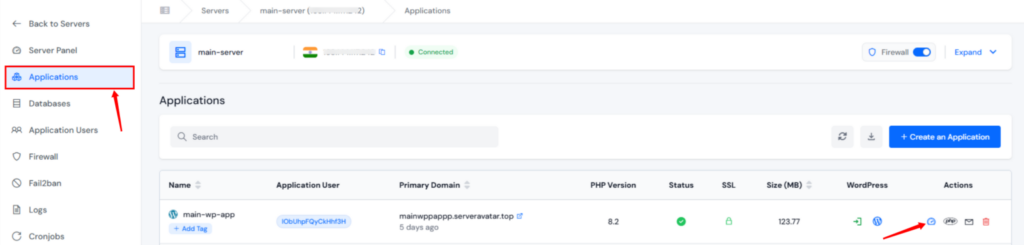
- Navigate to the Applications section and click on the dashboard icon for your WordPress Application.
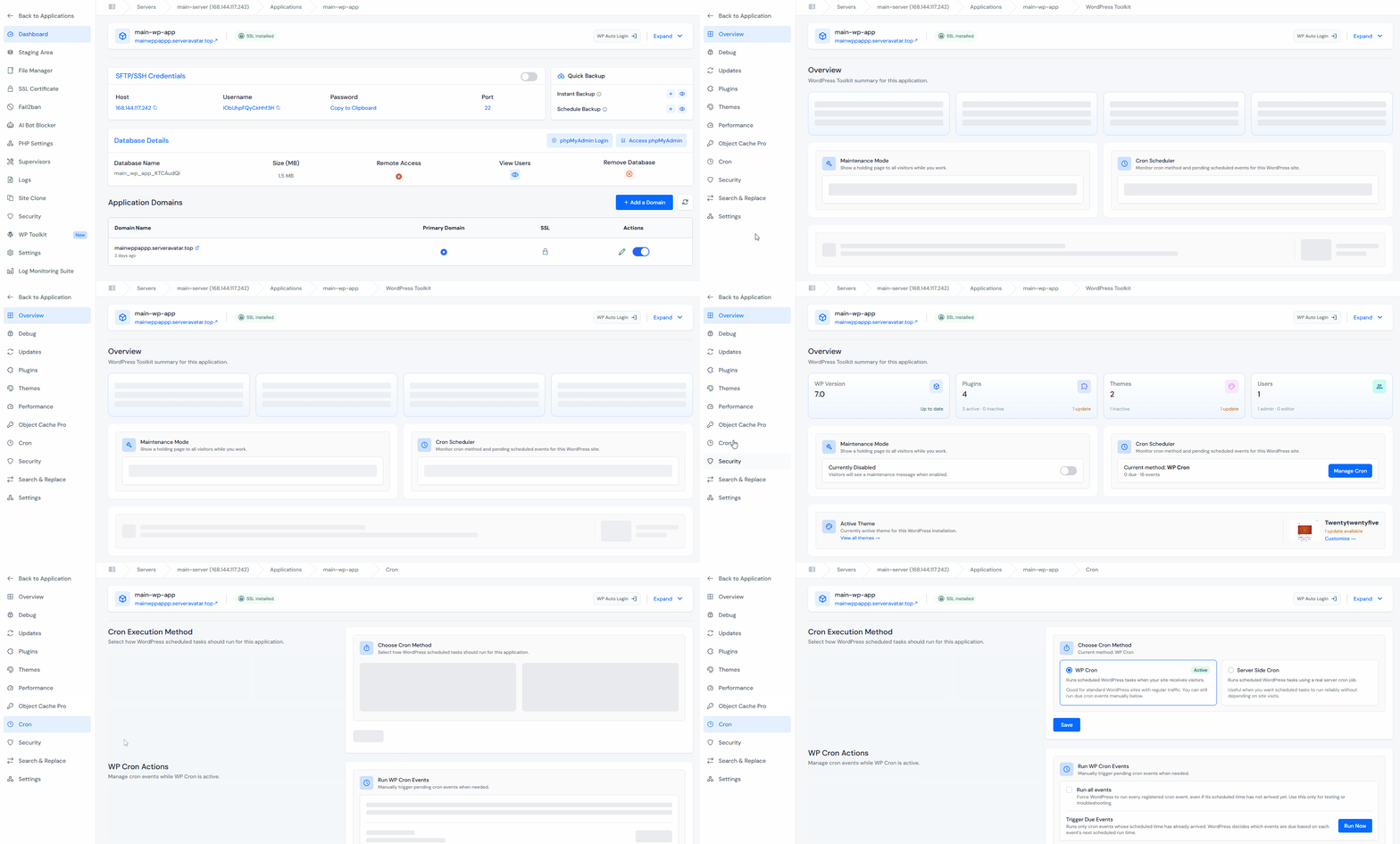
- Click on the WP Toolkit from the left sidebar and navigate to the Cron section. You will now see the Cron Execution Method panel and the WP Cron Actions section.
Understanding Cron Execution Methods
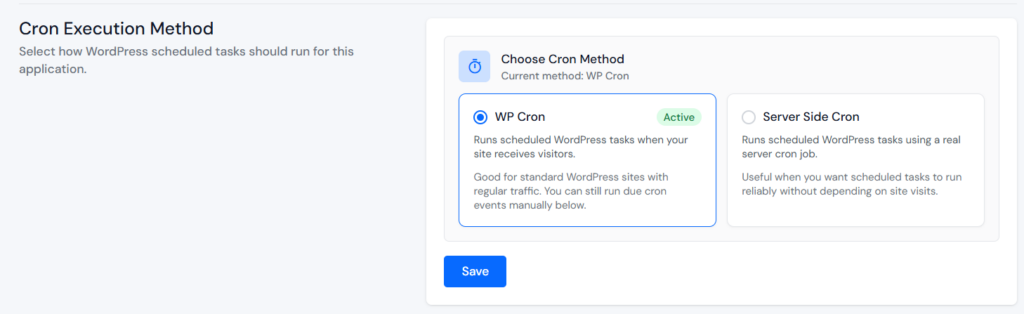
Inside the Cron dashboard, ServerAvatar provides two execution methods:
Option 1: WP-Cron
This is the default WordPress behavior.
How It Works
- Tasks are executed when visitors access the website.
- No server cron configuration is required.
- Suitable for websites with consistent traffic.
When to Use WP-Cron
WP-Cron is suitable when:
- Running a personal blog
- Managing a low-maintenance website
- No mission-critical automation exists
- Simplicity is preferred
How to Enable WP-Cron
- Open the Cron section
- Select WP Cron
- Click on the Save button
The system will continue using WordPress’s built-in scheduler.
Option 2: Server-Side Cron
Server-Side Cron uses the actual server scheduler rather than relying on visitors.
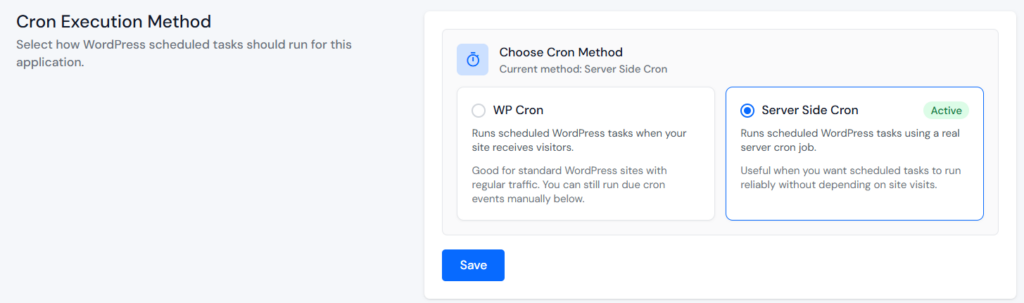
Benefits
- Better scheduling accuracy
- Improved reliability
- Reduced WP-Cron overhead
- Ideal for WooCommerce stores
- Suitable for membership websites
- Better performance under heavy w,
How to Enable Server-Side Cron
- Open the Cron section
- Select Server Side Cron
- Click on the Save button
ServerAvatar automatically handles the required cron configuration in the background. No manual SSH commands or cron syntax are needed.
Running WordPress Cron Events
Sometimes you may need to trigger cron events manually. Examples include:
- Testing scheduled tasks
- Verifying plugin functionality
- Troubleshooting delayed actions
- Running pending updates
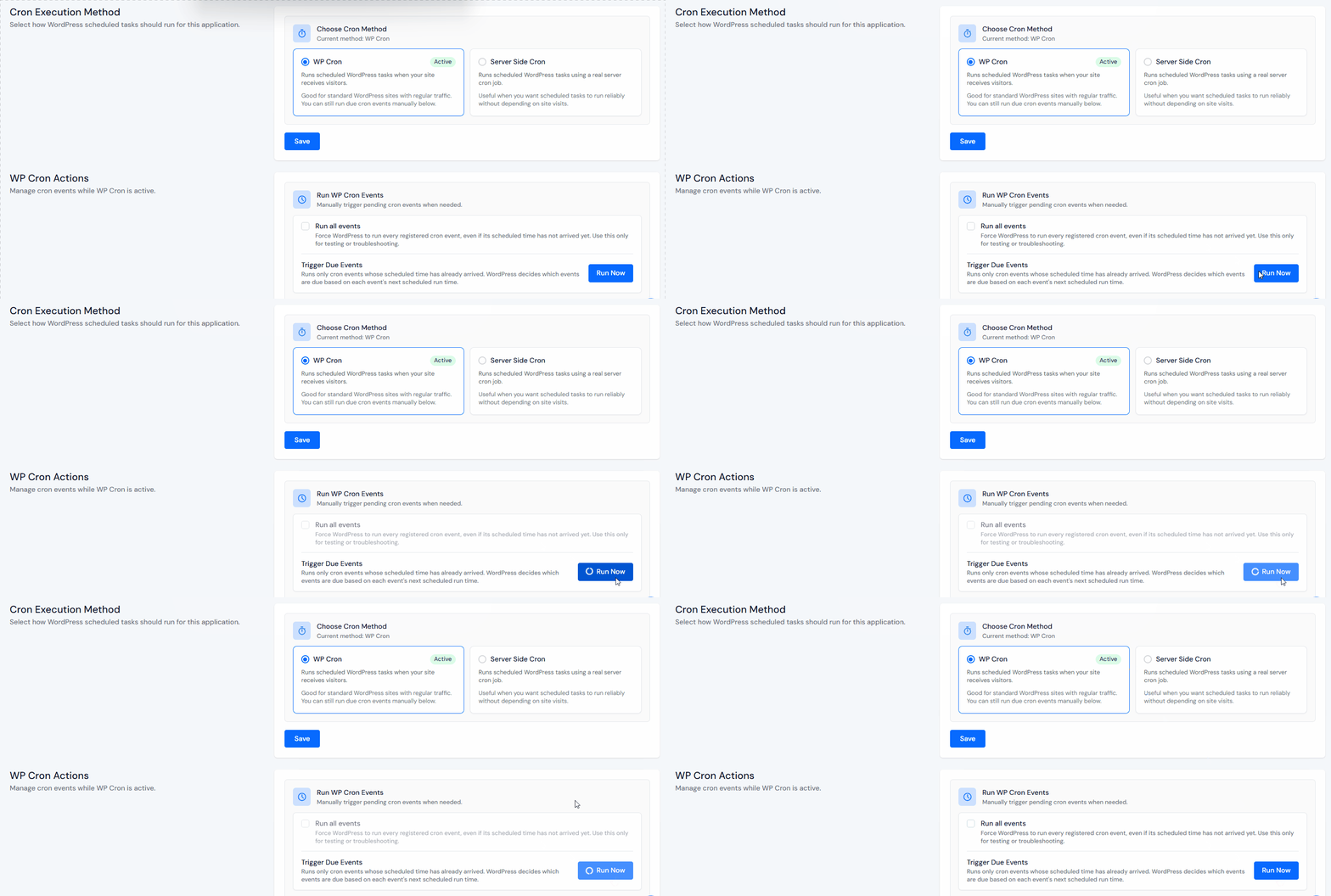
ServerAvatar provides a built-in Run WP Cron Events feature.
Trigger Due Events
Inside the WP Cron Actions section:
- Navigate to the Cron in the WordPress Toolkit section
- Click on the Run Now button
Run All Events
Inside the WP Cron Actions section:
- Navigate to the Cron in the WordPress Toolkit section
- Select the checkbox for Run all events, and click on the Run Now button
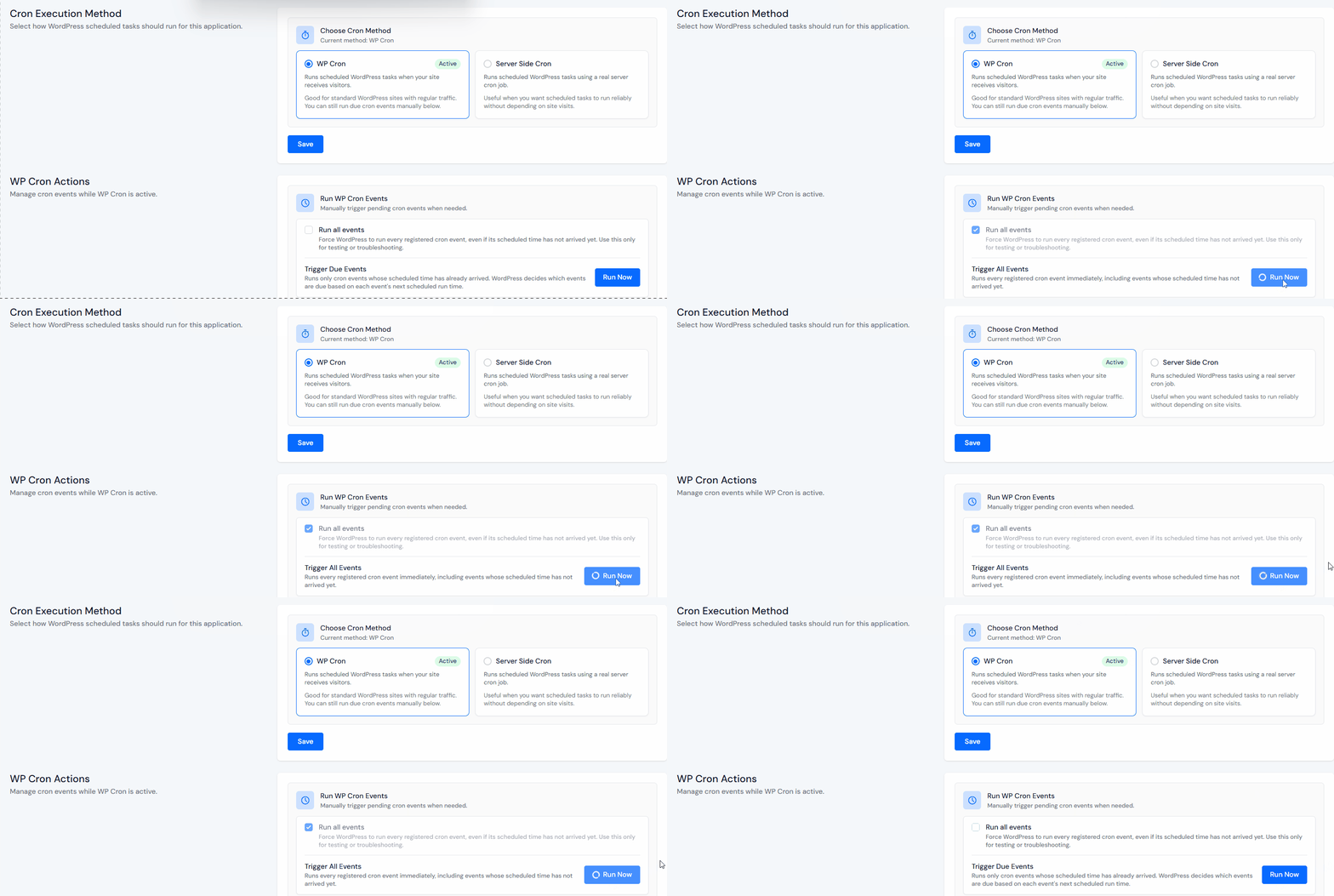
ServerAvatar immediately executes all cron events whose scheduled time has already arrived. This is useful when troubleshooting delayed jobs.
Important Note: Avoid using this option on production websites unless necessary for troubleshooting. Forcing all events to execute can trigger plugin actions earlier than intended.

Practical Use Cases
1. WooCommerce Websites
Server-side cron improves:
- Subscription processing
- Order management
- Email notifications
- Inventory synchronization
2. Membership Websites
Reliable cron execution helps with:
- Membership renewals
- Account expirations
- Automated notifications
3. Content Publishing
Perfect for:
- Scheduled blog posts
- Content workflows
- Editorial automation
4. Backup Automation
- Ensures scheduled backups run consistently
- Ensures Disaster recovery points remain updated
Best Practices for WordPress Cron Management
1. Use Server-Side Cron for Production Sites
For business-critical websites, server-side cron is generally the preferred option.
2. Monitor Scheduled Tasks
Periodically verify:
- Scheduled posts
- WooCommerce actions
- Backup jobs
- Email notifications
3. Test After Plugin Installation
Some plugins create their own cron events. Always verify new plugins are functioning correctly.
4. Avoid Excessive Cron Frequency
Overly aggressive scheduling can increase server load. Only schedule tasks as frequently as necessary.
5. Keep WordPress Updated
Cron-related improvements and bug fixes are often included in updates.
Conclusion
WordPress cron jobs play a crucial role in keeping your website running smoothly. From publishing scheduled posts and processing WooCommerce actions to generating backups and sending emails, many important operations depend on timely cron execution.
While WP-Cron works well for basic websites, growing businesses often need a more reliable solution. ServerAvatar’s WordPress Toolkit makes it easy to choose the right cron execution method, switch to server-side scheduling when needed, and manually trigger events for troubleshooting.
Instead of dealing with command-line cron configurations, you can manage everything from a single dashboard and keep your WordPress automation running exactly as expected.
FAQs
1. What is WP-Cron in WordPress?
WP-Cron is WordPress’s built-in scheduling system that automatically runs tasks such as scheduled posts, updates, emails, and plugin automation.
2. Is Server-Side Cron better than WP-Cron?
Server-Side Cron is generally more reliable because it runs on a fixed schedule and does not depend on website traffic.
3. Can I switch between WP-Cron and Server-Side Cron in ServerAvatar?
Yes, ServerAvatar allows you to switch between both methods directly from the WordPress Toolkit Cron section.
4. When should I use Server-Side Cron?
Server-Side Cron is recommended for WooCommerce stores, membership websites, business websites, and any WordPress site that relies on scheduled automation.
5. Can I manually run cron jobs in ServerAvatar?
Yes, the Run WP Cron Events feature allows you to manually trigger pending scheduled tasks directly from the dashboard.
Key Takeaways
- WordPress relies on cron jobs to automate important background tasks.
- WP-Cron depends on visitor traffic and may delay scheduled actions.
- Server-Side Cron provides more reliable task execution.
- ServerAvatar makes cron management simple through its WordPress Toolkit.
- Switching cron methods requires only a few clicks.
- Manual cron execution tools help with testing and troubleshooting.
- Reliable cron scheduling improves WordPress performance and automation.
Next Steps
Managing WordPress sites on a VPS becomes much easier when theme updates, server management, SSL, backups, and application controls are available from one dashboard. ServerAvatar helps simplify those everyday tasks without adding extra complexity.
You should also read:
- WordPress Toolkit for WordPress Management in ServerAvatar
- How to Create WordPress Blueprints Easily in ServerAvatar
- How to Optimize WordPress Performance with Rewrite Rules & Cache
About the Author
Meghna Meghwani is a technical writer focused on Linux, Ubuntu, VPS hosting, server management, WordPress, PHP, Node.js, cloud hosting, and DevOps. She creates beginner-friendly tutorials, practical hosting guides, troubleshooting articles, and server security content designed to help developers and businesses manage applications and servers more efficiently.