

Keeping a Linux system stable, secure, and high-performing requires more than just installing updates or restarting services when something breaks. One of the most reliable ways to understand what’s really happening on a server is by monitoring Linux logs.
Linux logs record system activity, warnings, errors, and important events that directly affect server health. Whether you manage a production server, host websites, or maintain multiple applications, learning how to monitor essential Linux logs for system health helps you detect problems early, troubleshoot faster, and maintain long-term stability.
In this guide, we’ll explain Linux log monitoring in simple terms and also show how ServerAvatar makes log monitoring easier, faster, and more accessible, without relying heavily on complex command-line workflows.
What Are Linux Logs?
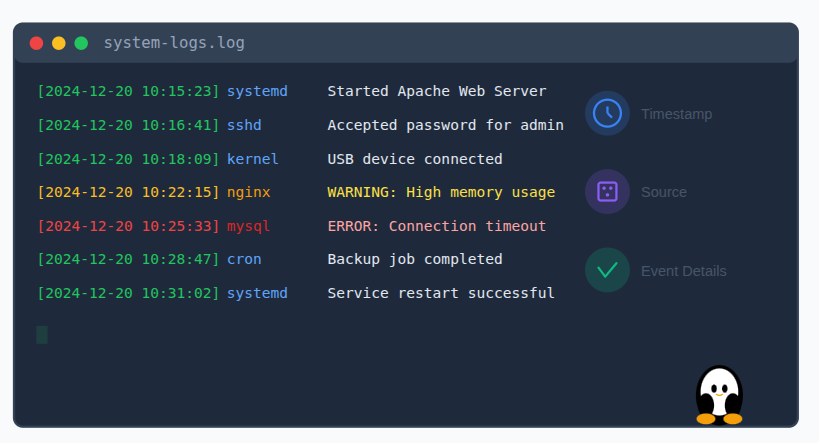
Linux logs are files that record activities and events happening on a system. These events include system startups, service actions, login attempts, application errors, and hardware-related messages.
Each log entry usually contains:
- Date and time: Shows exactly when the event occurred, helping you track issues in the correct sequence.
- Source of the event: Identifies which system component, service, or application generated the log entry.
- Description of what happened: Provides details about the action, warning, or error recorded by the system.
By reviewing these records, administrators can understand how the system behaves over time and respond quickly when something goes wrong. Logs act as a continuous activity record that helps diagnose issues and maintain system reliability.
Why Monitoring Linux Logs Is Important
Monitoring Linux logs is essential for maintaining a healthy server environment. Logs provide visibility into issues that may not be immediately noticeable.
Regular log monitoring helps you:
- Identify system issues before they grow: Helps catch small problems early before they turn into major system failures.
- Detect security threats early: Allows you to spot suspicious activity and prevent unauthorized access in time.
- Troubleshoot errors efficiently: Makes it easier to find the root cause of issues and fix them quickly.
- Ensure services and applications run smoothly: Helps confirm that all critical services are running as expected without interruptions.
Without log monitoring, problems may remain hidden until they cause downtime or data loss. Regular checks provide visibility into system health and stability.
Where Linux Logs Are Stored
Most Linux distributions store logs in the /var/log directory. This directory contains multiple log files, each serving a specific purpose.
Some logs are plain text files, while others are managed by system services like systemd. Knowing where logs are stored makes it easier to locate the information you need.
Essential Linux Logs You Should Monitor
Not all logs require constant attention. Focus on these essential categories:
- System logs: Record overall system activity, including startups, shutdowns, and general errors.
- Authentication logs: Track user login attempts and access-related events for security monitoring.
- Kernel logs: Provide details about core system operations, hardware interactions, and critical errors.
- Application logs: Capture errors and activity generated by individual applications and software services.
- Service logs: Show the status and behavior of background services running on the system.
Together, these logs provide a complete overview of system activity and health.
System Logs Explained
System logs record general system activity and are often the first place to check during troubleshooting.
Common system log files include:
- /var/log/syslog
- /var/log/messages
They contain information about:
- System startups and shutdowns: Record when the system boots up or powers down, including any related issues.
- Service status changes: Show when services start, stop, restart, or fail during operation.
- Background task errors: Capture errors from scheduled or automated tasks running in the background.
Regular review of system logs helps you spot recurring issues and performance concerns.
Authentication Logs and Security Monitoring
Authentication logs track login-related activity and user access, making them critical for security monitoring.
Common authentication log files include:
- /var/log/auth.log
- /var/log/secure
These logs record:
- Successful and failed login attempts: Show which login attempts worked and which were denied.
- SSH access activity: Records remote access attempts made through SSH connections.
- Password and authentication errors: Capture issues related to incorrect credentials or authentication failures.
Monitoring authentication logs is essential for identifying unauthorized access attempts and maintaining system security.
Kernel Logs and Hardware Issues
Kernel logs provide insight into the core operations of the Linux system. They reveal how the system interacts with hardware and critical resources.
Kernel logs report:
- Hardware detection: Shows when the system detects and initializes connected hardware components.
- Driver issues: Records problems related to device drivers not loading or functioning correctly.
- Memory warnings: Alerts you to potential issues with system memory usage or allocation.
- Disk and filesystem errors: Capture problems related to storage devices and file system integrity.
Kernel logs can be viewed in:
- /var/log/kern.log
- Output of the dmesg command
These logs are especially useful when troubleshooting system crashes or hardware-related problems.
Application Logs and Their Role
Applications generate their own logs to record errors, warnings, and activity.
Common examples include:
- Web server logs: Record incoming requests, responses, and errors handled by the web server.
- Database logs: Capture database activity, queries, errors, and performance-related events.
- Custom application logs: Store application-specific events, errors, and operational messages.
These logs are often located in subdirectories under /var/log. Reviewing application logs helps diagnose performance issues, configuration errors, and failed requests.
Service Logs for Background Processes
Services run continuously in the background and play a major role in system functionality.
Service logs help identify:
- Failed service startups: Show when a service is unable to start due to configuration or dependency issues.
- Unexpected crashes: Record services that stop suddenly during normal operation.
- Restart loops: Indicate services that repeatedly restart after failing to run properly.
Monitoring service logs ensures critical services remain operational and stable.
Basic Commands to View Linux Logs
Linux provides simple commands for viewing logs:
- cat: Displays the entire file
- less: Allows scrolling through large files
- tail: Shows the latest entries
- head: Displays the first lines
Example:
tail -n 50 /var/log/syslogThis command shows the most recent log entries, which are often the most relevant.
Using journalctl on Modern Linux Systems
Modern Linux distributions use systemd to manage logs.
The journalctl command allows you to:
- View system logs: Displays detailed system activity and events managed by systemd.
- Filter logs by service or time: Allows you to narrow down logs for specific services or time ranges.
- Check logs from previous boots: Helps review system events from earlier restarts or crashes.
Example:
journalctl -xeThis command displays detailed logs, making it easier to locate errors and warnings.
Monitoring Logs in Real Time
Real-time log monitoring allows you to see events as they happen.
Use:
tail -f /var/log/syslogThis is useful when testing configuration changes or restarting services, as it provides immediate feedback.
Common Log Errors and Warnings
While reviewing logs, watch for:
- Repeated error messages: Indicate ongoing issues that require immediate investigation.
- Permission denied warnings: Show access-related problems caused by incorrect permissions or ownership.
- Disk space alerts: Warn when storage usage is nearing critical limits.
- Service failure messages: Report services that failed to start or stopped unexpectedly.
- Authentication failures: Highlight failed login attempts and potential security risks.
Repeated or frequent messages usually indicate an underlying issue that requires attention.

Challenges of Manual Linux Log Monitoring
While command-line log monitoring is effective, it can become difficult as servers, applications, and services increase.
Common challenges include:
- Logs spread across multiple directories: Makes it harder to locate and review relevant log files.
- Difficulty tracking recurring issues: Repeated problems can be missed without centralized visibility.
- Time-consuming manual checks: Requires frequent command-line access and constant monitoring.
- Higher risk of missing critical errors: Important warnings may go unnoticed during manual reviews.
This is where a centralized server management platform becomes valuable.
How ServerAvatar Simplifies Linux Log Monitoring
What is ServerAvatar?
ServerAvatar is a modern platform to simplify the hosting and management of servers and applications, and Linux server monitoring, including log management.
It simplifies the process of deploying and managing PHP and Node.js based web applications on servers. Instead of manually accessing log files and running commands, ServerAvatar provides a centralized dashboard where you can monitor critical server activities with ease. This approach reduces complexity while maintaining full visibility into system health.
Centralized Log Access with ServerAvatar
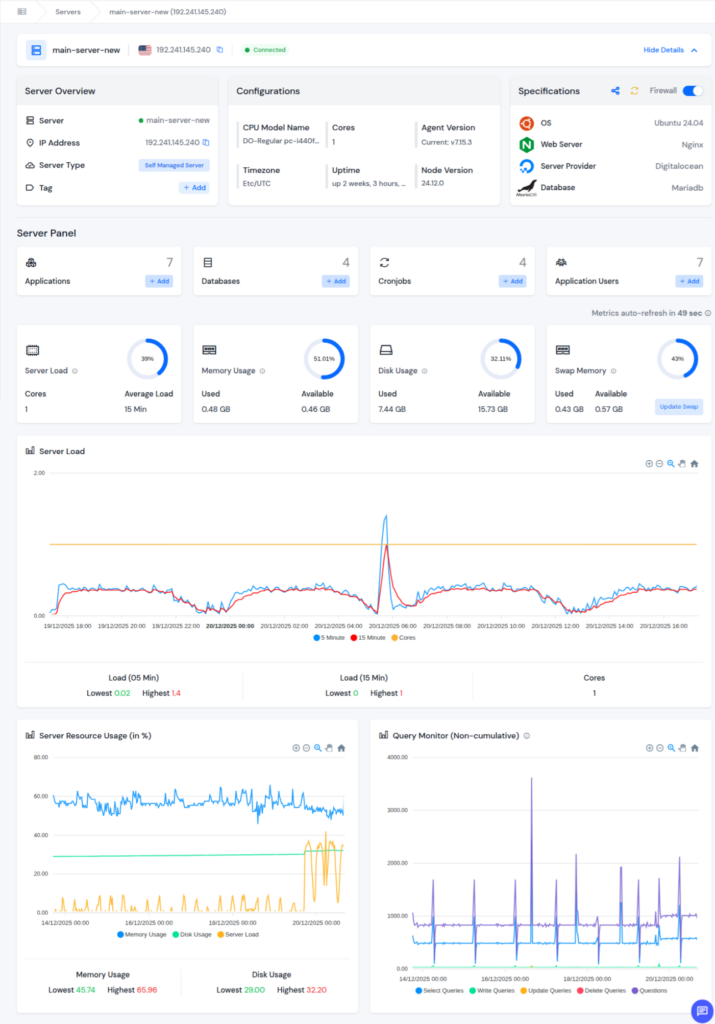
One of the key benefits of ServerAvatar is centralized log visibility.
With ServerAvatar, you can:
- Access essential system and service logs from a single dashboard: View all important logs in one centralized dashboard without switching between directories or servers.
- Identify errors and warnings faster: Quickly spot critical issues as they appear, helping you respond without delays.
- Reduce time spent navigating log directories: Eliminates the need to manually search through multiple log locations on the server.
Centralized access ensures important log entries are not overlooked, especially in busy or multi-server environments.
Real-Time Log Monitoring Without Command-Line Dependency
ServerAvatar allows users to monitor server activity without staying connected to the command line.
Benefits include:
- Faster troubleshooting: Helps locate and resolve issues quickly without manual log searching.
- Reduced reliance on SSH access: Minimizes the need to log into servers repeatedly through the command line.
- Clear visibility during deployments and service restarts: Allows you to monitor log activity in real time while changes are applied.
This makes ServerAvatar suitable for both experienced administrators and users who prefer a more visual server management approach.
Unlock ServerAvatar Log Monitoring Suite for Advanced Insights
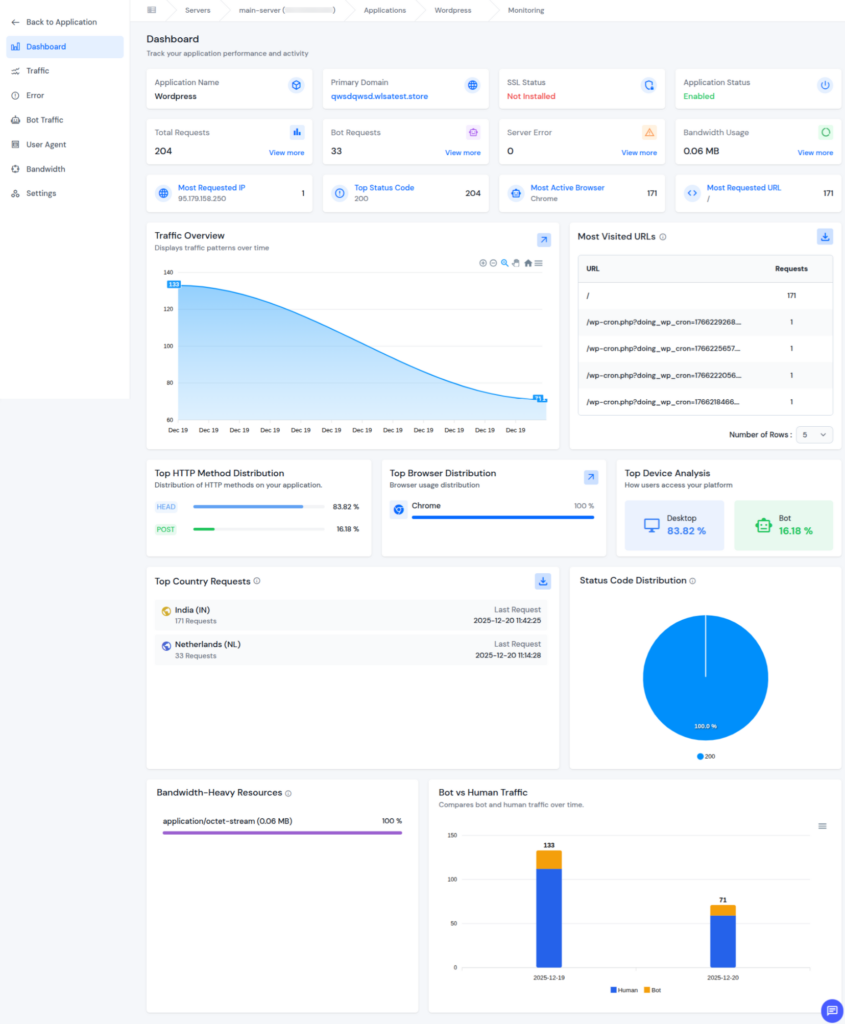
For users who need deeper visibility beyond basic log monitoring, ServerAvatar’s Log Monitoring Suite offers advanced analytics that help you monitor, analyze, and optimize application performance from a single dashboard.
Note: The Log Monitoring Suite is available for users on Tier 3 and Tier 4 plans. Make sure your plan includes this feature to access advanced log analytics.
What You Get with ServerAvatar Log Monitoring Suite
View real-time traffic, error counts, and bandwidth usage in a single, easy-to-understand dashboard.
- Traffic Monitoring: Track live requests, accessed URLs, and client IPs to understand how users interact with your application.
- Bot Detection: Identify and flag suspicious or automated activity that may impact performance or security.
- Error Tracking: Instantly detect application errors and analyze their source to reduce downtime and improve stability.
- Bandwidth Monitoring: Monitor bandwidth consumption to manage resource usage and prevent unexpected overages.
- User-Agent Insights: Identify browsers, devices, and platforms used by visitors to better understand user behavior.
Best Practices for Linux Log Monitoring
Follow these best practices:
- Monitor logs regularly: Ensures issues are identified early before causing system disruption.
- Focus on critical log files: Helps prioritize the most important information without unnecessary noise.
- Rotate logs to prevent disk usage issues: Prevents logs from consuming excessive storage space.
- Keep records of recurring problems: Makes it easier to recognize patterns and recurring system issues.
- Address root causes instead of temporary fixes: Ensures long-term stability rather than short-term solutions.
Consistent monitoring improves reliability and reduces unexpected failures.
The ServerAvatar Log Monitoring Suite transforms raw log data into meaningful insights. Instead of manually reviewing log files, you gain a visual, structured view of application behavior, making it easier to:
- Detect issues early
- Optimize application performance
- Improve security awareness
- Make informed decisions using real-time data
For growing applications and production environments, this advanced log monitoring capability ensures you stay in control at all times.
Conclusion
Monitoring Linux logs is a critical part of maintaining system health, performance, and security. Logs provide clear visibility into what is happening on your server, helping you detect issues early, understand system behavior, and resolve problems before they impact users or applications.
While traditional command-line tools are effective, they can become difficult to manage as servers, applications, and services grow. This is where ServerAvatar adds real value. By offering centralized log access, real-time visibility, and advanced analytics through the Log Monitoring Suite, ServerAvatar simplifies Linux log monitoring without compromising control or insight.
Whether you manage a single server or multiple production environments, combining Linux log monitoring best practices with ServerAvatar ensures a more stable, secure, and efficient server infrastructure.
FAQs
1. Which Linux logs are most important to monitor for system health?
System logs, authentication logs, kernel logs, application logs, and service logs are the most important for understanding overall system health and performance.
2. How often should Linux logs be monitored?
Logs should be reviewed regularly, depending on the server’s usage. Production servers benefit from daily monitoring, while smaller setups can be checked weekly.
3. Can Linux log monitoring help improve server security?
Yes, monitoring authentication and system logs helps detect unauthorized access attempts, suspicious behavior, and security-related issues early.
4. Is manual log monitoring enough for production servers?
Manual monitoring works for smaller setups, but as servers grow, centralized tools like ServerAvatar make monitoring faster, more reliable, and less error-prone.
5. Who can use ServerAvatar’s Log Monitoring Suite?
The Log Monitoring Suite is available to Tier 3 and Tier 4 ServerAvatar users and provides advanced analytics such as traffic insights, error tracking, and bot detection.