

If you have ever opened a file in Vi or Vim and wanted to remove all text in a file using Vi/Vim quickly, you are in the right place. Many users find Vi/Vim confusing at first, mainly because it works differently from common text editors. However, once you understand a few basic commands, tasks like clearing a file become very simple and fast.
This guide explains how to remove all text in a file using Vi/Vim in an easy way. It avoid unnecessary complexity. By the end of this article, you will know multiple safe and reliable ways to clear file content in Vi or Vim.
What Is Vi/Vim?
Vi and Vim are terminal-based text editors commonly available on Linux and Unix-based systems. Vi is the original editor, while Vim stands for “Vi Improved.” Vim includes additional features, but both editors share the same core commands.
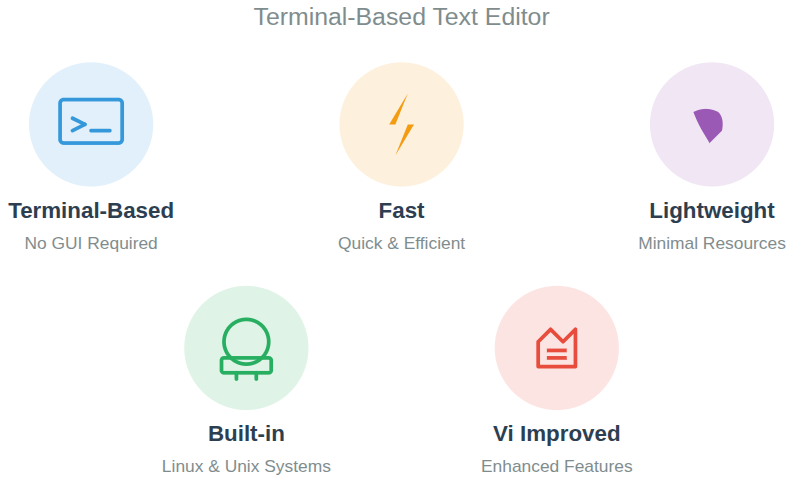
They are widely used because they are fast, lightweight, and do not require a graphical interface.
Why People Use Vi/Vim?
Many people choose Vi/Vim because it offers full control over text editing with simple keyboard commands. It runs directly in the terminal, which makes it lightweight and reliable, especially on systems where graphical editors are not available. Since Vi/Vim is installed by default on most Unix and Linux systems, users can edit files instantly without installing extra software.
Another reason for its popularity is speed and efficiency. Once the basic commands are learned, tasks like editing, deleting, and navigating through files can be done very quickly. Vi/Vim also handles large files smoothly and remains responsive, making it a practical choice for users who work with system files or frequently edit text-based content.
Why You May Need to Remove All Text in a File
Removing all text from a file is often required when the existing content is no longer useful or needs to be completely replaced. Vi/Vim makes this process quick by allowing you to clear the file without deleting or recreating it, which helps preserve the file structure and permissions.
- Resetting a configuration file: Clears all previous settings so new configurations can be added from scratch.
- Cleaning temporary data: Removes stored data that is no longer needed or relevant.
- Preparing a file for new content: Creates a clean file ready for fresh information.
- Removing incorrect or outdated entries: Eliminates content that is no longer accurate or required.
Instead of deleting the file and recreating it, Vi/Vim allows you to remove all content while keeping the file intact.
Vi vs Vim: Command Difference
When it comes to removing all text from a file, Vi and Vim behave the same way. The commands used for deleting content work identically in both editors.
| Aspect | Vi | Vim |
| Basic commands | Uses standard editing commands | Uses the same standard commands |
| Delete all text (: %d) | Supported | Supported |
| Undo command (u) | Limited undo functionality | Multiple-level undo support |
| Command compatibility | Original command set | Fully compatible with Vi commands |
| Advanced commands | Not available | Available |
| Customization options | Very limited | Highly customizable |
| Syntax highlighting | Not supported | Supported |
| Editing features | Basic text editing only | Enhanced editing capabilities |
| User experience | Minimal and simple | More user-friendly and flexible |
| Use case | Basic file editing tasks | Advanced and frequent text editing |
Understanding Vi/Vim Modes
Vi/Vim uses different modes to separate text editing from command execution. Knowing which mode you are in is essential because most actions, including deleting content, only work in a specific mode.
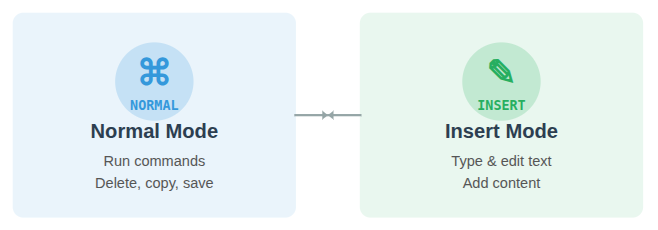
Main modes you should know:
- Normal Mode: Allows you to run commands such as deleting, copying, or saving text.
- Insert Mode: Used for typing and editing text inside the file.
Most delete operations work only in Normal Mode.
Important: Press Esc at any time to return to Normal Mode before running commands.
Opening a File in Vi or Vim
To open a file, use one of the following commands:
vi filename.txtThis opens an existing file or creates a new file named ‘filename.txt‘ using the Vi text editor in the terminal.
or
vim filename.txtThis opens an existing file or creates a new file named ‘filename.txt‘ using Vim, which offers more features and improved editing compared to Vi.
The Quickest Command to Remove All Text
The :%d command is the fastest and simplest way to remove all text from a file in Vi or Vim. It works in Normal Mode and clears the entire file in a single step without affecting the file itself.
:%dWhat this command does:
- % selects all lines in the file: Targets every line from the beginning to the end of the file.
- d deletes the selected lines: Removes all selected lines, leaving the file completely empty.
This removes every line from the file instantly.
Removing All Text Using Visual Mode
Visual Mode allows you to manually select content before deleting it, which can feel more controlled for users who want to see what is being removed. This method is useful when you prefer confirming the selection before clearing the file.
Steps to use Visual Mode:
- Press Esc to enter Normal Mode: Ensures the editor is ready to accept commands.
- Type gg to move to the first line: Positions the cursor at the beginning of the file.
- Press V to start line selection: Activates Visual Line Mode to select full lines.
- Press G to select all lines: Extends the selection from the first line to the last.
- Press d to delete them: Removes all selected lines and clears the file content.
This method gives visual confirmation of what is being removed.
Clearing a File Without Deleting It
Vi/Vim allows you to remove all content from a file while keeping the file itself unchanged. This means the file name, location, and access settings remain the same, and only the text inside the file is cleared.
This is useful when:
- The file must continue to exist: Ensures the file remains available for future use.
- File permissions should remain the same: Keeps existing access and ownership settings unchanged.
- The filename is required by another process: Allows dependent processes to continue referencing the same file.
Difference Between Deleting Lines and Text
In Vi/Vim, all content is structured as lines, which affects how deletion commands work. Understanding this difference helps you choose the correct command when clearing a file.
- Text is organized into lines: Every file is treated as a collection of separate lines.
- Deleting lines removes complete rows: Entire lines are removed at once.
- Deleting text may remove characters or sections: Only specific parts of a line are deleted.
- Using :%d deletes all lines: Removes every line, which results in an empty file.
How to Undo Mistakes After Deleting Everything
Vi/Vim makes it easy to recover from accidental deletions using its built-in undo feature. Even if all content is removed at once, the previous state of the file can be restored immediately.
Undo command:
uReverts the most recent change made in the file. Press u repeatedly, step back through multiple previous edits in order.
Saving an Empty File in Vi/Vim Properly
After clearing all text, saving the file correctly ensures the changes are preserved. Vi/Vim provides simple commands to save the file with or without exiting the editor.
Save and exit:
:wq- :wq – Saves the empty file and exits the editor.
Save without exiting:
:w- :w – Saves the empty file without closing the editor.
The file will now be saved with no content.
Exiting Without Saving Changes
If you clear file and decide not to keep changes, Vi/Vim allows you to exit the file without saving it. This prevents accidental overwriting of existing content.
If you decide not to keep the changes:
:q!This exits the editor and discards all edits made during the session.
Common Errors When Clearing a File
Many issues occur when users are unfamiliar with how Vi/Vim modes work. These mistakes can lead to confusion or unintended changes if not handled carefully.
- Running commands in Insert Mode: Commands do not work correctly outside Normal Mode.
- Forgetting to press Esc: Keeps the editor in typing mode instead of command mode.
- Accidentally saving unwanted changes: Stores changes that were not intended to be kept.
- Closing the terminal directly: Exits abruptly without properly handling the editor state.
Understanding modes helps prevent most of these problems.
When Should You Clear a File Completely?
Clearing a file is useful when existing content is no longer needed and a clean file is required. This approach avoids removing the file itself while resetting its contents.
- Starting fresh with a config file: Removes old settings to allow new ones.
- Clearing test data: Deletes temporary or trial content.
- Rewriting documentation: Prepares the file for updated information.
- Resetting logs: Clears accumulated entries while keeping the log file active.
It’s like erasing a whiteboard before a new lesson.
Best Practices While Editing Files
Following a few basic habits can reduce errors and make editing safer. These practices help maintain control while working with powerful commands.
- Confirm Normal Mode: Ensures commands run correctly.
- Review before saving: Prevents storing unwanted changes.
- Use undo freely: Allows safe experimentation while learning.
- Make small changes: Reduces the risk of large accidental edits.
These habits help avoid accidental data loss.

Tips to Feel Comfortable with Vim
Becoming confident with Vim takes time and regular use. A gradual learning approach helps build familiarity without feeling overwhelmed.
- Use Vim regularly: Builds familiarity through repetition.
- Learn a few commands at a time: Keeps learning manageable.
- Practice patiently: Allows commands to become natural over time.
- Keep a cheat sheet: Provides quick reference when needed.
Vim rewards patience. Once it clicks, it really clicks.
Command Summary for Quick Reference
- Delete all text – :%d
- Visual delete – gg → V → G → d
- Undo changes – u
- Save and exit – :wq
- Exit without saving – :q!
Conclusion
Removing all text from a file using Vi or Vim becomes straightforward once you understand a few essential commands and concepts. This guide walked through multiple safe methods, from using the quick :%d command to Visual Mode selection, while also explaining how to undo mistakes, save changes properly, and exit without saving when needed. By learning how modes work and following basic best practices, you can confidently clear file content in Vi/Vim without risking accidental data loss. With regular use, these commands become second nature and make file editing faster and more controlled.
FAQs
1. What is the easiest way to remove all text in a file using Vi/Vim?
The easiest and fastest way is to use the :%d command in Normal Mode, which deletes all lines at once.
2. Can I recover my content after deleting everything in Vi/Vim?
You can press u to undo the deletion and restore the previous content, as long as the file has not been closed.
3. Does removing all text delete the file itself?
Only the content inside the file is removed. The file name, location, and permissions remain unchanged.
4. What should I do if I accidentally delete content and save the file?
If the file is already saved and closed, recovery depends on backups or version control, as undo works only during the current session.
5. Is there any difference between Vi and Vim for deleting all text?
Both Vi and Vim use the same commands for removing all text, and the behavior is identical for this task.