

If your WordPress website feels slow, cluttered, or harder to manage than it should be, it may be time to remove unused WordPress plugins that are quietly weighing it down. Many site owners install plugins with good intentions, test features, add temporary tools, or try something new, and then forget about them. Over time, these unused plugins just sit there, doing nothing useful while increasing maintenance and security risks.
Think of your WordPress site like a closet. If it’s filled with clothes you never wear, finding what you actually need becomes frustrating. The same idea applies to plugins. Removing unused WordPress plugins is not just about cleaning up; it’s about keeping your site healthy, secure, and easy to manage.
In this guide, we’ll explore why removing unused WordPress plugins matters and how to remove them safely, step by step, without breaking your site or causing stress.
What Are WordPress Plugins?
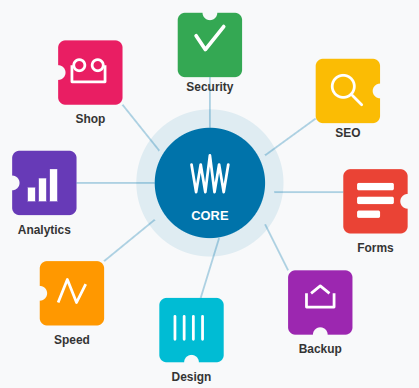
WordPress plugins are small add-ons that extend your website’s functionality. They can help with design, security, SEO, backups, forms, and much more. Plugins are powerful tools, but with great power comes responsibility.
Every plugin adds code to your site. Even when it’s not actively used, that code still exists in your WordPress environment.
What Does “Unused Plugin” Really Mean?
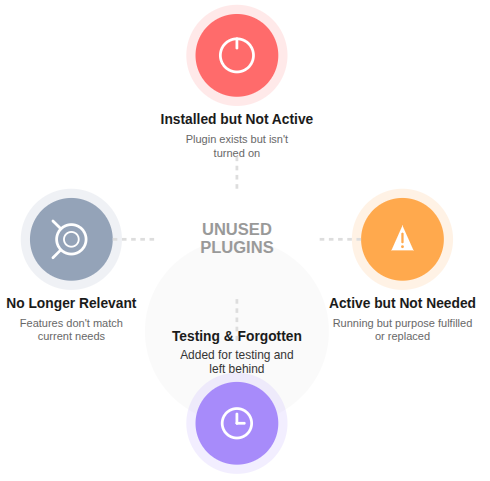
An unused plugin is any plugin that:
- Is installed but not active: The plugin exists in your WordPress setup but isn’t turned on, so it provides no functionality to your site.
- Is active but no longer needed: The plugin is running, but its purpose has already been fulfilled or replaced by another solution.
- Was added for testing and forgotten: The plugin was installed temporarily for experimentation and left behind after testing was completed.
- Has features that are no longer relevant: The plugin offers functions that no longer match your website’s current needs or strategy.
If a plugin is not contributing to your website’s current goals, it’s considered unused, even if it’s inactive.
Why Removing Unused WordPress Plugins Is Important
Removing unused WordPress plugins isn’t just a good habit, it’s a smart one.
Key reasons include:
- Better website performance: Fewer plugins reduce server load, helping your website load faster and run more smoothly.
- Reduced security risks: Removing unused plugins eliminates potential entry points that hackers could exploit.
- Easier updates and maintenance: With fewer plugins installed, managing updates and troubleshooting issues becomes simpler.
- Cleaner WordPress dashboard: A minimal plugin list keeps your dashboard organized and easier to navigate.
A lighter plugin setup means fewer things can go wrong.
How Unused Plugins Affect Website Performance
Even inactive plugins can slow things down in subtle ways. They take up space in your database and server storage. Some may leave behind data that adds unnecessary load.
Imagine trying to run while carrying a backpack full of items you don’t need. Your website feels the same way when overloaded with unused plugins.
Security Risks of Keeping Unused Plugins
Security is one of the biggest reasons to remove unused WordPress plugins.
Unused plugins:
- May not receive regular updates: Unused plugins are often ignored, which means security patches and fixes may never be applied.
- Can contain old code with known issues: Outdated plugins may run vulnerable code that has already been publicly exploited.
- Increase the attack surface of your website: Each unused plugin adds another potential point that attackers can target.
Hackers often look for weak spots, and outdated or unused plugins can become easy entry points.
Impact on Website Maintenance and Updates
When WordPress updates, active plugins must stay compatible. Having too many plugins,especially unused ones, makes updates harder and riskier.
Fewer plugins mean:
- Faster update checks: With fewer plugins installed, WordPress can check and apply updates more quickly.
- Fewer conflicts: Reducing the number of plugins lowers the chance of compatibility issues after updates.
- Easier troubleshooting: Identifying and fixing problems is simpler when fewer plugins are involved.
Managing your site becomes less stressful when everything has a clear purpose.
Signs It’s Time to Remove a Plugin
You should consider removing a plugin if:
- You don’t remember why it was installed: If its purpose is unclear, the plugin is likely no longer useful.
- Its feature is no longer needed: The plugin’s functionality no longer supports your current website goals.
- Another plugin already does the same job: Keeping duplicate functionality only adds unnecessary complexity.
- It hasn’t been updated in a long time: Plugins without recent updates may be incompatible or insecure.
If a plugin doesn’t earn its place, it’s time to let it go.
Things to Check Before Removing Any Plugin
Before you remove a plugin, pause and review.
Important checks include:
- Does your site depend on it for any feature?
– Make sure the plugin isn’t powering a critical function your site still relies on. - Will removing it affect design or functionality?
– Some plugins impact layout or behavior, so removal could change how your site looks or works. - Does it store important data?
– Certain plugins save data that could be lost if removed without a backup.
Taking a moment here can prevent unnecessary problems later.
How to Safely Remove Unused WordPress Plugins
Removing plugins safely is simple when done correctly.
Step-by-step approach:
- Identify unused plugins: Navigate to the Plugins >> Installed Plugins section, and review your plugin list and mark those that no longer serve a purpose.
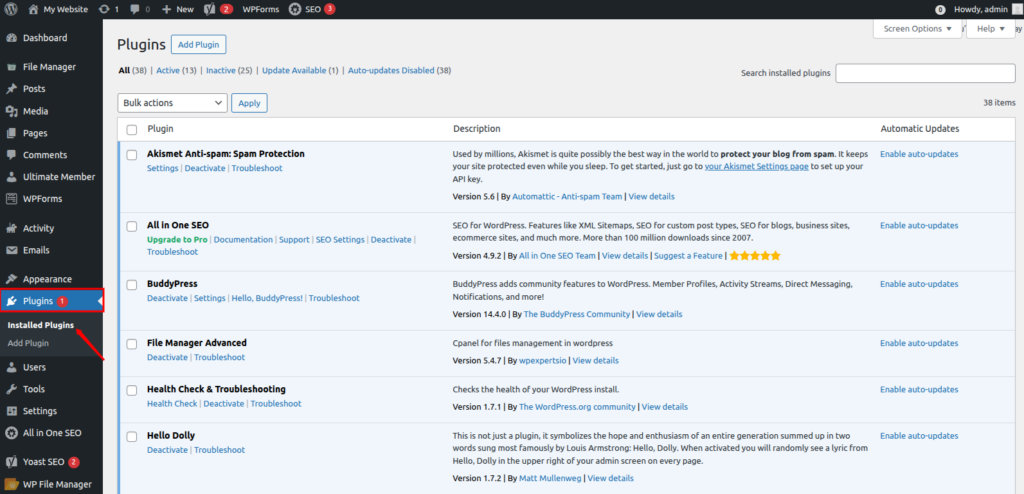
- Deactivate the plugin first: Turning the plugin off allows you to test your site without fully removing it.
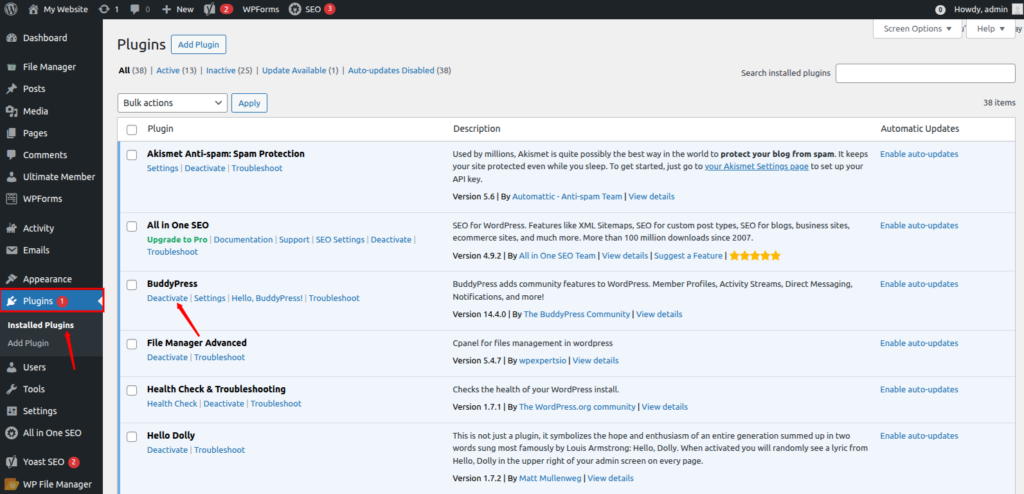
- Check your website for issues: Visit key pages to ensure everything still works as expected.
- Delete the plugin completely: Once confirmed safe, remove the plugin files to free resources.
This slow and careful method keeps your site stable.
Deactivate vs Delete: What’s the Difference?
Deactivation turns a plugin off but keeps its files.
Deletion removes it completely from your site.
Best practice:
- Deactivate first to test: This lets you confirm your site works without the plugin.
- Observe your site: Monitor functionality and appearance after deactivation.
- Delete after confirmation: Remove the plugin only when you’re sure it’s no longer needed.
This two-step process adds an extra layer of safety.

Best Practices for Plugin Management
Good plugin habits make a big difference.
Best practices include:
- Install only what you truly need: Every plugin should serve a clear and necessary purpose.
- Avoid overlapping features: Multiple plugins doing the same job increase complexity and conflict risk.
- Keep plugins updated: Regular updates help maintain security and compatibility.
- Review plugins regularly: Periodic checks ensure your plugin list stays relevant.
Think of plugins as tools, not collectibles.
Common Mistakes to Avoid When Removing Plugins
Avoid these common errors:
- Deleting plugins without checking dependencies: Some plugins rely on others to function properly.
- Removing multiple plugins at once: This makes it harder to identify the cause if something breaks.
- Ignoring leftover data: Some plugins leave behind tables or files that should be cleaned up.
- Forgetting to test the site afterward: Always verify your site works correctly after changes.
Slow and steady wins the race when cleaning up plugins.
Benefits of Keeping Only Essential Plugins
A minimal plugin setup leads to:
- Faster website speed: Fewer plugins reduce resource usage and loading time.
- Stronger security: A smaller plugin set means fewer potential vulnerabilities.
- Easier maintenance: Managing updates and fixes becomes simpler.
- Better user experience: A smooth, stable site improves visitor satisfaction.
Your website will become very easy to manage and reliable.
How Often Should You Review Installed Plugins?
A regular review keeps your site healthy.
Recommended frequency:
- Every 3 to 6 months: Regular intervals help prevent plugin buildup.
- After major website changes: New features may make old plugins unnecessary.
- Before and after WordPress updates: Reviews reduce compatibility issues.
Routine checks prevent plugin overload.
Benefits of a Clean Plugin List
A tidy plugin list brings clear advantages:
- Faster loading times: A lean setup improves overall performance.
- Improved security: Fewer plugins reduce exposure to threats.
- Easier site management: Maintenance tasks become more straightforward.
- Better overall performance: Your site runs more efficiently with less clutter.
Your WordPress dashboard feels lighter and more organized.
Long-Term Impact of a Clean WordPress Setup
Over time, consistent plugin cleanup results in:
- Fewer technical issues: Reduced complexity lowers the chance of errors.
- Better scalability: A streamlined site is easier to grow and expand.
- Lower maintenance stress: Managing fewer plugins saves time and effort.
- Improved site confidence: A stable setup gives you more control and peace of mind.
Small habits create long-term stability
Removing unused WordPress plugins is like giving your website a fresh breath of air. It doesn’t require advanced skills, just attention and care. By keeping only what you need, your site stays faster, safer, and easier to manage.
A clean plugin setup isn’t about doing more, it’s about doing less, but better.
Conclusion
Unused WordPress plugins may not cause immediate problems, but over time they quietly affect your site’s speed, security, and ease of management. Plugins that are no longer needed add unnecessary code, increase maintenance effort, and can become weak points for security threats. Keeping them installed serves no real purpose and only makes your website harder to manage as it grows.
By reviewing and removing unused plugins regularly, you create a cleaner, faster, and more reliable WordPress setup. A minimal plugin list reduces conflicts, simplifies updates, and gives you better control over your site. In the long run, small cleanup habits like this help your website stay stable, secure, and ready for future improvements.
FAQs
1. Is it necessary to remove inactive WordPress plugins?
Yes, inactive plugins can still pose security and maintenance risks, so removing them is recommended.
2. Can removing plugins break my website?
If done carefully, by deactivating first and testing, plugin removal is safe.
3. Do deleted plugins leave data behind?
Some plugins may leave leftover data, which is why regular cleanup is helpful.
4. How many plugins should a WordPress site have?
There is no fixed number; quality and necessity matter more than quantity.
5. How does removing plugins improve site performance?
Fewer plugins reduce server load, database size, and potential conflicts, leading to better performance.
Stop Wasting Time on Servers. Start Building Instead.
You didn’t start your project to babysit servers. Let ServerAvatar handle deployment, monitoring, and backups — so you can focus on growth.
Deploy WordPress, Laravel, N8N, and more in minutes. No DevOps required. No command line. No stress.
Trusted by 10,000+ developers and growing.