

WordPress is powerful, flexible, and easy to use, which is exactly why it is widely targeted by automated attacks. Learning how to secure a WordPress site is essential, as security issues often arise not because WordPress is unsafe, but because critical protection steps are skipped or delayed. A secure website is not built overnight; it is the result of consistent actions, proper configuration, and regular maintenance.
This guide explains essential WordPress security tips in clear and simple language. Each step is practical, easy to understand, and focused on prevention. No technical background is required. The goal is to help you strengthen your WordPress site in a structured and reliable way.
What Is WordPress?
WordPress is the world’s most popular open-source content management system (CMS), used to build websites, blogs, and e-commerce stores. It offers flexibility through themes and plugins, making it suitable for beginners, developers, and businesses of all sizes.
How ServerAvatar Simplifies WordPress Deployment & Management
What is ServerAvatar?
ServerAvatar is a platform to simplify the hosting and management of servers and applications. It simplifies the process of deploying and managing PHP and Node.js based web applications on servers.
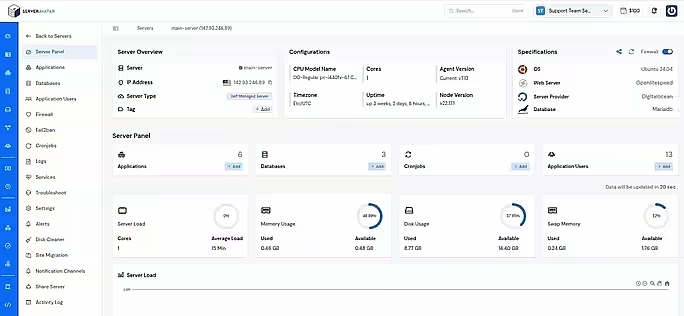
ServerAvatar makes WordPress and other popular applications, such as Mautic, N8N, UptimeKuma, etc, deployment effortless with its one-click WordPress application installer, allowing you to launch a fully configured WordPress site in minutes. It removes the complexity of server setup by providing an intuitive dashboard to manage servers, applications, databases, PHP versions, SSL, and performance settings from one place.
ServerAvatar supports multiple cloud providers and gives users full control over their infrastructure while eliminating the need for deep server administration knowledge. You can refer to the ServerAvatar documentation and the detailed blog to install WordPress effortlessly.
ServerAvatar does not directly provide WordPress Multisite, but our technical experts can help you set up a WordPress Multisite environment
The ServerAvatar support team is available 24/7 to assist you with any issues or questions you may have.
Key Benefits of Using ServerAvatar for WordPress
- One-click WordPress installer: Deploy WordPress instantly without manual configuration.
- Unified management panel: Manage servers and WordPress applications from a single dashboard.
- Performance optimization: Easily configure services, PHP, and server resources.
- Redis caching support: ServerAvatar comes with built-in Redis integration that helps speed up WordPress by storing frequently accessed data in memory.
- Enhanced security: Includes firewall, SSL management, and secure access controls.
- Easy scalability: Upgrade server resources as your WordPress site grows.
ServerAvatar is an ideal solution for users who want the power of cloud servers without the operational complexity. It simplifies WordPress hosting by automating server setup, streamlining application management, and providing performance and security optimizations out of the box.
Whether you’re a developer, agency, or business owner, ServerAvatar allows you to deploy, manage, and scale WordPress websites confidently while focusing on growth instead of infrastructure management.
Importance of WordPress Security
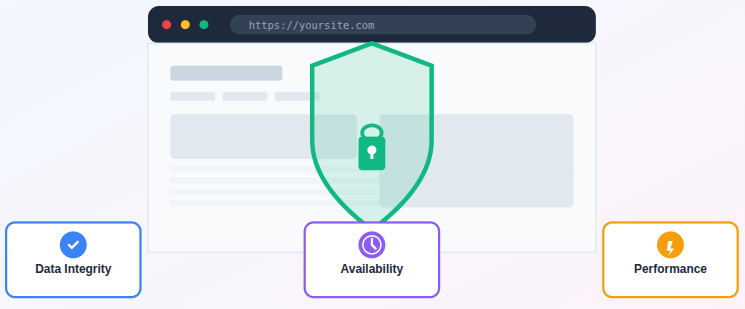
WordPress security focuses on reducing vulnerabilities that can be exploited by automated scripts or unauthorized users. A secure site ensures data integrity, consistent availability, and long-term performance. Ignoring security can lead to downtime, data loss, or access issues.
Why WordPress security matters?
Before applying any protection methods, it is important to understand why WordPress security matters in the first place. WordPress websites store sensitive information such as login credentials, user data, content files, and configuration settings. If security is weak, these elements can be accessed, modified, or disrupted without authorization.
Security is not only about preventing attacks, it is also about maintaining stability, performance, and trust. A secure WordPress site runs smoothly, avoids unexpected downtime, and ensures that only authorized users can make changes. Even small security gaps can grow into larger issues if left unattended.
Understanding the importance of WordPress security helps in making better decisions while configuring updates, access controls, plugins, and server settings. Once this foundation is clear, the protection methods discussed in the following sections become easier to apply and more effective.
Some Essential Protection Tips
Let’s check out the below-mentioned protection methods to safeguard your site and ensure stability and performance.
1. Keep WordPress Core Updated
Keeping the WordPress core updated is essential for maintaining site security and stability. Core updates often include fixes for known vulnerabilities and improvements to existing security mechanisms.
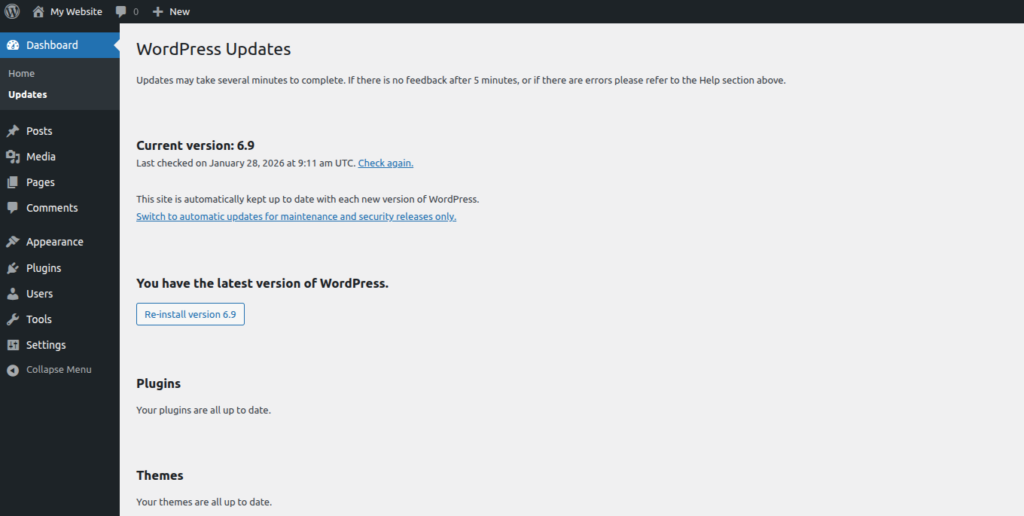
- Enable automatic updates where possible: Allows security patches to be applied without manual intervention.
- Update immediately after stable releases: Reduces exposure to publicly known security issues.
- Always verify compatibility: Ensures updates do not conflict with themes or plugins.
2. Use Updated and Trusted Themes
Themes control both visual layout and underlying functionality, which makes them a critical security component. Using outdated or unreliable themes can introduce exploitable weaknesses.
- Use themes from trusted sources: Ensures code quality and regular maintenance.
- Avoid unofficial or modified versions: Prevents hidden malicious code from being introduced.
- Update themes regularly: Keeps theme files aligned with current security standards.
3. Maintain Plugin Security
Plugins extend WordPress functionality but also increase the potential attack surface. Careful selection and maintenance of plugins are essential for security.
- Install only necessary plugins: Reduces unnecessary exposure to vulnerabilities.
- Keep plugins updated: Applies security patches and bug fixes promptly.
- Remove plugins with poor maintenance history: Eliminates risks from unsupported software.
4. Remove Unused Themes and Plugins
Inactive themes and plugins remain part of the file system and can still be targeted. Removing unused components helps minimize security risks.
- Delete unused plugins completely: Prevents inactive code from being exploited.
- Keep minimal themes installed: Limits unnecessary files and potential entry points.
- Reduce unnecessary files: Improves overall site security and cleanliness.
5. Choose a Secure Hosting Environment
The hosting environment plays a foundational role in WordPress security. Server-level protections help prevent many threats before they reach the application.
- Use servers with active monitoring: Detects suspicious activity at an early stage.
- Ensure isolation between accounts: Prevents cross-account security issues.
- Verify server-level security features: Confirms protection against common server threats.
With ServerAvatar, choosing a secure hosting environment is effortless. All servers are actively monitored, secured, and isolated to prevent cross-account interference. Users can deploy applications on trusted cloud providers, while ServerAvatar handles server hardening and security settings automatically. This ensures your WordPress site is hosted on a secure, high-performance server from the start.
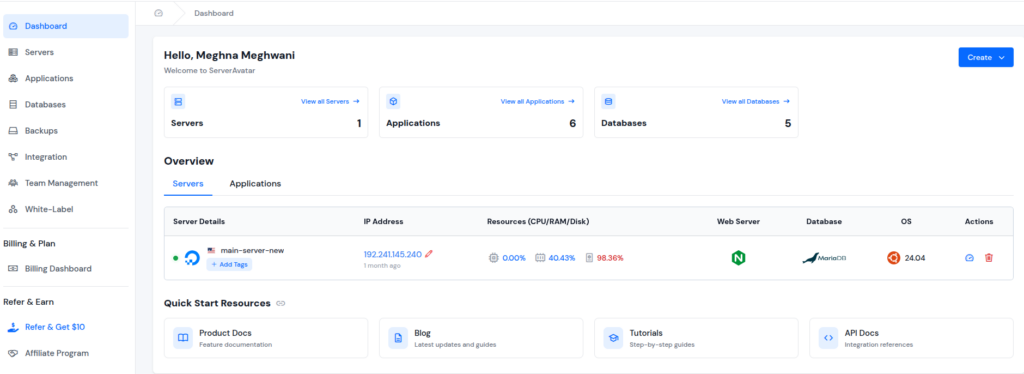
- Active server monitoring: ServerAvatar continuously checks server health and detects suspicious activity.
- Account isolation: Each servers and applications are securely separated to prevent vulnerabilities from affecting other accounts.
- Server-level security: Built-in firewall, SSH access controls, and pre-configured security settings protect your site.
6. Enable SSL and HTTPS
SSL encryption protects data exchanged between the site and users. HTTPS is a standard requirement for secure communication.
- Enable HTTPS across the site: Ensures all data transfers are encrypted.
- Redirect all traffic to HTTPS: Prevents unencrypted access points.
- Avoid mixed-content issues: Maintains consistent encryption across all resources.
ServerAvatar simplifies SSL installation and renewals, allowing you to enable HTTPS for your sites with just a few clicks. It provides automatic SSL with auto-renewals and custom SSL installation options, it can be issued automatically and renewed seamlessly, ensuring secure, encrypted connections without manual configuration.
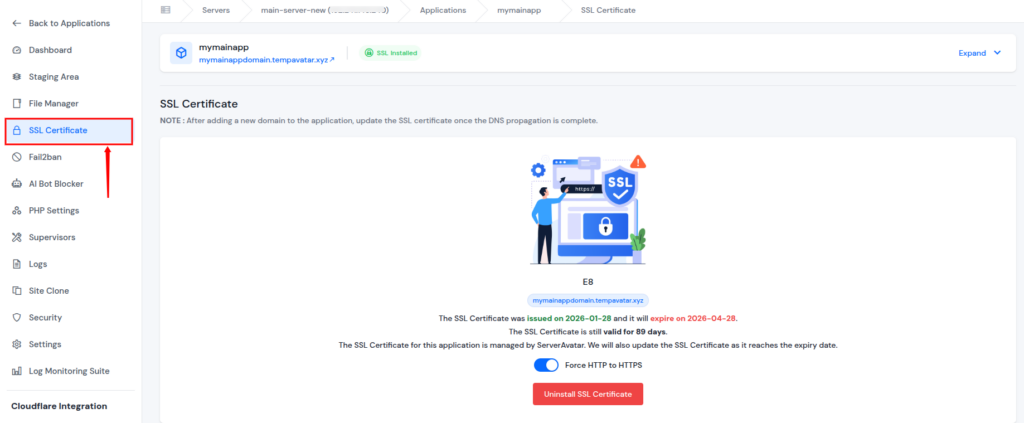
- One-click SSL installation: Apply automatic SSL certificates to your WordPress site instantly with auto-renewals.
- HTTPS redirection: Ensures all traffic is encrypted by default.
7. Use Strong Login Credentials
Login credentials are a primary target for automated attacks. Strong credentials reduce the likelihood of unauthorized access.
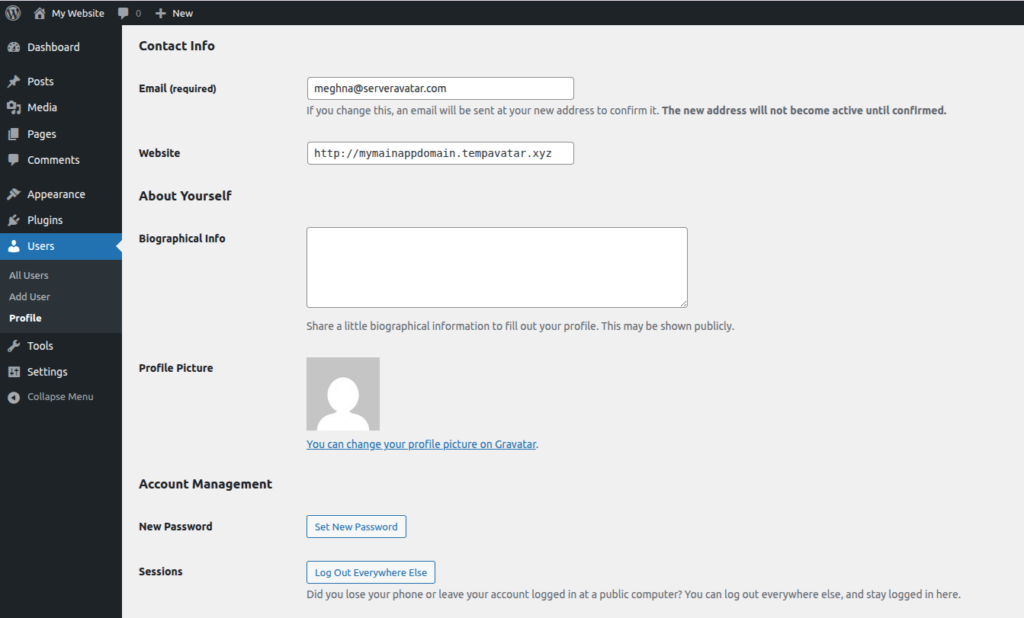
- Long passwords: Increase resistance to brute-force attempts.
- Unique combinations: Prevent reuse across multiple platforms.
- Regular updates: Limits risk from compromised credentials.
8. Avoid Default Admin Usernames
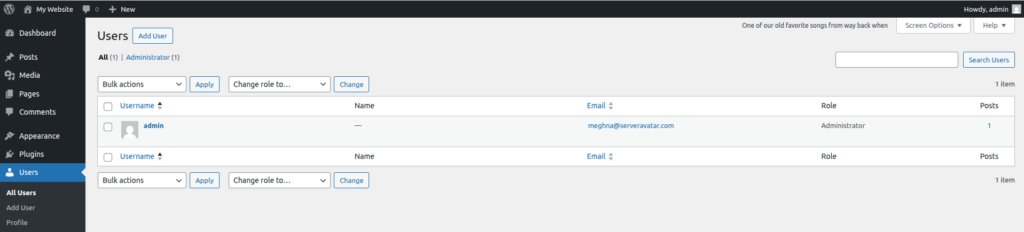
Default usernames are widely known and frequently targeted. Custom usernames add an extra layer of protection.
- Use custom admin usernames: Makes login attempts less predictable.
- Assign appropriate roles: Limits access based on user responsibility.
- Remove unnecessary admin accounts: Reduces high-level access points.
9. Limit Login Attempts
Unlimited login attempts allow repeated credential guessing. Limiting attempts helps stop automated attacks.
- Set login attempt limits: Restricts the number of failed attempts.
- Temporarily block repeated failures: Prevents continuous attack attempts.
- Log suspicious activity: Helps identify unauthorized access patterns.
10. Enable Two-Factor Authentication
Two-factor authentication adds an extra verification step beyond passwords. This significantly strengthens account security.
- Enable for all admin users: Protects accounts with elevated privileges.
- Use app-based authentication: Provides secure and time-based verification.
- Combine with strong passwords: Enhances overall login protection.
11. Use a Reliable Security Plugin
A well-maintained security plugin provides centralized protection features. Using one reliable plugin avoids conflicts and complexity.
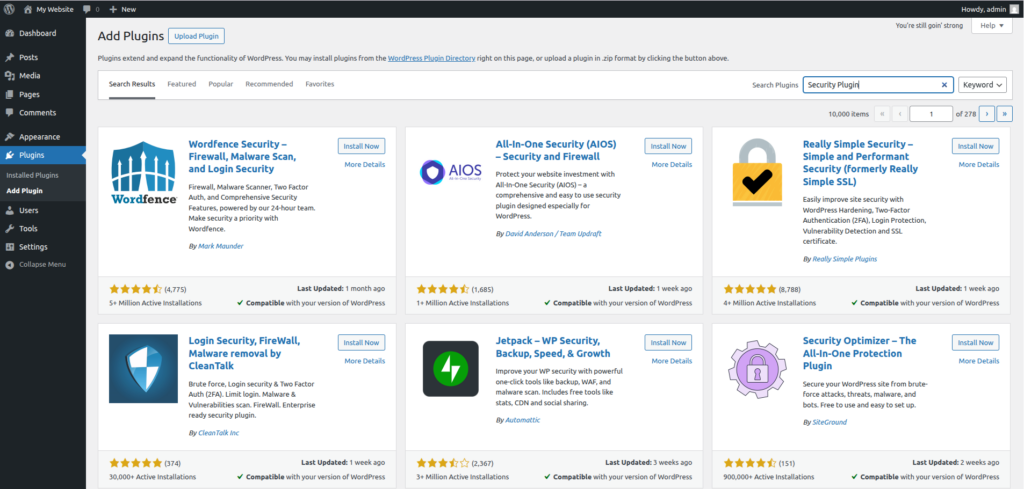
- Malware scanning: Detects malicious files and code changes.
- Login protection: Adds safeguards against unauthorized access.
- Firewall integration: Blocks harmful traffic before it reaches the site.
12. Secure wp-admin and wp-login
Administrative access points are common attack targets. Extra protection helps restrict unauthorized entry.
- Restrict access where possible: Limits access to trusted users or locations.
- Use CAPTCHA or verification: Reduces automated login attempts.
- Monitor login activity: Tracks access behavior for anomalies.
13. Set Correct File Permissions
File permissions control who can read, write, or modify files. Incorrect permissions can allow unauthorized changes.
- Follow recommended permission values: Ensures proper access control.
- Restrict write access: Prevents unauthorized file modifications.
- Review permissions regularly: Maintains secure configurations over time.
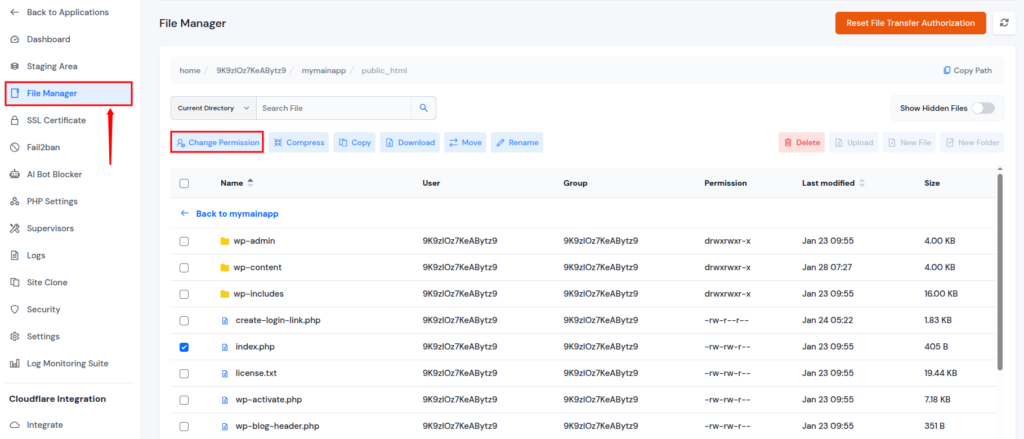
ServerAvatar helps maintain proper file permissions without requiring advanced server knowledge. Addiionally, you can manage file permissions by navigating to the File Manager directly from the dashboard, reducing the risk of unauthorized modifications or malicious code injections.
14. Disable File Editing
WordPress allows file editing through the dashboard by default. Disabling this feature limits potential misuse.
- Disable theme and plugin editing: Prevents direct code changes.
- Reduce risk of code injection: Blocks unauthorized script insertion.
- Improve overall control: Centralizes code management practices.
15. Schedule Regular Backups
Backups are essential for data recovery and continuity. Regular backups ensure minimal data loss during issues.
- Automate backup schedules: Ensures consistent data protection.
- Store backups securely: Prevents unauthorized access to backup files.
- Verify backup integrity: Confirms backups are usable when needed.
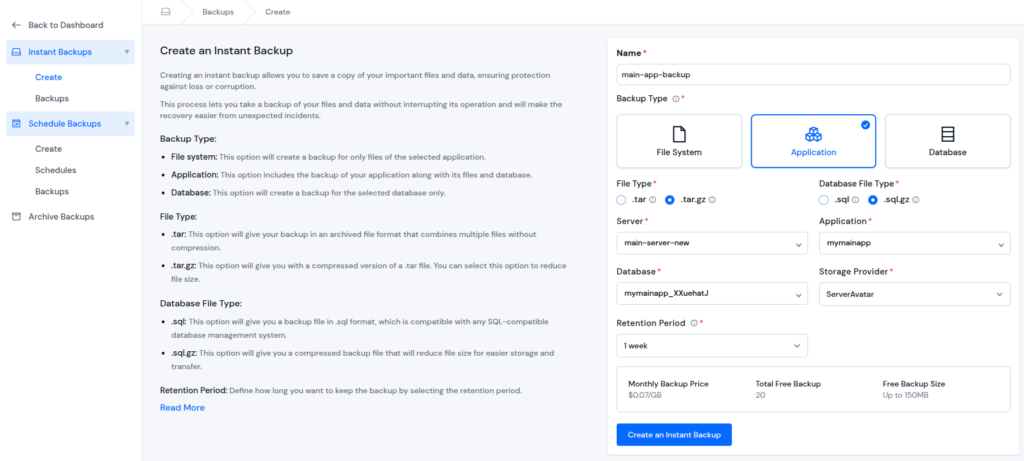
ServerAvatar makes a website’s backups simple and reliable. You can take an instant backup and schedule automated backups for your entire applications, including databases and website files, ensuring data can be restored quickly in case of any issues.
- Automated backups: Set up daily, weekly, or custom backup schedules.
- Secure storage: Store backups safely on your integrated storage or directly on ServerAvatar storage.
- Easy Restore: Easily restore backups with a one click.
16. Perform Malware Scans
Malware can remain hidden without detection. Regular scans help identify issues early.
- Run scheduled scans: Maintains continuous monitoring.
- Enable alert notifications: Provides immediate awareness of threats.
- Clean infected files promptly: Restores site integrity quickly.
17. Use a Web Application Firewall
A web application firewall filters traffic before it reaches WordPress. This helps prevent many common attacks.
- Block suspicious requests: Stops malicious traffic patterns.
- Reduce server load: Filters unnecessary requests efficiently.
- Prevent common exploits: Protects against known attack methods.
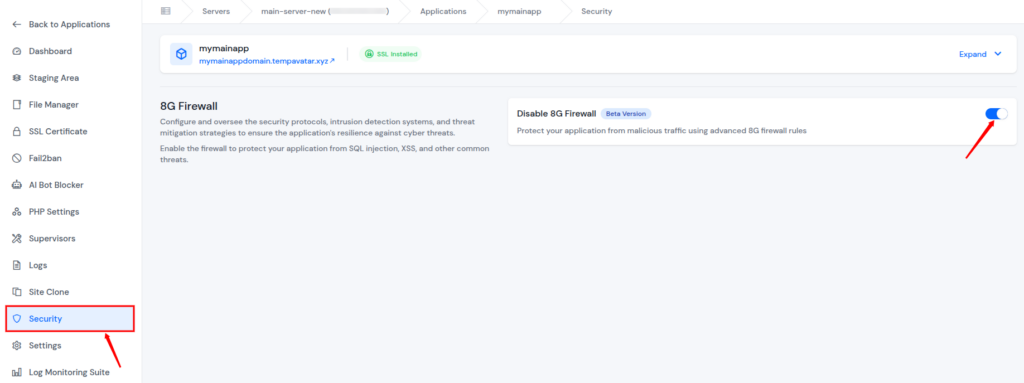
ServerAvatar provides built-in web application firewall to protect your sites from malicious traffic.
- Traffic filtering: Blocks suspicious requests and prevents attacks in real-time.
- Protection against common exploits: Shields WordPress from SQL injections, XSS, and other attacks.
18. Secure the WordPress Database
The database stores sensitive site information. Proper protection ensures data confidentiality and integrity.
- Use strong database passwords: Prevents unauthorized database access.
- Change default table prefixes: Reduces automated targeting.
- Limit database user permissions: Restricts access to necessary actions only.
19. Change the Default Login URL
Changing the login URL reduces exposure to automated attacks. It adds an extra layer of obscurity.
- Use a custom login path: Makes login pages harder to locate.
- Keep it private: Prevents unnecessary exposure.
- Combine with login protection: Strengthens overall access security.
20. Monitor User Activity
Monitoring user actions helps maintain accountability and control. It is especially important for multi-user sites.
- Log login and logout events: Tracks access behavior.
- Monitor changes to content: Identifies unauthorized modifications.
- Remove inactive users: Reduces unused access points.
21. Use Secure File Transfer Methods
File transfer methods affect how credentials and data are transmitted. Secure protocols protect sensitive information.
- Use SFTP or SSH: Encrypts file transfers securely.
- Disable plain FTP: Prevents unencrypted credential exposure.
- Restrict access permissions: Limits file system access.

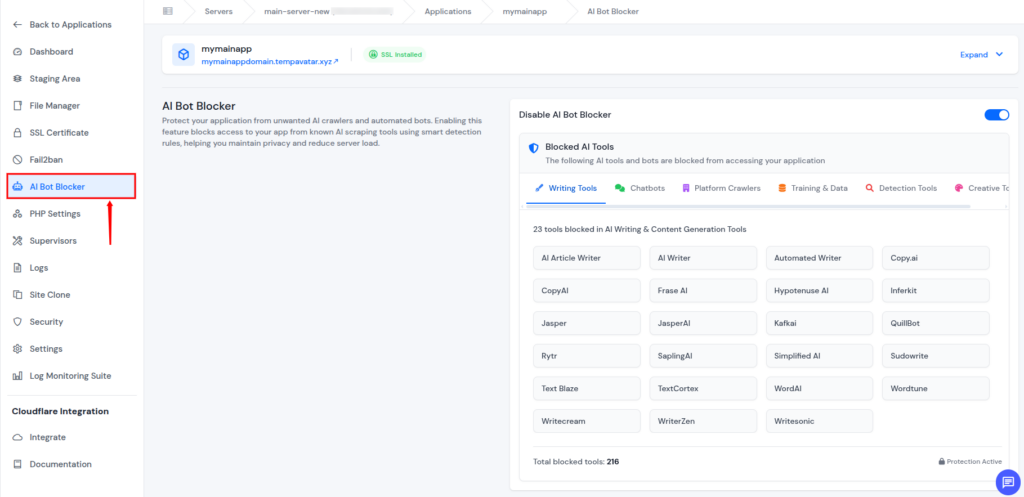
22. Prevent Spam and Bot Activity
Spam and bots can impact both performance and security. Proper controls help maintain site quality.
- Enable moderation: Filters unwanted submissions.
- Use anti-spam tools: Automatically detects spam behavior.
- Block repetitive requests: Reduces automated abuse.
ServerAvatar helps reduce spam and bot-related issues by enabling ai bot blocker. This keeps your site clean, responsive, and protected from bot attacks.
23. Enable Server Firewall Protection
A server firewall acts as a protective barrier between your WordPress site and malicious traffic. It filters incoming and outgoing connections based on security rules, preventing unauthorized access at the server level before requests reach WordPress.
ServerAvatar includes built-in firewall management that allows you to control server access easily from the dashboard without manual server configuration.
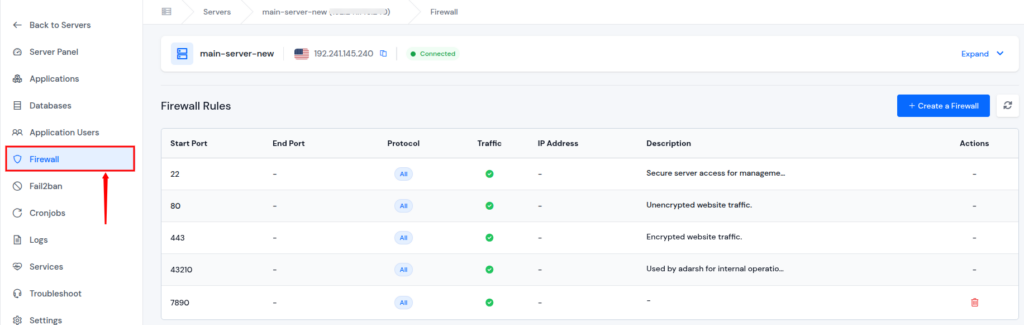
- Block unauthorized IP addresses and traffic
- Restrict access to sensitive server ports
- Prevent malicious requests before reaching WordPress
- Strengthen server-level security
24. Protect Against Brute-Force Attacks Using Fail2Ban
Fail2Ban is an intrusion prevention system that monitors server logs for suspicious behavior. It automatically blocks IP addresses that generate repeated failed login attempts, protecting WordPress and server services from brute-force attacks.
ServerAvatar provides built-in Fail2Ban support, allowing users to enable and manage protection easily from the dashboard.
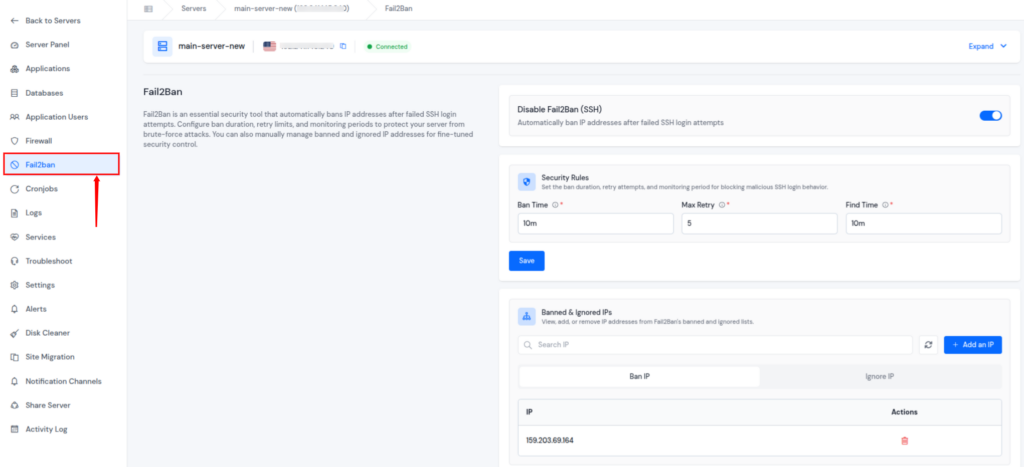
- Detect repeated failed login attempts
- Automatically ban malicious IP addresses
- Protect SSH and WordPress login endpoints
- Reduce automated and brute-force attacks
Maintaining a Strong WordPress Security Framework
Implementing multiple security measures is essential for creating a stable and controlled WordPress environment. Each protection step, whether related to updates, access restrictions, or monitoring, serves a specific purpose and strengthens the overall security structure of the site.
Security should be maintained through regular checks rather than applied once and forgotten. Configuration changes, plugin updates, and user management decisions all influence how secure the site remains over time. Reviewing these elements periodically helps prevent gaps from forming in the security setup.
By treating security as a continuous process, WordPress site management becomes more structured and manageable. Ongoing attention to protection settings helps preserve data integrity and ensures that the website remains secure as it evolves.
Conclusion
Securing your WordPress site is essential for protecting your data, maintaining performance, and ensuring peace of mind. By following the steps outlined in this guide and leveraging ServerAvatar’s features, such as one-click SSL, automated backups, file permission management, firewall protection, and AI bot blocking, you can simplify security management while keeping your site safe, reliable, and optimized, allowing you to focus on growing your website without worrying about vulnerabilities.
FAQs
1. Why is WordPress security important?
WordPress stores sensitive data like user information, login credentials, and site content. Strong security prevents unauthorized access, data loss, and downtime.
2. How does ServerAvatar help secure my WordPress site?
ServerAvatar provides one-click SSL, automated backups, file permission management, firewall, and AI bot blocker to protect your site from attacks.
3. Can I automate backups and updates using ServerAvatar?
ServerAvatar allows you to take instant backups and schedule automated backups for your applications, database, and file System.
4. Does ServerAvatar protect against spam and bot attacks?
ServerAvatar includes an AI bot blocker to prevent spam submissions and repetitive automated requests, keeping your site clean and responsive.
5. What should I do if I detect suspicious activity on my WordPress site?
Immediately review server and plugin logs, run malware scans, update credentials, and use ServerAvatar’s security tools to keep your sites secure. Regular monitoring helps prevent recurring issues.