

If WordPress were a house, then the wp-config.php file would be its control room. It’s not flashy, and most beginners never touch it, but behind the scenes, it quietly controls how your entire website behaves. If you want to configure wp-config.php, you’re essentially taking control of how your site connects, performs, and stays secure. Ever wondered how WordPress connects to your database? Or how developers boost performance and security without plugins? That’s where wp-config.php comes in.
The good news? You do not have to be a developer to understand this. With a little guidance, you can confidently configure this file and unlock more control over your website.
What is wp-config.php?
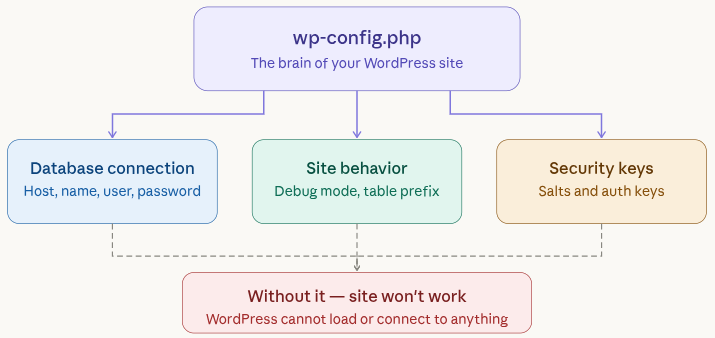
Think of wp-config.php as the brain of your WordPress site. It’s a configuration file that tells WordPress how to connect to your database and how your site should behave. Without it, your site simply wouldn’t work.
Why wp-config.php is Important
The wp-config.php file plays a critical role in how your WordPress site functions behind the scenes. It controls key settings that directly impact your site’s security, performance, and connection to the database. Understanding its importance helps you manage your website more effectively.
- Control database connections: This file stores the credentials your site uses to communicate with its database, ensuring everything loads correctly.
- Improve security: You can add extra protection layers like security keys and custom prefixes to reduce hacking risks.
- Enable debugging: It allows you to detect and fix errors quickly when something goes wrong.
- Optimize performance: You can fine-tune settings like memory limits to make your site run smoother.
In short, it gives you more power without installing extra plugins.
Where to Find wp-config.php
You’ll usually find the wp-config.php file in your root directory, the same place where folders like wp-content and wp-admin are located.
How to Edit wp-config.php File
Before making any changes, you need to know how to access the wp-config.php file. There are two ways to do this, but the easiest and most beginner-friendly method is using a File Manager.
1. Using File Manager (via ServerAvatar panel)
If you’re managing your server with ServerAvatar, editing your WordPress files becomes much simpler and faster.
What is ServerAvatar?
ServerAvatar is a platform designed to simplify the hosting and management of servers and applications. It makes it easy to deploy and manage PHP and Node.js-based web applications without dealing with complex server configurations.
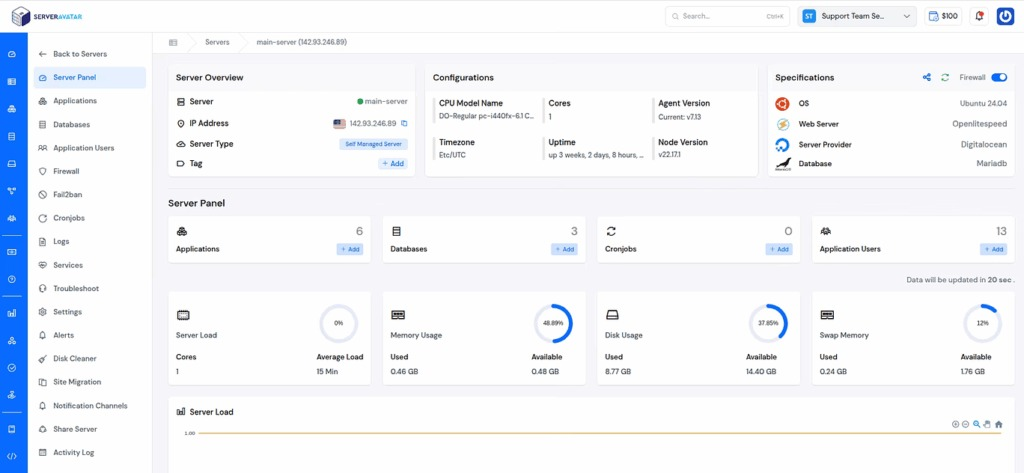
Instead of using external tools, ServerAvatar provides a built-in File Manager that allows you to access and edit your website files directly from your browser.
Steps to Edit wp-config.php Using ServerAvatar
Follow these simple steps:
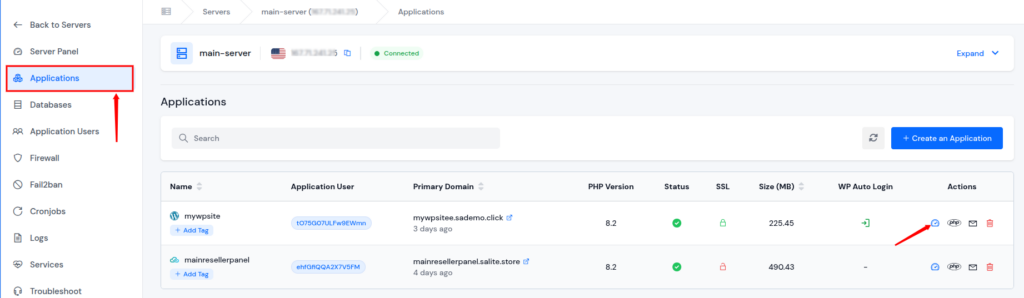
- Log in to your ServerAvatar account, and navigate to the server panel by clicking on the server dashboard icon.
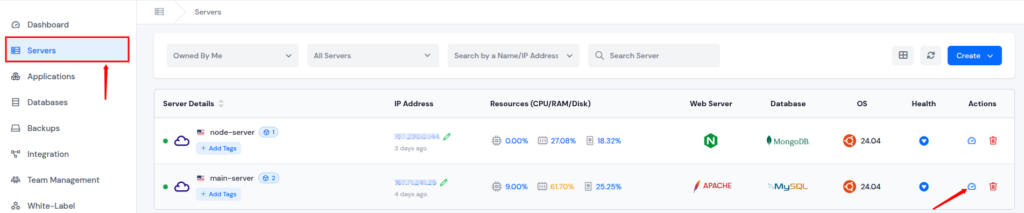
- Navigate to the Applications section from the left sidebar, and click on the application dashboard icon of your wordpress application.
- Navigate to the File Manager section from the left sidebar
- Once inside, navigate to the root directory (usually public_html)
- Locate the file named wp-config.php
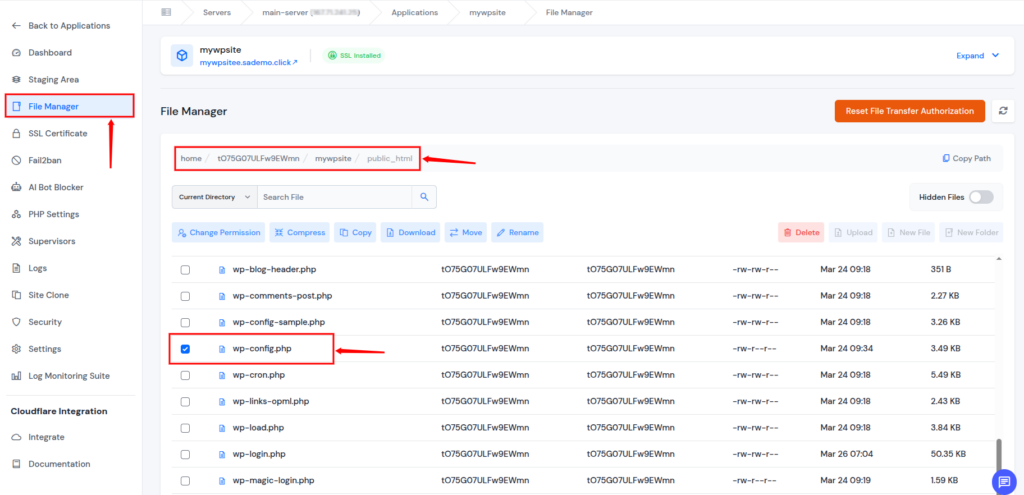
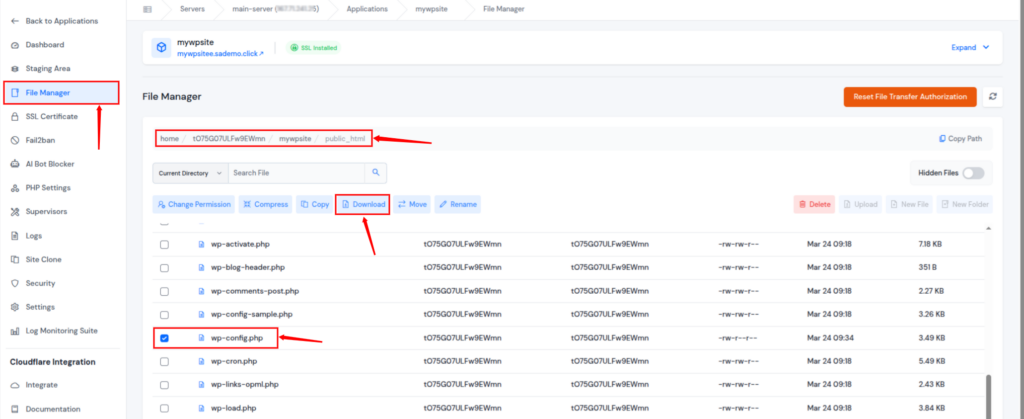
Note: Before editing or making any changes, always download as a backup of your wp-config.php file as even a small mistake can break your website.
- Select the file and click on the Download button to download the wp-config.php file.
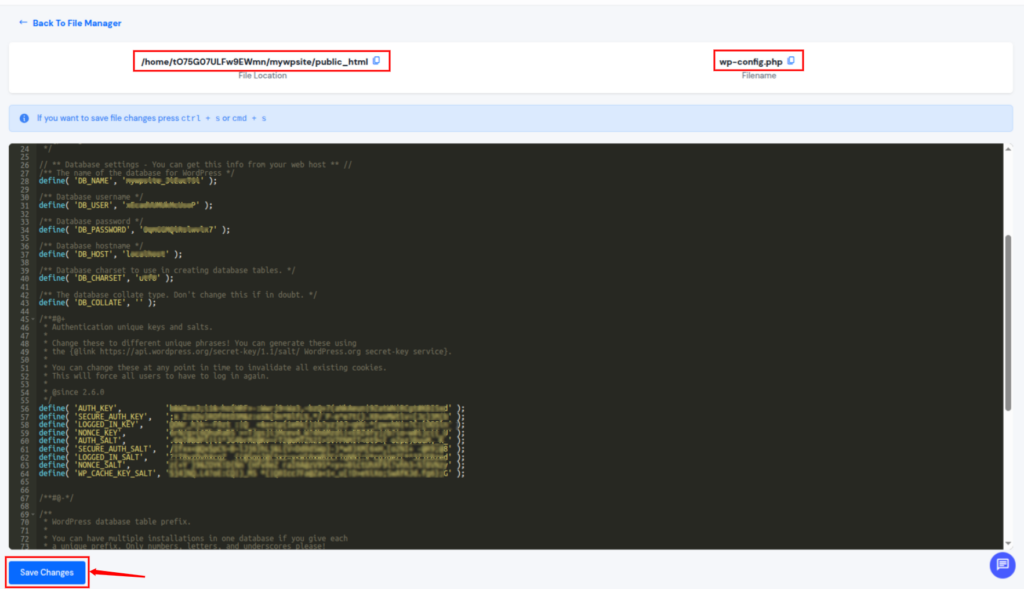
- Click on it to open the editor, and make your changes carefully
- Once done, click the Save Changes button.
That’s it, no FTP, no downloads, no extra tools required.
Why Use ServerAvatar File Manager?
Using ServerAvatar’s File Manager makes the process much smoother, especially if you’re not very technical:
- No need for FTP tools like FileZilla
- Edit files directly from the ServerAvatar panel
- Beginner-friendly interface
- Quick access to all files in one place
It’s like having full control of your website files without the usual complexity.
2. FTP (using tools like FileZilla)
If you prefer the traditional method, you can also access your files using FTP tools like FileZilla.
- Connect your server using FTP credentials
- Navigate to your website’s root directory
- Download the wp-config.php file
- Edit it locally and re-upload it
However, compared to ServerAvatar, this method takes more time and requires additional setup.
Understanding Basic Configuration
At first glance, wp-config.php may look complex, but it’s actually quite structured and easy to follow. Once you understand the main sections, it becomes much easier to manage and edit safely.
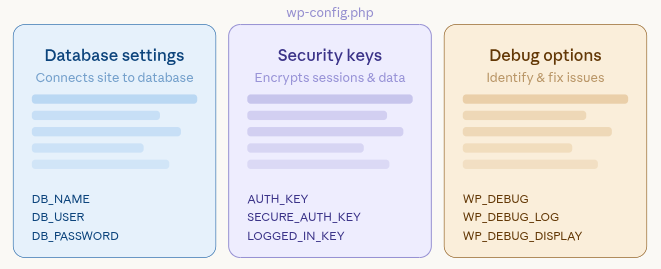
You’ll mostly see:
- Database settings: These define how your site connects to its database.
- Security keys: Used to encrypt login sessions and protect user data.
- Debug options: Help you identify and troubleshoot issues during development.
Each section has a clear purpose, and you only need to tweak a few lines.
Database Settings Explained
The database settings in wp-config.php act like login credentials that allow your WordPress site to access and retrieve its data. Without these correct details, your website won’t be able to function properly.
define('DB_NAME', 'database_name');
define('DB_USER', 'username');
define('DB_PASSWORD', 'password');
define('DB_HOST', 'localhost');Think of this like login details for your website to access its data.
- DB_NAME: The name of your database where all site content is stored.
- DB_USER: The username used to access the database.
- DB_PASSWORD: The password for secure database access.
- DB_HOST: The server location of your database, usually “localhost”.
Tip: Never share this information publicly.
Security Keys
Security keys are special codes that encrypt user sessions and cookies, making it harder for attackers to misuse login information. They act as an additional safety layer for your website.
Example:
define('AUTH_KEY', 'your-unique-key');- Used to secure user login sessions and cookies.
- Helps encrypt sensitive information.
- Should be unique and randomly generated for better security.
You can generate secure keys from the official WordPress API.
Why it matters: It protects your site from hacking attempts.
Enabling Debug Mode
Debug mode is a helpful feature that shows errors and warnings on your website, making it easier to identify issues. It’s especially useful during development or troubleshooting.
Add this line:
define('WP_DEBUG', true);- Turns on debugging mode in WordPress.
- Displays errors, warnings, and notices on your site.
- Useful for troubleshooting issues during development.
- Should be disabled (false) on live websites.
This will show errors on your site.
Important: Turn it off after fixing issues to avoid exposing sensitive information.
Changing WordPress Table Prefix
The table prefix is used in your database to organize WordPress tables. Changing the default prefix adds an extra layer of protection against certain types of attacks.
$table_prefix = 'wp_';- Sets the default prefix for all WordPress database tables.
- Example: wp_posts, wp_users.
- Common and easy to recognize, which can be a security risk.
Change it to something unique like:
$table_prefix = 'wpsecure_';- Changes the default prefix to something unique.
- Makes your database harder to target for attackers.
- Adds an extra layer of security.
Why? It adds an extra layer of security against SQL injection attacks.
Setting WordPress URLs
Defining your site URL in wp-config.php ensures that WordPress always loads the correct address. This is especially helpful when fixing login or redirection problems.
define('WP_HOME', 'https://yourdomain.com');
define('WP_SITEURL', 'https://yourdomain.com');- WP_HOME: Defines your website’s main homepage URL.
- WP_SITEURL: Sets the location of your WordPress core files.
- Helps fix login, redirect, or URL issues.
This is helpful if you’re facing login or redirect issues.
Memory Limit Configuration
Increasing the memory limit allows your website to handle more complex tasks without crashing. It’s useful for sites with heavy plugins or large traffic.
define('WP_MEMORY_LIMIT', '256M');- Increases the memory available to WordPress.
- Helps prevent crashes or slow performance.
- Useful for heavy plugins or large websites.
Think of it like giving your website more “breathing space.”
Disable File Editing
Disabling file editing prevents users from modifying theme and plugin files directly from the WordPress dashboard. This reduces the risk of unauthorized changes.
define('DISALLOW_FILE_EDIT', true);- Disables theme and plugin file editing from the WordPress dashboard.
- Prevents unauthorized or accidental changes.
- Improves overall site security.
This is a must-have security setting.
Automatic Updates Control
This setting allows you to decide how WordPress updates are handled, giving you more control over your site’s stability.
define('WP_AUTO_UPDATE_CORE', false);- Completely turns off automatic WordPress core updates.
- Gives you full manual control over updates.
- Useful if you want to test updates before applying them.
Or enable only minor updates:
define('WP_AUTO_UPDATE_CORE', 'minor');- Allows only minor updates (security patches and bug fixes).
- Prevents major updates that might break your site.
- Keeps your site secure while maintaining stability.
Best Practices for wp-config.php
Following best practices ensures that your wp-config.php file remains secure and stable. Small precautions can prevent major issues later.
- Backup first: Always keep a copy before making changes.
- Strong credentials: Use secure database usernames and passwords.
- Disable debug mode: Keep it off on live websites.
- Restrict permissions: Limit who can access the file.
- Avoid unnecessary edits: Only change what is required.
Think of wp-config.php like a car engine, you don’t tweak it randomly unless you know what you’re doing.

Common Mistakes to Avoid
Even small mistakes in wp-config.php can break your entire website. Being aware of common errors helps you avoid unnecessary downtime.
- No backup: Makes it difficult to recover from errors.
- Debug mode ON: Can expose sensitive information publicly.
- Default prefix: Makes your database easier to target.
- Sharing credentials: Puts your site at serious risk.
- Syntax errors: Missing semicolons or quotes can crash your site.
Even a small mistake can break your site.
Conclusion
Configuring the wp-config.php file may seem technical at first, but once you understand its purpose, it becomes a powerful tool for managing your WordPress site. From improving security to optimizing performance and fixing common issues, this single file gives you greater control without relying on extra plugins. Whether you choose to edit it through ServerAvatar’s File Manager or via FTP, the key is to make changes carefully and always keep a backup. With the right approach, you can confidently handle your site’s core settings and keep everything running smoothly.
FAQs
1. What is the wp-config.php file used for?
The wp-config.php file is used to configure your WordPress site’s core settings, including database connection details, security keys, and performance-related options.
2. Is it safe to edit wp-config.php?
It is safe as long as you take a backup before making changes and follow proper syntax. Even a small mistake can cause errors, so caution is important.
3. Can I edit wp-config.php without using FTP?
Yes, you can easily edit it using a File Manager like the one provided by ServerAvatar, which allows you to make changes directly from your browser.
4. What should I do if my site breaks after editing wp-config.php?
If your site stops working, you can restore the backup file or fix any syntax errors such as missing semicolons or incorrect values.
5. Do I need technical knowledge to configure wp-config.php?
Not necessarily. Basic understanding is enough for common changes, and with step-by-step guidance, even beginners can safely configure it.