

Your website works on your phone, but some customers still see old site while others encounter errors. You have updated DNS records correctly, so why are visitors getting different results? Understanding how to speed up DNS propagation can help you manage this transition and reduce downtime.
To speed up the DNS propagation, you need to lower the DNS records’ TTL before starting the migration, allow the previous TTL to expire, and keep old hosting available while cached answers age out. You can’t force every DNS cache on internet to refresh immediately.
For website owners, developers, and agencies, main goal is to keeping the site usable throughout migration. This guide explains what you can control, how to test the new server before switching traffic, and how to determine normal caching from a configuration problem.
TL;DR
- Lower affected records’ TTL to supported short value, such as 300 seconds, before changing their destination.
- Wait at least the previous TTL after lower value is live on all authoritative nameservers.
- Test new server, HTTPS, and application workflows before changing public DNS.
- Keep both hosting environments available and use clear plan for database writes and file changes.
- Check authoritative nameservers and multiple recursive resolvers; local cache flushing has limited scope.
- Treat nameserver changes, negative caching, and DNSSEC separately from a simple IP address update.
What Is DNS Propagation?
DNS connects hostname, such as example.com, to information that helps client reach right service. An A record maps a domain name to an IPv4 address, while an AAAA record points it to an IPv6 address. A CNAME points one hostname to another hostname.
Your authoritative nameservers publish records for your domain. Recursive resolvers look up those records for users and cache answers so they don’t need to repeat full lookup every time.
When you change record, the authoritative service must first publish update. Resolvers that already cached the previous answer can continue returning it until their cached copy expires. Web browsers and operating systems may also store DNS records in their caches.
That transition is commonly called DNS propagation. It isn’t single update being pushed to every computer at once. For step-by-step explanation of lookup process, read “how DNS works” guide.
This explains familiar symptom: two visitors can reach different servers even though neither has typed wrong domain. One resolver has refreshed its answer; other still holds valid older answer.
TTL: The Setting That Matters Before a Change
TTL means time to live. It tells resolver how long DNS answer may remain cached before it needs refreshing under normal operation.
| TTL in seconds | Equivalent time | Practical tradeoff |
| 300 | 5 minutes | Short cache duration for planned change, if supported |
| 3,600 | 1 hour | Longer caching for stable records |
| 86,400 | 24 hours | Fewer refreshes, but longer transition after changes |
Lower values create more frequent DNS queries. Higher values improve cache reuse. Choose value for the service’s availability and change requirements rather than assuming the lowest possible TTL is always best.
How Long Does DNS Propagation Take?
A straightforward record change with previously established short TTL may become visible through many resolvers within minutes. That does not create worldwide completion deadline.
The timing depends on the old cached TTL, provider’s publication delay, type of change, and a caching layers involved. Some resolvers also apply their own policies or serve stale answers during failures.
Nameserver changes involve delegation caches as well as records inside your DNS zone. Adding a hostname that previously failed to resolve can also be affected by cached negative DNS responses.
Treat statements such as “DNS always takes 48 hours” as broad support estimates. Equally, don’t promise that setting TTL to 300 makes every visitor switch within exactly five minutes.
The useful question is: Which layer still has the old answer, and why?
Before You Start: Prepare DNS Migration Checklist
Collect following before changing live domain:
- Access to active DNS provider and, domain registrar for delegation changes.
- An export of the DNS records or screenshots showing the current settings, including the original TTL value.
- Destination server’s correct public IP address.
- A recent application and database backup with known recovery method.
- A working HTTPS configuration on destination.
- A migration window, monitoring access, and written rollback plan.
Before moving application, follow guide to create website backups with ServerAvatar, so you have a recovery copy of files and database.
Inventory Website and Email Records
Record apex domain, www, application subdomains, A and AAAA records, and CNAME targets. If you are moving DNS providers, also copy MX records, mail-related TXT records, verification records, and any certificate-authority restrictions in CAA records.
A website-only migration usually doesn’t require changing email records. However, incomplete zone copy can disrupt email even when website works perfectly.
Prefer simple hosting change that keeps existing DNS provider when that meets your needs. Combining server move, nameserver change, and unrelated configuration changes makes failures harder to isolate.
Step 1: Lower TTL Before Changing the IP Address
Open active DNS zone and lower TTL of records you will change. A practical temporary value is 300 seconds, provided your DNS provider supports it.
Lowering TTL and replacing IP at same moment loses much of benefit as resolvers holding old answer still have the old TTL.
Example: Moving Record With a 24-Hour TTL
Suppose “example.com” points to old server with TTL of 86,400 seconds.
- Change its TTL to 300 while keeping the old IP address.
- Verify every authoritative nameserver publishes lower TTL.
- Wait at least 24 hours from that verified publication point, with operational buffer.
- Change the address to new server.
- Keep the old server serving usable responses during the transition.
This is exemplary timeline, not actual measured migration result. It gives existing 24-hour cached answers time to expire before the destination changes.
If previous TTL was 48 hours, 24-hour preparation window is insufficient. Plan around actual records you depend on, including relevant CNAME targets.
When Change Has Actually Happened
Confirm that authoritative answer is correct and the new server works. Lowering TTL now may help subsequent updates, but it cannot shorten the timer attached to an answer already cached elsewhere.
Avoid repeatedly switching records between servers. Each additional change can leave different groups of users holding different answers.
Step 2: Test the New Server Before Sending Visitors to It
Correct DNS answer won’t fix missing application, closed firewall port, or invalid certificate. Prepare the destination first.
Copy application files, restore database, configure domain, and check required services. Verify that destination accepts web traffic and the application can reach its dependencies.
If both servers are managed through ServerAvatar, use the server-to-server site migration guide to prepare the destination before testing the application and updating DNS.
Test HTTPS with curl
Use “curl --resolve” to test specific server while preserving hostname used for HTTPS and certificate validation:
curl --noproxy '*' --resolve example.com:443:203.0.113.20 \ -I https://example.com/Replace hostname and IP address with real value. The “--noproxy” option bypasses configured proxies for this direct test.
This changes destination for that command only. It doesn’t update public DNS. A “200” response or an intended redirect is useful first check; certificate failure or server error needs investigation. Don’t add “-k” to hide certificate problems.
The “-I” option sends HEAD request. If application handles HEAD differently, repeat with normal GET, then test important workflows in browser. Test redirect destinations separately, since another hostname may still resolve publicly.
Use Local Hosts Override for Browser Testing
A temporary hosts-file entry can help you preview site against new IP while retaining its real hostname. It affects your machine only, and browser secure-DNS settings or proxies may affect the test.
Check login, forms, uploads, checkout, and redirects as relevant. Remove override afterward so it doesn’t hide public DNS problems during verification.
Step 3: Keep Old Server Available and Control Writes
DNS transition does not inherently require website downtime. If both addresses lead to healthy application, visitors can continue using service while caches refresh.
Keeping two copies online introduces different problem, though: data consistency.
Avoid Two Independent Writable Databases
Imagine one visitor placing order on old server while another places order on new one. If databases are independent, orders split between them. A later database overwrite can lose legitimate transactions.
Choose a migration method before cutover:
- Brief write pause: Stop orders, editing, and other writes, perform final synchronization, then enable writes at the destination. Ensure old-server visitors cannot continue writing to its stale database.
- Shared data services: Route both application instances to an appropriately secured, compatible database and storage service during overlap.
- Old-server reverse proxy: Configure old endpoint to forward requests to new application, with correct hostname, HTTPS, and client-header handling.
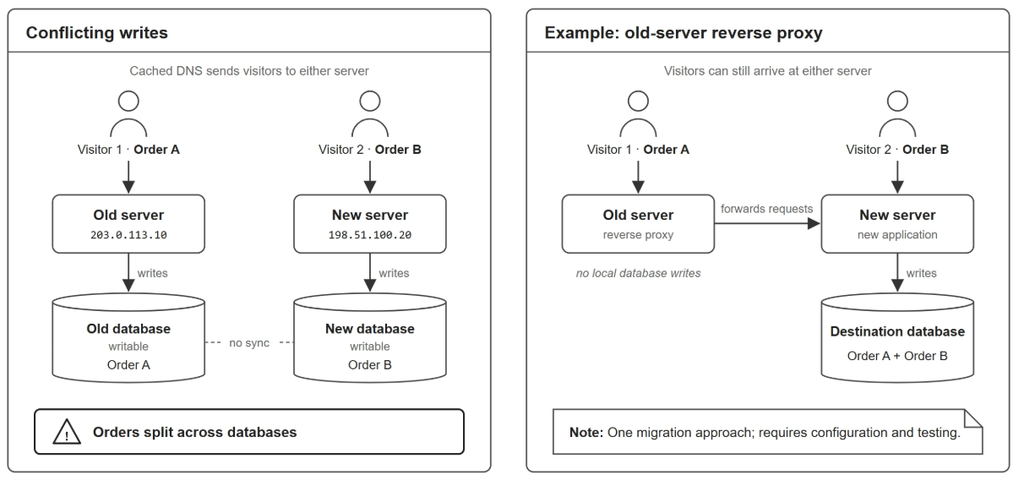
Each method needs testing. A reverse proxy adds operational complexity; shared services require access controls and compatibility checks. For small site, a controlled write pause may be easier to execute reliably.
Retire Old Hosting Based on Evidence
Keep old endpoint functional through previous relevant cache windows, plus buffer. Use access logs and application monitoring to check whether meaningful traffic still reaches it.
For basic migration, keeping old hosting for 24 – 48 hours can be reasonable planning buffer. Longer previous TTLs, delegation changes, or persistent traffic may require more time. The clock alone shouldn’t decide when to delete server.
Step 4: Modify Only DNS Records That Require Changes
At cutover, save new address in active DNS zone. Check same hostname: updating “example.com” doesn’t necessarily update “www.example.com”.
Check Both IPv4 and IPv6
Updated A record alongside an old AAAA record can send IPv4 and IPv6 clients to different servers. Update both where destination supports both protocols.
If new server has no IPv6 service, decide whether to remove obsolete AAAA record. Existing cached IPv6 answers can persist until they expire, so plan old endpoint’s overlap accordingly.
Also check any CNAME chain. The alias record and its target can have separate cached lifetimes.
Understand Cloudflare Proxy Behavior
For Cloudflare-proxied hostname, public DNS normally returns Cloudflare addresses rather than origin server’s IP. Cloudflare’s documentation on proxied DNS records explains why public lookup does not reveal origin configured behind the proxy.
Cloudflare currently sets proxied records to automatic TTL of 300 seconds; DNS-only records have configurable TTLs within provider limits. Distinguish DNS answer from the origin selected behind proxy when interpreting your checks.
Step 5: Handle Nameserver Changes and DNSSEC Separately
Changing A record updates an address within existing DNS service. Changing nameservers tells resolvers where to find domain’s DNS information. These changes have different caching dependencies.
Copy and Verify the New Zone First
Before updating the registrar’s delegation settings, set up the new DNS zone and verify its records against the existing zone. Send DNS queries directly to the new authoritative nameservers to confirm they return the expected responses.
Keep both DNS providers serving consistent records during overlap. Lowering website’s A-record TTL does not lower parent zone’s delegation TTL, which is controlled outside your ordinary record editor.
If hosting and DNS must both move, stage them where possible. Avoid presenting five-minute website-record TTL as five-minute nameserver migration guarantee.
Preserve DNSSEC Validation
DNSSEC allows validating resolvers to check authenticity of DNS data.The DS record in the parent zone must match the active DNSSEC signing configuration.
A stale DS record after provider change can make domain fail for validating resolvers. That is configuration problem requiring correction, not simply reason to wait longer.
Use DNSSEC migration instructions provided by both DNS providers. Depending on their setup, you may need to coordinate key changes or temporarily remove DS record from parent zone, allow cached records to expire, and restore DNSSEC validation once migration is complete. Don’t remove or replace security records without understanding sequence.
If you are moving to Cloudflare, review its DNSSEC migration guidance and follow the procedure that matches your existing provider’s capabilities.
Step 6: Check DNS Responses from Authoritative Servers and Resolvers
Start with published source, then compare what users’ resolvers return. The examples below require “dig”; replace example domains and nameservers with your own.
Query Every Authoritative Nameserver
Find the nameservers currently visible through your resolver:
dig example.com NS +shortThen query each authoritative server directly:
dig @ns1.example.net example.com A +norecurse +noall +answerdig @ns1.example.net example.com AAAA +norecurse +noall +answerAn illustrative A-record response is:
example.com. 300 IN A 203.0.113.20The number is TTL in seconds. If authoritative servers disagree, investigate publication or zone synchronization. Repeated local cache flushing won’t repair inconsistent source records.
After delegation change, your initial NS lookup may itself be cached. Use registrar’s configuration and, when needed, dig +trace example.com to inspect delegation path. Trace queries can fail on networks that block direct DNS traffic.
Compare Google Public DNS and Cloudflare Resolver Answers
dig @8.8.8.8 example.com A +noall +answerdig @1.1.1.1 example.com A +noall +answerdig @8.8.8.8 example.com AAAA +noall +answerdig @1.1.1.1 example.com AAAA +noall +answerFor ordinary cached answers, displayed TTL generally shows remaining cache lifetime. Public resolver checks sample those services from your location; they cannot prove every resolver worldwide has updated.
Check same hostname and record type in each test. An apex A-record check says nothing about forgotten “www” record or stale IPv6 destination.
Step 7: Refresh Caches You Control
Cache clearing can help you verify corrected record sooner. Its scope matters.
Read complete guide to DNS caching explains why your device and a recursive resolver can retain separate copies of a DNS answer.
Flush a Local Ubuntu DNS Cache
On Ubuntu systems using systemd-resolved, run:
sudo resolvectl flush-cachesThis clears that local resolver’s cache. It doesn’t clear your internet provider’s cache, and it doesn’t apply to every Linux resolver configuration. Browsers may also maintain separate caches or use secure-DNS service.
Request Google Public DNS Cache Refresh
If Google Public DNS still returns outdated answer after you have verified authoritative records, use Google Public DNS cache-flush tool to request refresh for affected name and record type.
It doesn’t flush other resolver operators’ caches. Google’s instructions also advise flushing main domain before subdomains when DNS hosting or registrar recently changed.
Troubleshooting: When Waiting Won’t Fix the Problem
Use symptom to select next step rather than assuming every failure is propagation.
| Symptom | Possible cause | Next action |
| Authoritative servers show different addresses | Inconsistent zone publication | Compare each authoritative answer and contact DNS provider |
| Authoritative answers are new; resolver returns old data | Cached answer | Inspect remaining TTL and keep old endpoint working |
| Some visitors still reach old server | Old AAAA, alternate hostname, or cached record | Compare IPv4, IPv6, apex, and www |
| DNS is correct but HTTPS fails | Certificate or virtual-host configuration | Test destination using real hostname |
| A new hostname still returns NXDOMAIN | Negative caching or missing active record | Verify authoritative answer and inspect the cached error |
| A validating resolver returns SERVFAIL after DNS-provider move | Possible DNSSEC mismatch | Check parent DS record and active signing configuration |
Understand Negative Caching
NXDOMAIN means queried name doesn’t exist. Resolvers can cache that answer. If someone queried new subdomain before you created it, they may continue receiving cached error after record is added.
Negative caching uses information from zone’s SOA record. Under RFC 2308, negative-answer TTL is based on smaller of SOA TTL and SOA MINIMUM field, subject to resolver policies.
Lowering newly created A record’s TTL won’t erase previously cached NXDOMAIN answer. Create launch hostnames in advance where possible.
If the hostname still fails after you verify the active records, follow DNS_PROBE_FINISHED_NXDOMAIN troubleshooting guide to investigate the error further.

Step 8: Restore Normal TTLs After the Migration Stabilizes
Once DNS answers and application behavior are stable, restore TTLs appropriate for normal operations. A value such as 3,600 seconds may suit stable website records; services with rapid failover requirements may need different policy.
Confirm that files, database writes, and scheduled tasks operate in intended environment. Keep rollback access and backups until migration is accepted, then retire obsolete resources deliberately.
Protect Search Visibility During a Hosting Move
When only hosting changes, keep page URLs, content, canonical settings, and indexing permissions consistent. Remove temporary testing restrictions before launch and verify that crawlers can reach site.
Google’s guidance for changing hosting without changing URLs recommends preparing and testing destination, updating DNS, monitoring traffic, and retiring old hosting after traffic has moved. These steps support controlled migration, but they do not guarantee unchanged rankings.
Key Takeaways
- Lower TTL before cutover and wait for previous cached lifetime to expire.
- Test destination with real hostname and working HTTPS before changing public DNS.
- Keep old hosting available and prevent conflicting writes during transition.
- Verify authoritative records, IPv4, IPv6, and resolver answers before blaming propagation.
- Plan nameserver changes, DNSSEC, and negative caching around their own dependencies.
Conclusion
The most effective way to speed up DNS propagation is to prepare before changing destination. Lower relevant TTLs, wait out their previous lifetimes, and verify that new server can serve real application correctly. Once change is live, use DNS answers and traffic logs to understand what visitors are actually reaching.
Start by exporting your current records and writing down their TTLs. Then schedule cutover, choose how to handle application writes, and keep old endpoint available until evidence supports retiring it. That preparation makes a migration easier to troubleshoot and gives you practical path to reducing downtime.
FAQs
Can I speed up DNS propagation after changing record?
You can correct authoritative records, refresh caches you control, and use supported resolver-specific flush tools. You cannot force every independent resolver to discard an existing cached answer. Keep old endpoint functional while those answers expire.
What TTL should I use before a website migration?
A supported value of 300 seconds is practical temporary choice for many website-record changes. Apply it early enough for previous TTL to expire before cutover. Provider limits, delegation caching, and application requirements still matter.
Does flushing my DNS cache update the website for everyone?
No, A local flush affects your local resolver cache. It doesn’t change other visitors’ caches or authoritative records. A Google Public DNS flush similarly applies to Google’s resolver service rather than entire internet.
Is changing an A record faster than changing nameservers?
A single A-record change usually has fewer moving parts because authoritative DNS service stays the same. Nameserver changes also involve delegation caches and may require DNSSEC coordination. Actual timing depends on relevant cached records and provider behavior.
Can I reduce downtime without making DNS update instantly?
Yes, Prepare destination, retain working old endpoint, and control database writes and uploads during overlap. Visitors reaching either address can receive usable service, even though their DNS answers differ temporarily.
About the Author
Meghna Meghwani is a technical writer focused on Linux, Ubuntu, VPS hosting, server management, WordPress, PHP, Node.js, cloud hosting, and DevOps. She creates beginner-friendly tutorials, practical hosting guides, troubleshooting articles, and server security content designed to help developers and businesses manage applications and servers more efficiently.