

Ever opened your Linux system, tried to access a website, and suddenly… nothing works? No internet, no updates, no connection. Frustrating, right? Don’t worry, you’re not alone. Linux networking issues are common, even for experienced users.
Think of your network like a road system. If one signal is broken, traffic stops. In Linux, that signal could be a cable, an IP address, or a misconfigured file. The good news? Most problems are easy to find and fix once you know where to look.
In this guide, we’ll walk through how to troubleshoot common Linux networking issues in a step-by-step way, no confusing jargon, no guesswork. Ready? Let’s fix your network.
How Linux Networking Works
Before fixing anything, it helps to know what’s happening behind the scenes. Linux networking relies on a few core components:
- Network interfaces (Ethernet or Wi-Fi): These are the hardware or virtual connections that allow your Linux system to send and receive network data.
- IP addresses (your system’s identity): An IP address uniquely identifies your system on a network so other devices know where to send data.
- DNS servers (translate names into IPs): DNS servers convert easy-to-remember website names into numerical IP addresses that computers understand.
- Routing rules (decide where traffic goes): Routing rules tell your system which path network traffic should take to reach its destination.
If any one of these fails, your network breaks, like a chain with a weak link.
How ServerAvatar Simplifies Linux Server Networking
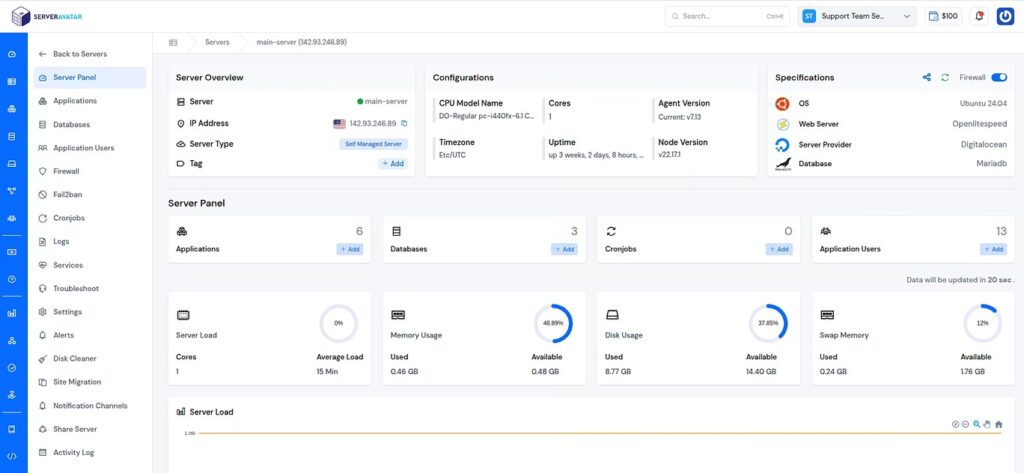
Managing Linux networking manually can be time-consuming, especially when you are dealing with multiple production servers or multiple applications. ServerAvatar is a modern server management platform designed to simplify everyday server operations, including monitoring, security, and configuration management.
Instead of relying entirely on complex command-line troubleshooting, ServerAvatar provides a clean and intuitive dashboard that helps you understand what’s happening on your server at a glance. This makes it easier to identify networking, service, and performance issues before they impact your applications or websites.
Checking Physical Network Connections
Before diving into commands and settings, always check the basics. Many network problems are caused by loose cables, disabled Wi-Fi, or router issues rather than Linux itself. Starting with physical checks can save a lot of time.

Things to check first:
- Is the Ethernet cable plugged in?
Ensure the network cable is securely connected to both the system and the router. - Is Wi-Fi turned on?
Confirm that Wi-Fi is enabled on your system and connected to the correct network. - Are router lights blinking normally?
Check the router indicators to verify it is powered on and functioning properly.
It may sound basic, but you’d be surprised how often this solves the problem. Networking troubleshooting always starts at the ground level.
Verifying Network Interface Status
A Linux system can have a network interface installed, but it won’t work unless it is enabled. Checking the interface status helps you quickly confirm whether your Ethernet or Wi-Fi connection is active or disabled.
Run:
ip link showLook for:
- UP: The network interface is enabled and ready to send or receive data.
- DOWN: The network interface is disabled and not currently usable.
If the interface is down, enable it:
sudo ip link set <interface_name> upNote: Interface names vary (for example: ens33, enp0s3, wlp2s0).
Use ‘ip link show‘ command to identify the correct interface name.
Identifying IP Address Problems
An IP address is required for your system to communicate on a network, and without it, internet access will not work. Checking your IP helps you quickly detect whether your system is properly connected to the router.
Check your IP:
ip addr showIf you see an address starting with 169.254, that’s a warning sign. It means your system couldn’t get an IP from the router.
- 169.254.x.x address: This indicates the system failed to obtain an IP address from the router and needs a network refresh.
Fix:
- Renew the IP address
- Restart network services
- Check router or DHCP settings
Testing Network Connectivity
Testing connectivity helps you find exactly where the network is failing, on your system, within your local network, or on the internet itself. Using simple ping tests lets you narrow down the problem step by step.
Test your local network:
- ping 127.0.0.1: Confirms that your local network stack is working correctly.
ping 127.0.0.1Test your router:
- ping 192.168.1.1: Checks whether your system can communicate with the router.
ping 192.168.1.1Test the internet:
- ping 8.8.8.8: Verifies that your system has access to the internet beyond the local network.
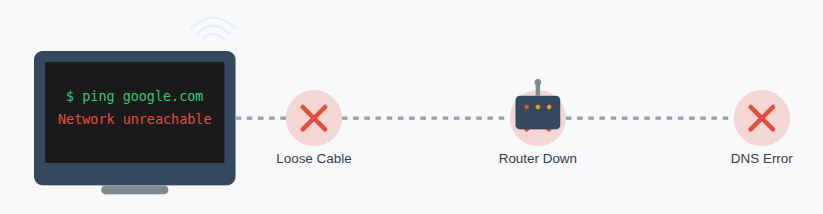
ping 8.8.8.8If numbers work but websites don’t load, your issue is likely DNS-related.
Fixing DNS Resolution Issues
DNS converts website names into IP addresses, making browsing simple and human-friendly. When DNS is misconfigured, the internet may seem down even though the network is working.
- Check DNS settings: Ensure /etc/resolv.conf contains valid name server entries like 8.8.8.8 or 1.1.1.1 for proper domain resolution.
cat /etc/resolv.conf- Make sure valid name servers exist, such as:
nameserver 8.8.8.8
nameserver 1.1.1.1Important Note: On modern Linux systems using NetworkManager or systemd-resolved, /etc/resolv.conf is auto-generated.
For permanent DNS changes, use ‘nmcli’ command or your network settings instead of editing this file directly.
DNS issues are one of the most common Linux networking problems.
Restarting Network Services
Sometimes network issues are temporary and caused by stuck services or outdated connections. Restarting network services refreshes everything and often resolves minor glitches instantly.
- Restart networking: Reloads network connections and fixes temporary service-related issues.
sudo systemctl restart NetworkManagerOr restart traditional networking:
sudo systemctl restart networkingThis refreshes connections and often fixes temporary glitches.
Checking Firewall and Security Rules
Firewalls protect your system, but incorrect rules can block internet access completely. Checking firewall status helps confirm whether security settings are causing the problem.
If the network works after disabling the firewall, the rules need correction.
- Check firewall status:
sudo ufw status- Temporarily disable the firewall for testing:
sudo ufw disableIf the network works after that, you know the firewall rules need adjustment.
Note: Disable the firewall only for troubleshooting. Always re-enable it after testing to keep your system secure.

Diagnosing Routing Problems
Routing controls how data leaves your system and reaches the internet. Without a default gateway, your system has no path to send traffic outside the local network.
Check routes:
ip routeLook for a default gateway. If it’s missing, your system doesn’t know where the internet lives.
Add a gateway if needed:
sudo ip route add default via 192.168.1.1Investigating Proxy and VPN Conflicts
Using a proxy or VPN? That could be the culprit. Proxies and VPNs can override normal network routes and block access if misconfigured. Testing without them helps confirm whether they are causing connectivity issues.
Check environment variables:
env | grep -i proxyDisable VPNs temporarily and test again. Incorrect settings can block all incoming and outgoing traffic.
Examining Network Configuration Files
Linux stores network settings in configuration files, and even a small mistake can break connectivity. Reviewing these files ensures settings are correct and consistent.
Common locations:
- /etc/network/interfaces
- /etc/netplan/
- /etc/sysconfig/network-scripts/
A single typo or wrong value here can break everything, the entire network setup. Always double-check changes.
Note: Always back up these files before making changes.
Troubleshooting Wi-Fi Issues
Wi-Fi problems are common due to signal strength, passwords, or drivers. Basic checks often resolve the issue before deeper troubleshooting is needed.
Check Wi-Fi status:
nmcli device statusWi-Fi connection issues are often caused by disabled adapters, wrong passwords, or missing drivers.
Common fixes:
- Restart NetworkManager: Refreshes the Wi-Fi service and clears temporary connection glitches.
- Reconnect to the network: Forces your system to establish a fresh and stable connection.
- Re-enter the Wi-Fi password: Fixes connection failures caused by incorrect or changed credentials.
Still not working? Driver issues may be the cause.
Using Logs to Find Network Errors
Logs record detailed system activity and errors related to networking. Reviewing them helps uncover hidden issues that commands may not reveal.
Check system logs:
journalctl -u NetworkManagerLook for error messages or warnings. Logs often reveal problems that commands don’t show.
Centralized Log Monitoring with ServerAvatar
Logs play a crucial role in diagnosing Linux networking problems, but manually scanning log files using the terminal can be slow and error-prone.
With ServerAvatar, you can view important server and service logs from a single interface. This makes it easier to detect errors, service failures, and unusual activity without switching between multiple files or commands. Faster access to logs means quicker troubleshooting and reduced downtime.
Common Linux Networking Commands Explained
Linux provides powerful commands to inspect, test, and manage networks. Knowing these tools makes troubleshooting faster and more effective.
Here are some helpful tools you’ll use again and again:
- ip: Displays detailed information about network interfaces, IP addresses, and routing.
- ping: Checks whether a system or server is reachable over the network.
- traceroute: Identifies the path data takes and shows where network traffic stops.
- nmcli: Allows you to view and manage network connections from the command line.
- netstat / ss: Shows active network connections, listening ports, and traffic statistics.
Think of these as your networking toolbox.
Reducing Manual Commands with ServerAvatar
Linux networking commands like ip, ping, nmcli, and traceroute are powerful, but they can feel overwhelming for beginners or teams managing multiple servers.
ServerAvatar reduces the need for repetitive command-line operations by offering a visual and guided server management experience. While advanced users can still use the terminal, ServerAvatar helps simplify routine tasks, making server and network management more accessible and less error-prone.
Preventing Future Network Problems
Prevention saves time. Good maintenance habits reduce the chances of recurring network issues. Staying organized and cautious helps keep your system stable.
Best practices:
- Keep your system updated: Ensures you have the latest security patches, bug fixes, and network improvements.
- Avoid random config changes: Prevents accidental misconfigurations that can break network connectivity.
- Backup network configuration files: Allows quick recovery if a network change causes issues.
- Document changes you make: Helps you track modifications and troubleshoot problems more easily later.
A little care today prevents big headaches tomorrow.
Prevent Network Issues Proactively with ServerAvatar
Preventing network problems is always better than fixing them after downtime occurs. ServerAvatar helps maintain server stability by providing better visibility, controlled configuration management, and real-time monitoring.
By using ServerAvatar, teams can stay informed about server health, respond faster to issues, and avoid accidental misconfigurations that often cause Linux networking failures.
Key Features of ServerAvatar for Linux Server Management
ServerAvatar is built to make Linux server management simple, reliable, and scalable. Key features include:
- Centralized Server Dashboard: Manage and monitor your multiple servers from a single, easy-to-use interface
- Log Monitoring: Quickly analyze logs to identify network and system issues
- Service Management: Start, stop, and monitor essential services safely
- Security & Configuration Control: Reduce risks caused by accidental or incorrect changes
- Beginner-Friendly Interface: Ideal for developers, agencies, and businesses managing Linux servers
- 24/7 Expert Support: Server issues don’t always happen during working hours. That’s why ServerAvatar provides 24/7 expert support to help you resolve server and networking problems whenever they occur.
Whether you’re facing connectivity issues, service failures, or configuration concerns, ServerAvatar’s support team is available around the clock to assist you and keep your servers running smoothly.
These features help reduce downtime, speed up troubleshooting, and improve overall server reliability.
Conclusion
Linux networking problems can feel overwhelming at first, especially when the internet
suddenly stops working. However, most issues come down to a few common causes such as disabled network interfaces, missing IP addresses, DNS misconfiguration, firewall rules, or routing problems.
By following a step-by-step troubleshooting approach, starting from physical checks and moving toward advanced diagnostics, you can quickly identify where the problem lies. Tools like ip, ping, nmcli, and system logs make it easier to pinpoint and fix issues without guesswork.
While understanding Linux networking fundamentals is essential, having the right tools can significantly reduce troubleshooting time. ServerAvatar complements manual Linux knowledge by providing visibility, control, and support, making server and network management easier, faster, and more reliable.
FAQs
1. Why does my Linux system show “Connected” but the internet doesn’t work?
This usually happens due to DNS issues, missing routes, or firewall rules. Try pinging an IP address like 8.8.8.8. If that works but websites don’t load, the problem is DNS.
2. What does a 169.254.x.x IP address mean in Linux?
A 169.254.x.x address means your system failed to get an IP address from the router (DHCP failure). Restart your network service or check your router and cable/Wi-Fi connection.
3. Is it safe to edit /etc/resolv.conf directly?
On modern Linux systems, no. This file is often auto-generated by NetworkManager or systemd-resolved. Permanent DNS changes should be made using network settings or nmcli.
4. How do I find my correct network interface name?
Run the below-mentioned command, and this will list all network interfaces along with their current status.
ip link show
5. Should I disable the firewall when troubleshooting?
You can temporarily disable the firewall for testing, but always re-enable it afterward. If disabling the firewall fixes the issue, adjust the rules instead of leaving it off.
6. Why can I ping my router but not the internet
This usually indicates a routing or DNS problem. Check your default gateway using ip route and verify DNS settings.
Stop Wasting Time on Servers. Start Building Instead.
You didn’t start your project to babysit servers. Let ServerAvatar handle deployment, monitoring, and backups — so you can focus on growth.
Deploy WordPress, Laravel, N8N, and more in minutes. No DevOps required. No command line. No stress.
Trusted by 10,000+ developers and growing.