

Have you ever felt like something is off with your WordPress site, even though everything looks normal? Maybe your traffic suddenly drops, or strange users appear out of nowhere. I’ve been in that situation before, and trust me, it’s frustrating. One of the most dangerous reasons behind this is a WordPress backdoor. Hackers use backdoors to quietly access your website anytime they want, even after you “fix” the issue.
In this guide, I’ll walk you through how to detect and remove a WordPress backdoor step by step, using simple language and practical tips you can actually follow.
What is a WordPress Backdoor?
A WordPress backdoor is a hidden method that allows hackers to access your website without logging in normally. Unlike regular hacks, backdoors are sneaky. Even if you remove malware, the hacker can still come back using the same hidden entry point.
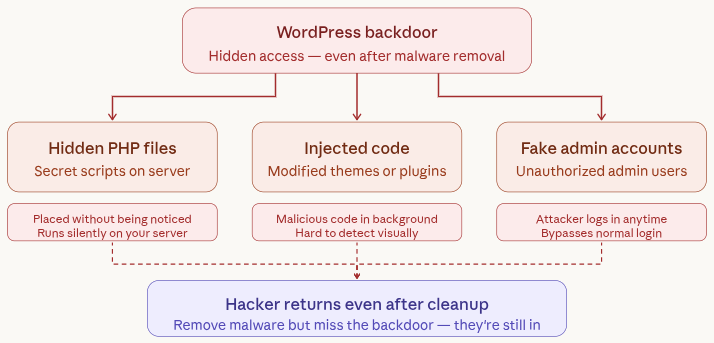
Common examples include:
- Hidden PHP files: These are secretly placed scripts that allow attackers to access your site without being noticed.
- Injected code in themes or plugins: Hackers modify existing files to include malicious code that runs in the background.
- Fake admin accounts: Unauthorized users are created with admin access so attackers can log in anytime.
What is ServerAvatar, and how does it help secure your website
Before we dive deeper into detecting and removing backdoors, it’s important to understand the role your server environment plays in website security. This is where ServerAvatar comes in.
ServerAvatar is a platform to simplify the hosting and management of servers and applications. It simplifies the process of deploying and managing PHP and Node.js based web applications on servers.
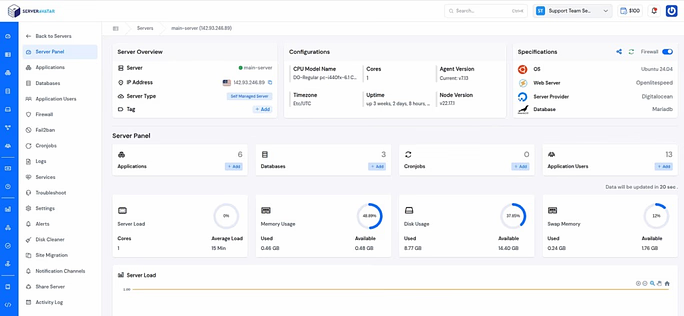
From my experience, managing a server manually can be time-consuming and risky, especially when you’re dealing with security issues like malware or backdoors. ServerAvatar simplifies this by giving you direct access to important tools like file management, backups, and application settings, all in one place.
Here’s how it helps when dealing with threats like backdoors:
- One-click backups: You can instantly create backups before making any changes, so you always have a safe restore point.
- Easy file access: The built-in File Manager lets you quickly inspect and remove suspicious files without needing external tools.
- Application-level isolation: Each application runs in its own environment, reducing the risk of cross-site contamination.
- Built-in monitoring: You can keep an eye on logs and activity to spot unusual behavior early.
- Secure configuration: ServerAvatar handles server-level optimizations and security best practices, minimizing misconfiguration risks.
In short, instead of struggling with technical complexities, you can focus on identifying and fixing issues quickly and safely. This becomes especially valuable when you’re dealing with something as sensitive as a WordPress backdoor.
How Do Backdoors Get Into Your Site?
You might be thinking, “How did my site even get compromised?” The truth is, most backdoors enter through small security gaps that are often overlooked.
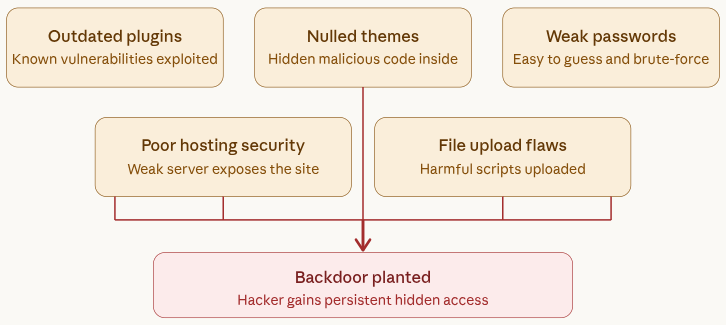
- Using outdated plugins or themes: Old versions often have known vulnerabilities that hackers can easily exploit.
- Downloading nulled (pirated) themes: These often come bundled with hidden malicious code.
- Weak passwords: Simple passwords make it easy for attackers to guess and gain access.
- Poor hosting security: Weak server protection can expose your entire website to threats.
- File upload vulnerabilities: Improper file handling allows attackers to upload harmful scripts.
I’ve personally seen sites hacked just because a plugin wasn’t updated for months. It’s that simple.
Signs Your Website Has a Backdoor
Backdoors usually don’t make obvious changes, which makes them harder to detect. But if you pay attention, there are subtle signs that something isn’t right.
- Unknown admin users: New accounts appear that you didn’t create.
- Strange redirects: Visitors are sent to unrelated or suspicious websites.
- Sudden traffic drop: Your site loses visitors without a clear reason.
- Hosting warnings or suspension: Your hosting provider flags your site for suspicious activity.
- Unexpected files in directories: New or unfamiliar files show up in your server folders.
If your site behaves weirdly, don’t ignore it.
Why Backdoors Are Dangerous
Backdoors are more serious than typical hacks because they give attackers ongoing access to your website. Even after fixing issues, the threat can still remain active.
- Hackers can return anytime: They can access your site again without needing to hack it again.
- Your data can be stolen: Sensitive information like user data or credentials can be compromised.
- Your site can be used for spam or phishing: Attackers may misuse your site for illegal activities.
- SEO rankings can crash: Search engines may penalize your site, reducing visibility.
How to Detect and Remove a WordPress Backdoor
Tracking down a WordPress backdoor by hand isn’t something you want to rush. It’s a sensitive process. One small mistake inside your server files can break your entire website. That’s why you need to move carefully and follow a clear step-by-step approach.
Step 1: Take a Complete Backup First
Before you touch anything, make sure you have a full backup of your website.
Why is this so important? Because if you accidentally remove an important file while cleaning your site, you’ll need a way to restore everything quickly.
Here’s what you should back up:
- Website files: Use an FTP tool like FileZilla. Connect to your server, find the public_html folder, and download everything to your computer.
- Database: Open phpMyAdmin from your hosting panel, select your website database, and export it as an .sql file.
If your hosting provider offers backup feature (like ServerAvatar or similar platforms), you can use that instead to save time.
If you are using ServerAvatar:
- Log in to your ServerAvatar account, and navigate to the Backups section from the sidebar.
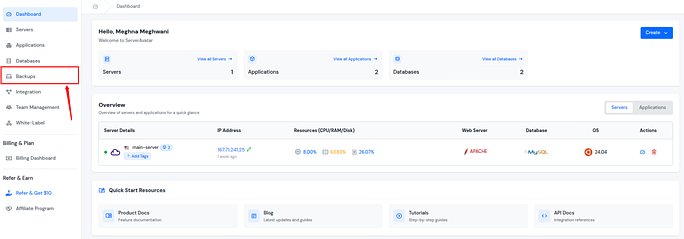
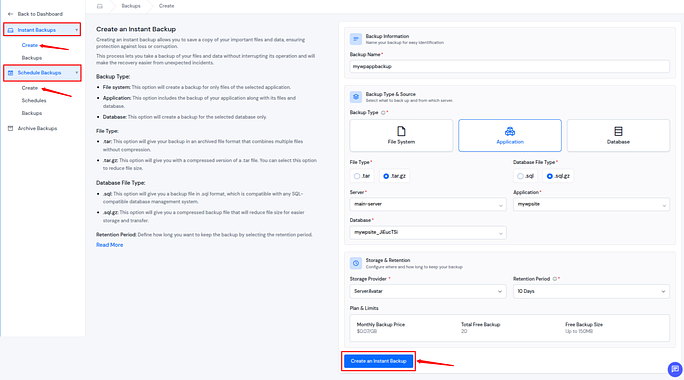
- You can easily take Instant Backup by navigating to the Instant Backups >> Create section.
- You can also schedule the backup by navigating to the Schedule Backups >> Create section.
- ServerAvatar provides its own storage, or you can take a backup on your own storage by integrating it with ServerAvatar from the given options.
- Create a backup.
Not using ServerAvatar:
If you prefer doing things manually, here’s how you can safely back up both your website files and database. You can do it by FTP. To download your website files, you’ll need an FTP client like FileZilla.
Steps to follow:
- Install and open your FTP client
- Enter your server credentials (host, username, password, port)
- Connect to your server
- Navigate to the public_html directory (or your website root folder)
- Select all files and folders
- Download them to your local computer
This will give you a complete copy of your website’s files, including themes, plugins, and uploads.
Step 2: Check the Uploads Folder Carefully
The wp-content/uploads folder is meant only for media files like images, videos, and documents. It should never contain PHP files.
Hackers love hiding backdoors here because most people don’t think to look inside this folder.
If you are using ServerAvatar:
- Navigate to the server panel by clicking on the server dashboard icon.
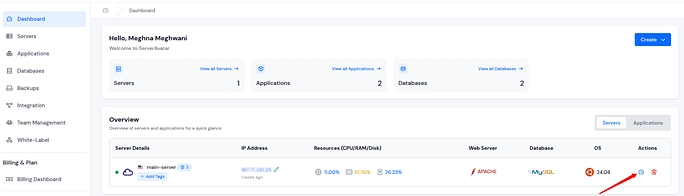
- Go to the Applications section from the left sidebar and click on the application dashboard icon to go to the application panel.
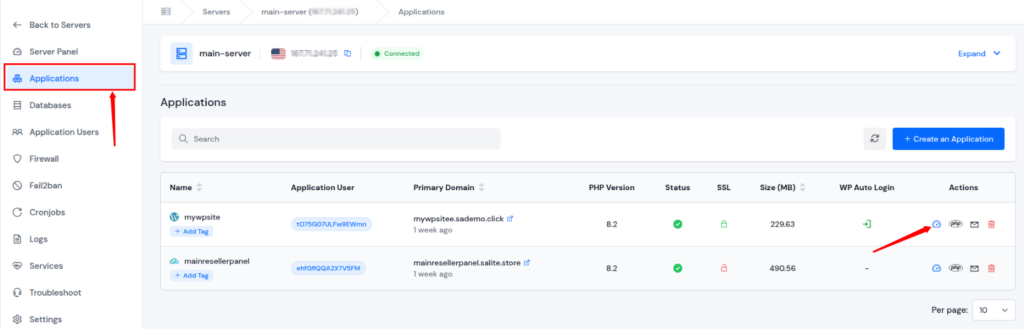
- Go to the File Manager section from the left sidebar, and go to the public_html directory >> wp-content >> uploads
- Now, look for any .php files sitting among images.
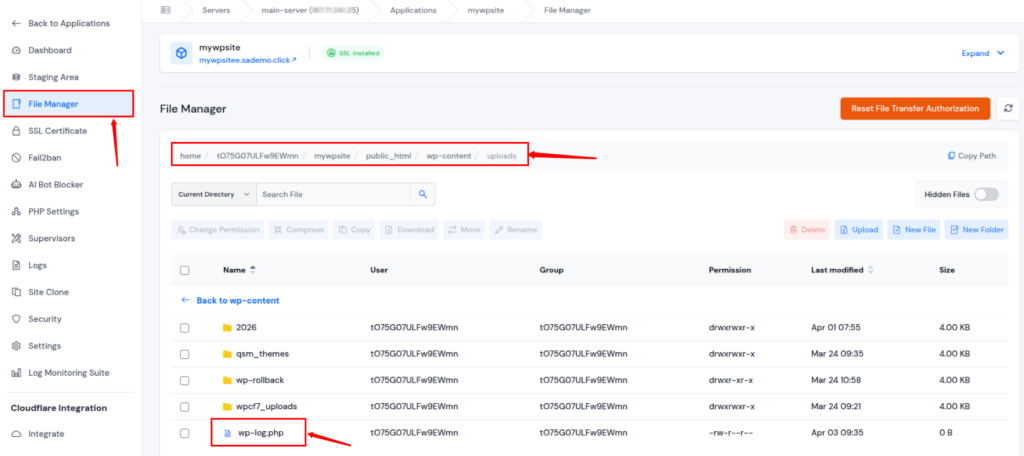
If you find one, that’s a red flag. Open the file and inspect it. If the code looks messy, scrambled, or unreadable, it’s likely malicious. In that case, delete it immediately.
Step 3: Look for Suspicious Code Inside Core Files
Sometimes attackers don’t create new files, they inject code into existing ones. They usually target important files like:
- wp-config.php
- functions.php (inside your theme)
Here’s a simple way to check:
- Download a clean version of WordPress from the official website
- Compare your files with the original ones using a text editor
Pay close attention to code added at the beginning or end of files.
Watch out for these functions:
- eval()
- base64_decode()
- preg_replace()
These aren’t always harmful, but if they’re combined with long, random-looking strings, it’s a strong sign of a backdoor.
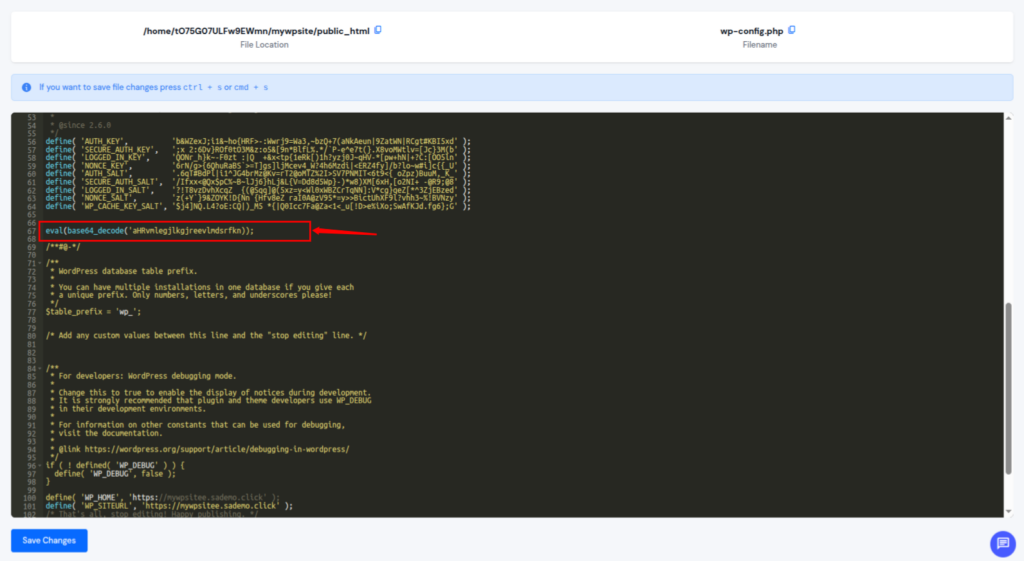
If you find such code, carefully remove only the suspicious part and upload the cleaned file again.
Not using ServerAvatar:
- Open your FTP client and go to the uploads directory
- Browse through folders organized by year and month
- Look for any .php files sitting among images
If you find one, that’s a red flag. Open the file and inspect it. If the code looks messy, scrambled, or unreadable, it’s likely malicious. In that case, delete it immediately.
Step 4: Find Fake Files That Look Legitimate
Hackers often try to blend in by creating files with names that look like real WordPress files. At first glance, they seem harmless, but they’re not.
Examples include:
- wp-options.php
- wp-user.php
- index-config.php
These files don’t actually belong in a standard WordPress setup.
What to do:
- Check your root folder and wp-includes directory
- Look for oddly named files that resemble core files
- Delete them completely if they don’t belong
Step 5: Remove Hidden Admin Users from Database
Even if you clean all files, hackers can still access your site through hidden admin accounts stored in your database.
To fix this:
- Open phpMyAdmin from your hosting panel
- Go to the wp_users table
- Look for unknown usernames or email addresses
- Delete any suspicious entries
Also, check the wp_options table. Search for active_plugins. Sometimes malicious plugins are injected directly into the database and won’t show up in your dashboard.
If you find anything unfamiliar, remove it carefully.
Why Manual Backdoor Removal Is Risky
Now that you’ve seen the process, you might be thinking, it may seem doable at first, but in reality, it’s much more complicated. There are two major challenges.
1. The Obfuscation Challenge
Hackers don’t write clean, readable code. They intentionally scramble it using obfuscation techniques, turning it into long, confusing strings that are nearly impossible to understand.
They might:
- Hide code inside legitimate files: Malicious code is inserted into real files so it looks normal.
- Break it into multiple pieces: The script is split across files to make detection harder.
- Use fake filenames to avoid detection: Files are named to look like real WordPress system files.
Because of this, manual scanning often misses hidden threats. Even one missed file can allow the backdoor to stay active.
2. The Risk of Breaking Your Site
Editing WordPress core files is not forgiving. If you:
- Delete the wrong line: Removing important code can disrupt site functionality.
- Miss a bracket: Even a tiny syntax error can cause major issues.
- Remove essential code: Critical features may stop working instantly.
Your site can crash instantly. You might end up with:
- Database connection error: Your site fails to connect to the database.
- Blank white screen: Your site becomes completely inaccessible.
So while manual cleanup works, it requires precision and experience.
How to Scan for Backdoors Using a Security Plugin
Because manual removal is time-consuming and risky, most people prefer using security plugins. Tools like Wordfence or Sucuri can automatically scan your website and detect known malware patterns. Here’s how you can do it using Wordfence.
Step 1: Install and Activate the Plugin
- Log in to your WordPress admin dashboard
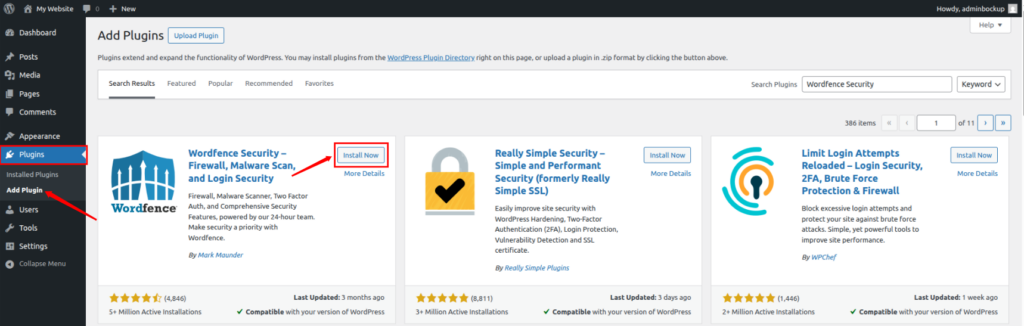
- Navigate to the Plugins >> Add Plugins section
- Search for Wordfence Security
- Click Install, then Activate
Step 2: Adjust Scan Settings
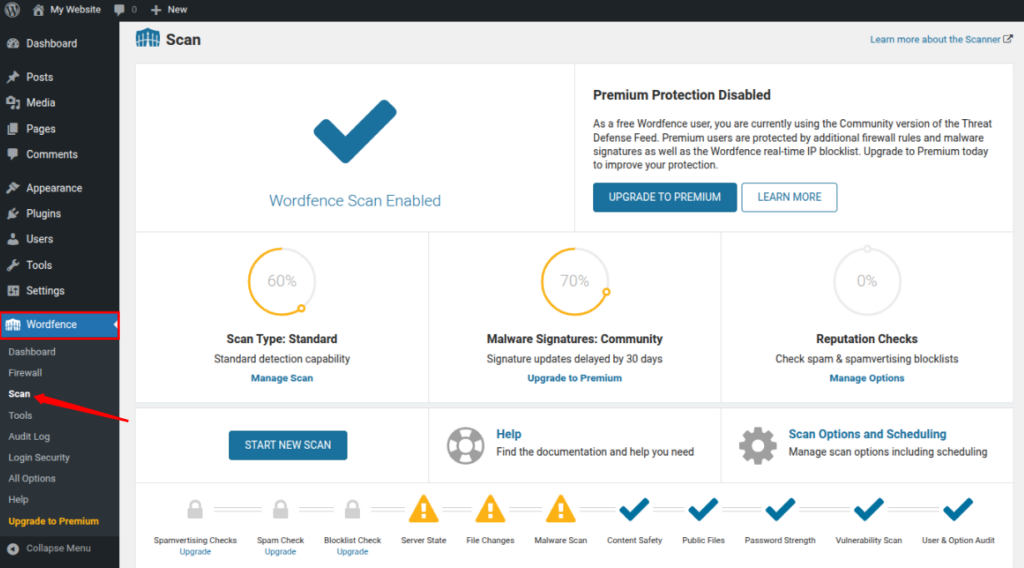
- Open the Wordfence menu from your dashboard
- Go to the Scan section
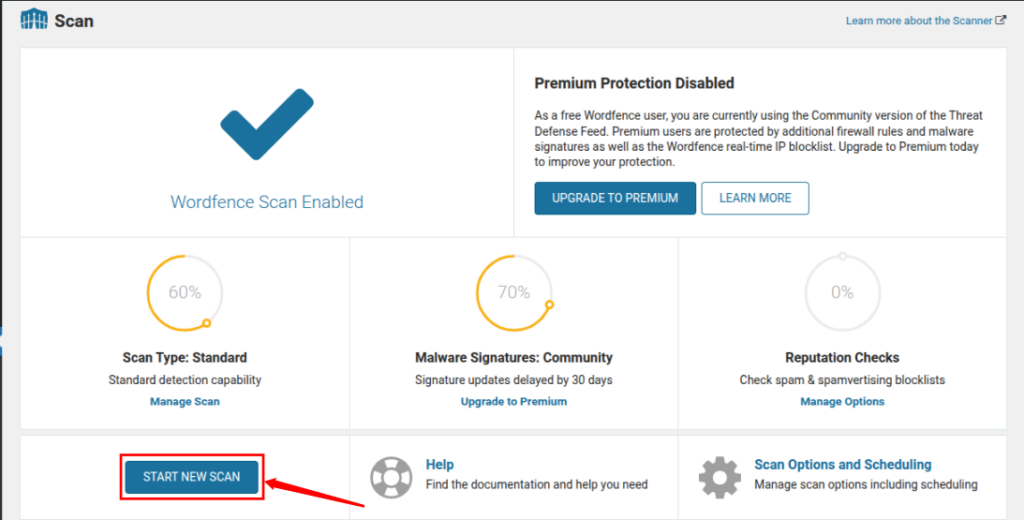
- You can see the scan type and Malware Signatures on the dashboard.
- To get detailed information, you need to upgrade the Wordfence Security plugin to it’s premium version
This setting makes the scan more thorough, although it may sometimes flag safe files as suspicious.
Step 3: Run the Scan and Analyze Results
- Click Start New Scan
- Wait while it checks your files and database
Once the scan is complete, you’ll see a list of flagged issues. You’ll usually get options to:
- Repair the file (restore original version)
- Delete the file
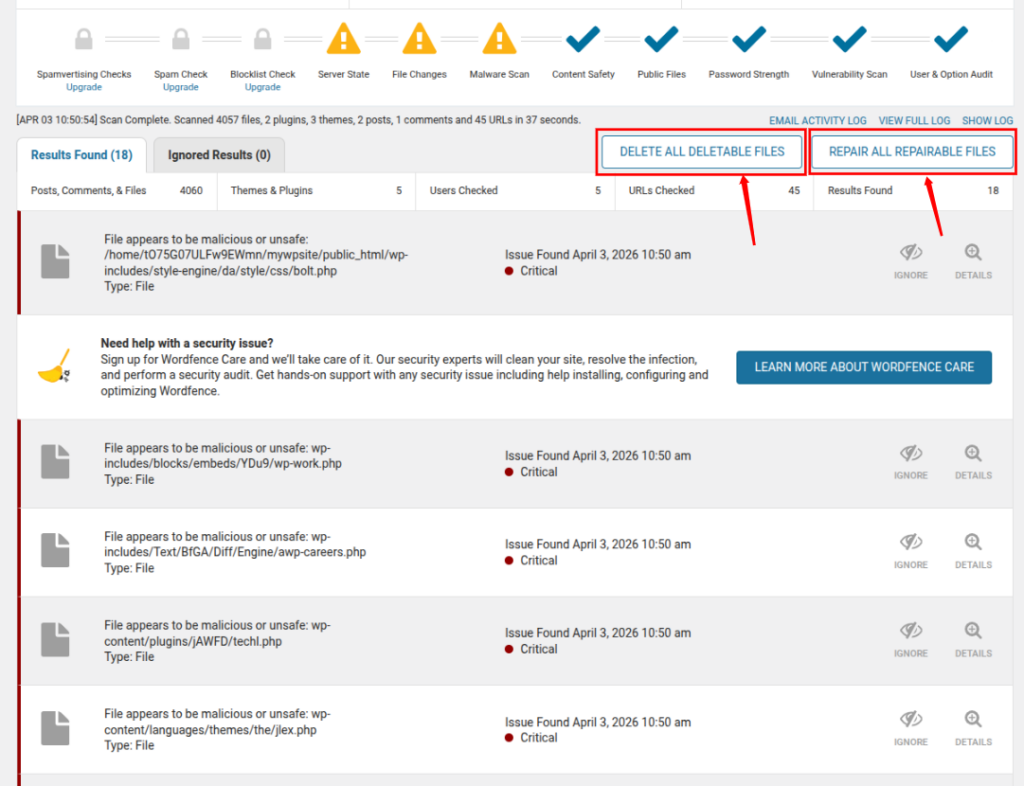
Go through the results carefully and take action where needed.
Why Security Plugins Are Not Reliable
While plugins are helpful, they’re not perfect. Hackers are well aware of how these tools work, and they design backdoors to avoid detection. Here’s why plugins can miss threats:
1. Limited Access to Server-Level Files
Plugins only scan within WordPress. If malware is placed outside your main directory or at the server level, the plugin won’t detect it.
2. Hidden or Encrypted Database Entries
Advanced backdoors may hide inside unusual database tables or use encryption. These can easily slip past standard scans.
3. Incomplete Scans Due to Server Limits
Deep scans require a lot of server resources. Sometimes, the scan stops midway due to memory or time limits. Hackers take advantage of this by hiding malware deep inside large folders.
4. Inability to Detect New Threats
Plugins rely on known malware signatures. If a hacker creates a completely new type of malicious code, the plugin may not recognize it at all.
Final Note
If there’s one thing I’ve learned, it’s this: no single method is enough.
Manual checks help you dig deeper, while plugins save time and catch common threats. The best approach is to combine both, and always stay proactive about your site’s security.
Common Mistakes to Avoid
When dealing with a WordPress backdoor, it’s easy to panic and rush into fixing things. I’ve seen (and honestly made) some of these mistakes myself, and they can make the situation worse instead of better. So before you jump in, here are a few common pitfalls you should avoid.
1. Skipping the Backup Step
This is probably the biggest mistake. You might feel tempted to start cleaning files immediately, but without a backup, you’re taking a huge risk. If something goes wrong, like deleting the wrong file, your entire site could break with no way to recover it.
Always create a full backup first. Think of it as your safety net.
2. Deleting Files Without Understanding Them
Not every unfamiliar file is malicious. Sometimes, people delete files just because they “look suspicious.” The problem is, WordPress themes and plugins can have complex structures, and removing the wrong file can crash your website.
If you’re unsure, compare the file with a clean version before deleting anything.
3. Ignoring the Database
A lot of people focus only on files and completely forget about the database. But here’s the thing, hackers often hide backdoors in:
- Fake admin users: Unauthorized accounts are stored directly in the database.
- Injected plugin entries: Malicious plugins are added without appearing in the dashboard.
- Hidden scripts inside database tables: Harmful code is embedded in database records.
If you don’t clean the database, the attacker can still regain access.
4. Trusting Only Security Plugins
Security plugins are helpful, but they’re not magic tools. Relying only on a plugin scan can give you a false sense of security. Some advanced backdoors are designed to bypass these tools completely.
It’s always better to combine automated scans with manual checks.
5. Not Updating After Cleanup
Cleaning your site is only half the job. If you don’t update your WordPress core, plugins, and themes afterward, the same vulnerability can be exploited again.
It’s like fixing a broken lock but leaving the door weak, someone can easily break in again.
6. Keeping Unused Plugins and Themes
Unused plugins and themes might seem harmless, but they can become an easy entry point for hackers, especially if they’re outdated. If you’re not using something, just delete it. Don’t leave unnecessary doors open.
7. Using Weak Passwords
Even after cleaning a backdoor, weak passwords can undo all your hard work. Avoid simple passwords like “admin123” or “password.” Use strong, unique combinations for:
- Admin login: A weak admin password makes it easy for attackers to gain control.
- Hosting account: If compromised, attackers can access your entire server.
- Database access: Weak database credentials can expose all your site data.
A strong password is one of the simplest yet most effective security measures.
8. Ignoring File Permissions
Incorrect file permissions can make your website vulnerable. If your files are set to be writable by anyone, attackers can easily inject malicious code again.
Make sure your permissions are properly configured after cleanup.
9. Rushing the Process
I get it, you want your site fixed as quickly as possible. But rushing can lead to missed backdoors or accidental mistakes. Take your time, double-check everything, and follow each step carefully.
10. Not Monitoring After Cleanup
Many people think once the site is clean, the job is done. But that’s not true. You should keep monitoring your site for:
- Unusual activity: Watch for anything out of the ordinary in logs or behavior.
- New users: Keep an eye on any newly created accounts.
- File changes: Monitor files for unexpected modifications.
Security is not a one-time task, it’s an ongoing process.

Best Practices to Prevent Future Backdoors
Preventing a backdoor is always easier than removing one. By following a few simple habits, you can significantly reduce the risk of future attacks.
- Avoid nulled themes/plugins: Pirated resources often contain hidden malware.
- Use trusted sources only: Download themes and plugins from reliable providers.
- Enable automatic updates: Keep your site protected with the latest security patches.
- Regularly scan your website: Frequent scans help detect issues early.
- Use strong hosting security: A secure hosting environment adds an extra layer of protection.
Also, if you want less hassle and better security, choosing managed hosting can give you peace of mind.
Conclusion
Dealing with a WordPress backdoor can feel overwhelming, especially when everything on the surface seems normal. But as you’ve seen, identifying the signs early and taking a careful, step-by-step approach can make a huge difference. Whether you choose to manually inspect files or rely on security plugins, the key is to stay patient and thorough. More importantly, don’t treat security as a one-time fix. Keeping your site updated, maintaining regular backups, and using a reliable server management platform can save you from future headaches. In the end, a secure website isn’t just about fixing problems, it’s about preventing them before they happen.
FAQs
1. How can I prevent backdoors in the future?
You can reduce risk by keeping your WordPress core, plugins, and themes updated, avoiding nulled software, using strong passwords, and regularly scanning your website.
2. How can I tell if my WordPress site has a backdoor?
Common signs include unknown admin users, strange redirects, unexpected files on your server, sudden traffic drops, or warnings from your hosting provider.
3. Can I remove a WordPress backdoor manually?
It requires careful inspection of files and databases. One small mistake can break your site, so always take a full backup before making any changes.
4. Are security plugins enough to detect backdoors?
Security plugins are helpful, but they are not foolproof. Some advanced backdoors can bypass detection, which is why combining manual checks with automated scans is recommended.
5. Where do hackers usually hide backdoors?
Backdoors are often hidden in the uploads folder, inside core files like wp-config.php, or disguised as legitimate-looking files in your WordPress directories.