

You click Update, refresh your site, and… nothing changes. Annoying, right? If you’re dealing with WordPress changes not showing, you’re definitely not alone. This is one of the most common issues people face while working with WordPress.
The good news? Most of the time, nothing is actually broken. Your changes are just stuck behind invisible barriers like caching, browser memory, or small configuration issues.
This guide walks you through every possible reason why WordPress changes are not showing without confusing jargon. By the end, you’ll know exactly where to look and what to fix.
What Is WordPress?
WordPress is the world’s most popular open-source content management system (CMS), used to build websites, blogs, and e-commerce stores. It offers flexibility through themes and plugins, making it suitable for beginners, developers, and businesses of all sizes.
How ServerAvatar Simplifies WordPress Deployment & Management
What is ServerAvatar?
ServerAvatar is a platform to simplify the hosting and management of servers and applications. It simplifies the process of deploying and managing PHP and Node.js based web applications on servers.
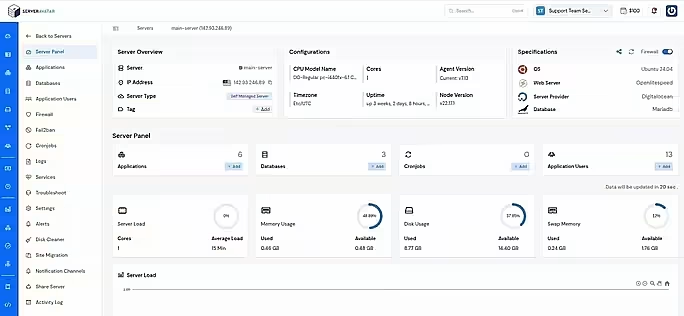
ServerAvatar makes WordPress and other popular applications, such as Mautic, N8N, UptimeKuma, etc, deployment effortless with its one-click WordPress application installer, allowing you to launch a fully configured WordPress site in minutes. It removes the complexity of server setup by providing an intuitive dashboard to manage servers, applications, databases, PHP versions, SSL, and performance settings from one place.
ServerAvatar supports multiple cloud providers and gives users full control over their infrastructure while eliminating the need for deep server administration knowledge. You can refer to the ServerAvatar documentation and the detailed blog to install WordPress effortlessly.
ServerAvatar does not directly provide WordPress Multisite, but our technical experts can help you set up a WordPress Multisite environment.
The ServerAvatar support team is available 24/7 to assist you with any issues or questions you may have.
Key Benefits of Using ServerAvatar for WordPress
- One-click WordPress installer: Deploy WordPress instantly without manual configuration.
- Unified management panel: Manage servers and WordPress applications from a single dashboard.
- Performance optimization: Easily configure services, PHP, and server resources.
- Redis caching support: ServerAvatar comes with built-in Redis integration that helps speed up WordPress by storing frequently accessed data in memory.
- Enhanced security: Includes firewall, SSL management, and secure access controls.
- Easy scalability: Upgrade server resources as your WordPress site grows.
ServerAvatar is an ideal solution for users who want the power of cloud servers without the operational complexity. It simplifies WordPress hosting by automating server setup, streamlining application management, and providing performance and security optimizations out of the box.
Whether you’re a developer, agency, or business owner, ServerAvatar allows you to deploy, manage, and scale WordPress websites confidently while focusing on growth instead of infrastructure management.
Understanding the “Changes Not Showing” Problem
At its core, this issue means you’ve updated something on your website, but visitors still see the old version. This can happen with text, images, layouts, colors, or even entire pages.
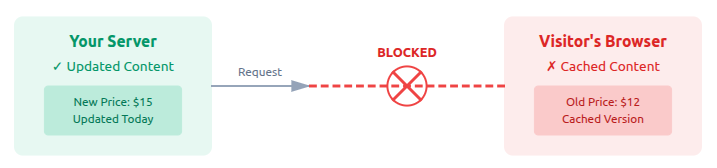
The tricky part is that the problem is rarely about your content being wrong. Most of the time, it’s about how your website or browser stores and displays information.
Think of your website like a menu board at a café. You changed the prices in the system, but the board outside still shows the old ones. The update exists, it’s just not being displayed.
Why This Issue Is So Common
This problem happens so often because modern websites are built to be fast. Speed is great, but it comes with a side effect.
Caching stores copies of your website so it can load faster. Sometimes, though, it keeps showing the old copy instead of the new one. That’s why WordPress changes not showing is more common than you might expect, especially on busy or growing sites.
Why WordPress Changes Don’t Show Immediately
WordPress doesn’t always display changes instantly. That’s not a flaw, it’s often intentional. Caching systems exist to make websites load faster by showing saved versions of pages.
But sometimes, those saved versions overstay their welcome. When that happens, your fresh updates stay hidden while visitors see the old version. Understanding this is the very first step to resolving it.
Below are the most common reasons why WordPress changes don’t show up immediately, explained step by step, along with practical fixes to help your updates appear correctly.
1. Browser Cache: The Most Common Culprit
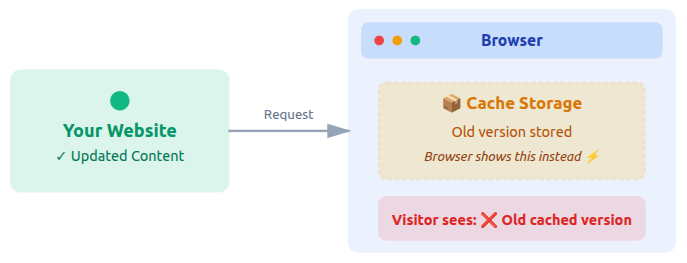
Your browser stores copies of websites to load them faster next time. While this improves speed, it often shows an old version of the page instead of your latest update, making it seem like changes didn’t save.
Why Browser Cache Causes Issues
The browser prefers stored data over fetching fresh content, especially if it thinks nothing important has changed.
Why It Hides Changes
- A saved page version is loaded instead of the updated one: The browser shows an older stored copy rather than fetching the latest page.
- New changes exist but aren’t reloaded: Updates are saved but not refreshed from the server.
- Normal refresh doesn’t always clear stored data: A standard reload keeps cached files intact.
How to Fix It
- Do a hard refresh: Forces the browser to load fresh content instead of cached files.
- Open the page in a private window: Bypasses browser cache completely.
- Try a different browser: Confirms whether the issue is browser-specific.
Key Point
Always check your site in a private window before assuming something is broken.
Pro Tip
If changes appear in private mode, the issue is browser cache, not your website.
2. Website Cache
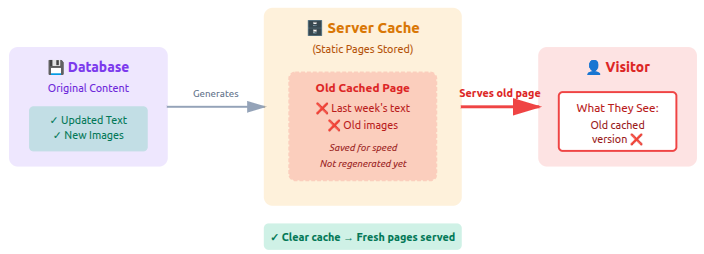
Many WordPress websites use server-level caching to improve performance. This creates static versions of pages that load faster for visitors.
Why It Causes Issues
Website cache serves pre-saved pages instead of generating fresh ones after updates.
Why It Hides Changes
- Cached pages aren’t refreshed automatically: The server keeps serving old page versions.
- Visitors keep seeing older versions: Cached content is shown instead of live updates.
- Updates exist but aren’t displayed: Changes are saved but not delivered to users.
How to Fix It
- Clear website/server cache: Removes stored page versions from the server.
- Purge cache from the dashboard: Forces regeneration of fresh pages.
- Reload the page after clearing: Displays the updated content immediately.
Key Point
Clearing website cache often fixes the issue instantly.
Pro Tip
Always clear site cache after major edits, not just browser cache.
3. Theme-Related Issues
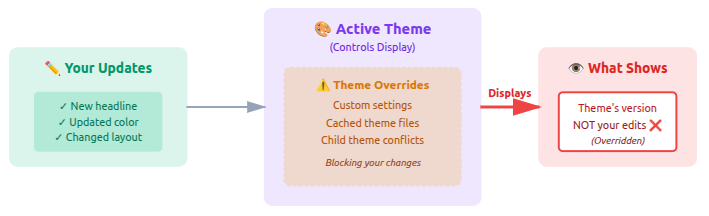
Sometimes the issue isn’t your content at all, it’s the active theme controlling how things display.
Why It Causes Issues
Themes can override layouts, styles, or content visibility using their own settings.
Why It Hides Changes
- Custom theme settings override edits: Theme options replace your manual changes.
- Cached theme files load old data: The theme serves outdated styling or layouts.
- Child theme conflicts block updates: Conflicting files prevent changes from applying.
How to Fix It
- Clear theme cache: Removes stored theme data.
- Check theme customization settings: Ensures settings aren’t overriding changes.
- Switch themes temporarily to test: Confirms whether the theme is the issue.
Key Point
If changes disappear after styling updates, your theme is a likely suspect.
Pro Tip
Always test changes with the default theme to isolate theme issues.
4. Plugin Conflicts That Block Updates
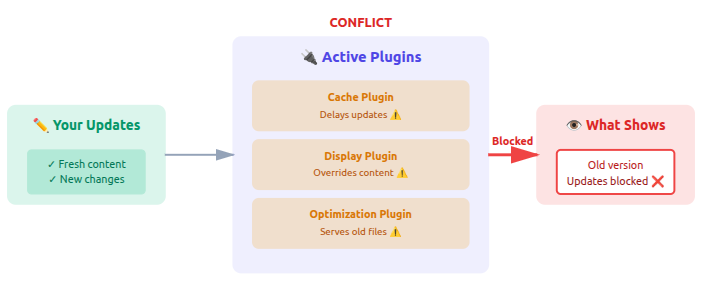
Plugins add features, but conflicting plugins can interfere with how updates appear on your site.
Why It Causes Issues
Multiple plugins may try to control the same function or display behavior.
Why It Hides Changes
- Cache plugins delay updates: Plugins continue serving cached content.
- Display plugins override content: Plugin rules replace visible page elements.
- Optimization plugins serve old files: Minified files don’t refresh automatically.
How to Fix It
- Clear plugin cache: Removes cached plugin data.
- Disable caching plugins temporarily: Allows fresh content to load.
- Regenerate cached files: Creates updated versions of optimized files.
Key Point
Disabling plugins one by one helps identify the blocker.
Pro Tip
After major edits, always clear plugin cache manually.
5. Content Delivery Networks and Delay Confusion
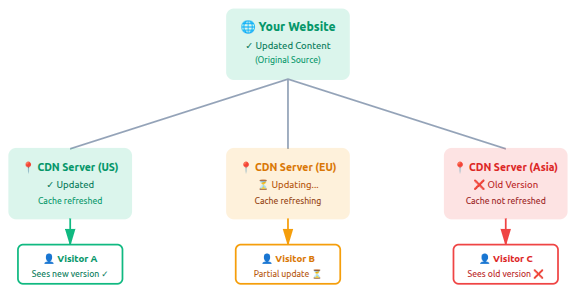
A content delivery network stores copies of your site across multiple locations to improve speed worldwide.
Why It Causes Issues
Different locations may serve different versions of your site.
- Some visitors see updates: Certain locations receive refreshed content sooner.
- Others see older versions: Cached copies are still active elsewhere.
- Changes appear gradually: Updates roll out slowly across locations.
How to Fix It
- Purge CDN cache: Clears stored content globally.
- Enable development mode temporarily: Bypasses CDN caching during edits.
- Wait for cache refresh: Allows automatic expiration to complete.
Key Point
Delayed updates don’t always mean failed updates.
Pro Tip
Always clear CDN cache after visual or content changes.
6. Page Builders and Saved Layout Problems
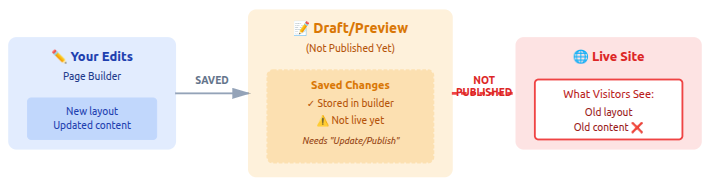
With page builders, changes can be saved but not published, causing confusion.
Why It Causes Issues
Edits may stay in draft or preview mode.
Why It Hides Changes
- Layout saved but not updated: Changes aren’t published to the live page.
- Preview shown instead of live page: Preview mode doesn’t reflect real visitors’ view.
- Builder cache still active: Stored layouts override new edits.
How to Fix It
- Click update, not just save: Publishes changes to the live site.
- Clear builder cache: Removes stored layout data.
- Reload live page: Displays the published version.
Key Point
Preview mode doesn’t reflect the live site.
Pro Tip
Always check the page in a new tab after publishing.
7. CSS and JavaScript Caching Problems
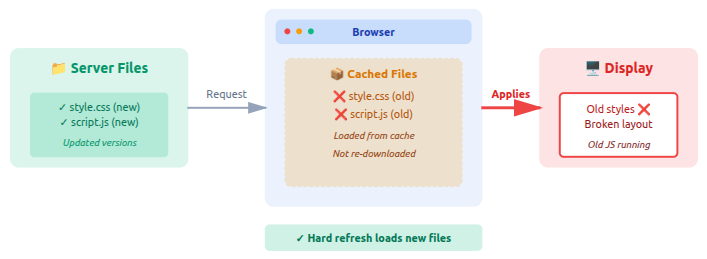
Styles and scripts are cached aggressively to improve performance.
Why It Causes Issues
Cached CSS and JS files don’t reload automatically.
Why It Hides Changes
- Old styles keep loading: Cached CSS files override new styling.
- Layout appears broken: Updated styles aren’t applied correctly.
- Scripts don’t reflect updates: Cached JavaScript blocks changes.
How to Fix It
- Disable minification temporarily: Loads uncompressed, updated files.
- Regenerate CSS files: Creates fresh style files.
- Change file versioning: Forces browsers to fetch new files.
Key Point
Visual issues often point to cached CSS.
Pro Tip
Even tiny style changes may require a full cache purge.
8. Draft vs Published Content Confusion
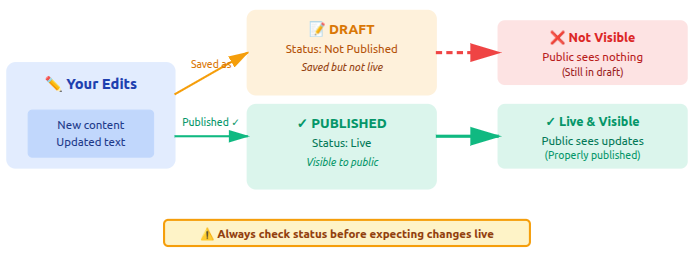
This issue is simpler than it sounds, and very common.
Why It Causes Issues
Content may be saved but not made public.
Why It Hides Changes
- Post saved as draft: Draft content isn’t visible publicly.
- Scheduled content not live yet: Changes appear only at the scheduled time.
- Wrong page edited: Updates were made on a different page.
How to Fix It
- Confirm publish status: Ensures content is live.
- Check publish date: Verifies timing settings.
- Verify page URL: Confirms you’re viewing the correct page.
Key Point
Always confirm you’re editing the correct page.
Pro Tip
Use the “View Page” button after publishing.
9. Image and Media Caching
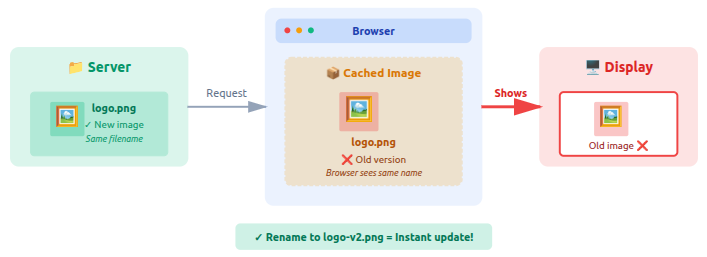
Images often refuse to update even when replaced.
Why It Causes Issues
Browsers aggressively cache media files.
Why It Hides Changes
- Same filename reused: Browser loads the previously cached image.
- Old image cached: Updated image isn’t fetched.
- Browser loads previous version: Stored media overrides new uploads.
How to Fix It
- Rename image file: Forces browsers to load the new image.
- Upload as new file: Avoids replacing cached media.
- Clear media cache: Removes stored image versions.
Key Point
Same name = same cached image.
Pro Tip
New filename, instant update.
10. User Role and Permission Limitations
Not all users can publish changes publicly.
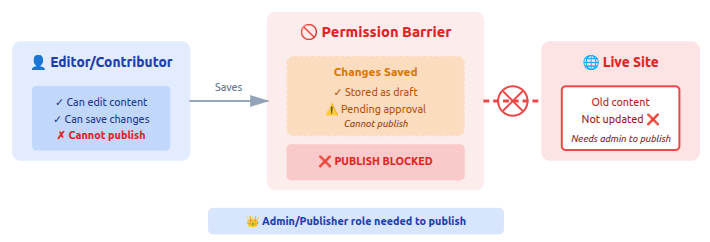
Why It Causes Issues
Limited roles restrict publishing access.
Why It Hides Changes
- Changes saved but not published: Edits aren’t visible to visitors.
- Approval required: Content waits for authorization.
- Editing restrictions: User permissions limit visibility.
How to Fix It
- Check user role: Confirms publishing access.
- Request publishing access: Allows changes to go live.
- Switch to admin account: Removes permission limitations.
Key Point
Saved doesn’t always mean live.
Pro Tip
Confirm your role before troubleshooting further.
11. File and Media Updates Not Appearing
Replacing files can be misleading.
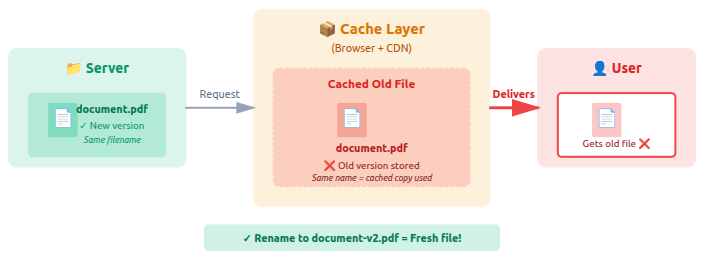
Why It Causes Issues
Old files remain cached under the same name.
Why It Hides Changes
- Browser loads stored version: Cached files replace updated ones.
- CDN serves old file: Global cache delivers outdated content.
How to Fix It
- Rename file before upload: Forces file refresh.
- Clear cache: Removes stored versions.
- Upload fresh copy: Ensures latest file loads.
Key Point
Renaming files forces refresh.
Pro Tip
Avoid replacing files with the same name.
12. Database Sync Issues Explained Simply
Content is stored in a database, and sometimes updates don’t sync correctly.
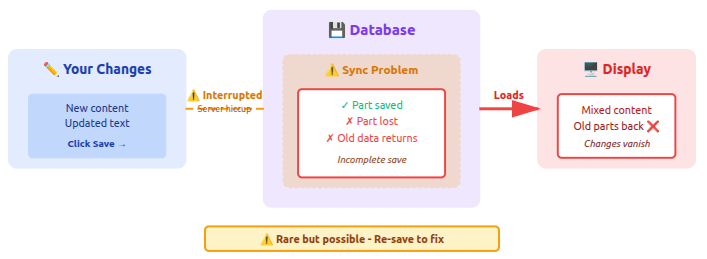
Why It Causes Issues
Interrupted saves or server hiccups.
Why It Hides Changes
- Partial updates: Changes don’t save completely.
- Old content reappears: Database doesn’t sync properly.
- Changes vanish after reload: Updates fail to persist.
How to Fix It
- Re-save content: Ensures proper saving.
- Clear cache: Removes stored data.
- Check server stability: Prevents interrupted saves.
Key Point
This issue is rare but possible.
Pro Tip
Avoid editing during heavy traffic or slow connections.
13. Mobile vs Desktop Display Differences
Changes may appear on one device but not another.
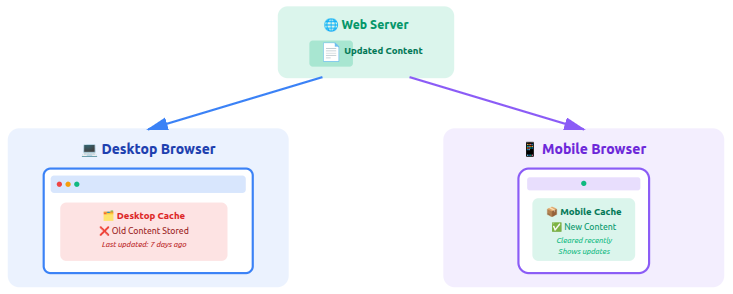
Why It Causes Issues
Mobile and desktop use separate caches.
Why It Hides Changes
- Device-specific storage: Mobile and desktop caches differ.
- Responsive layout differences: Styles vary by screen size.
How to Fix It
- Clear mobile cache: Removes stored mobile data.
- Test on multiple devices: Confirms consistent display.
- Use private mode: Bypasses device cache.
Key Point
One device view isn’t enough.
Pro Tip
Always test on both desktop and mobile.
14. Staging vs Live Site Confusion
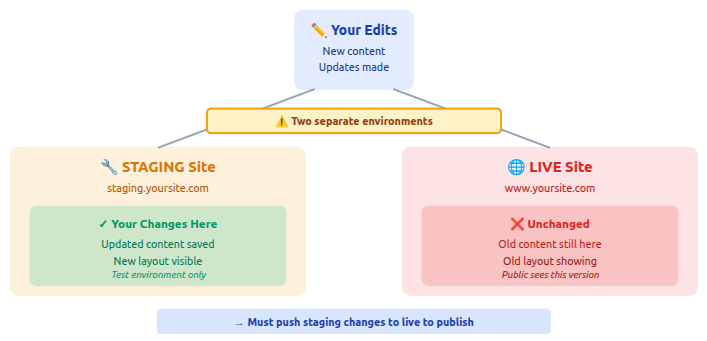
Edits made on staging won’t show on live automatically.
Why It Causes Issues
Two separate environments exist.
Why It Hides Changes
- Changes saved on staging only: Live site remains unchanged.
- Live site unchanged: Updates aren’t pushed live.
How to Fix It
- Verify site URL: Confirms environment.
- Push staging to live: Publishes changes publicly.
Key Point
Two sites, two different realities.
Pro Tip
Label environments clearly to avoid confusion.
15. Hosting Environment Limitations
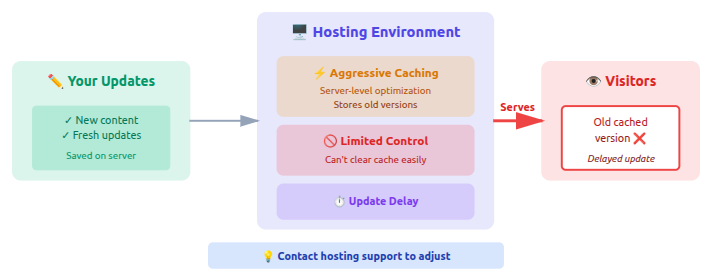
Your hosting setup can delay updates.
Why It Causes Issues
Aggressive caching and restrictions.
Why It Hides Changes
- Limited cache control: Hosting settings restrict updates.
- Server-level optimization: Aggressive caching delays changes.
How to Fix It
- Contact hosting support: Gets cache assistance.
- Adjust cache settings: Allows faster updates.
- Enable development mode: Temporarily disables caching.
Key Point
Hosting configuration matters.
Pro Tip
Know your host’s caching behavior.
16. When Updates Fail Silently
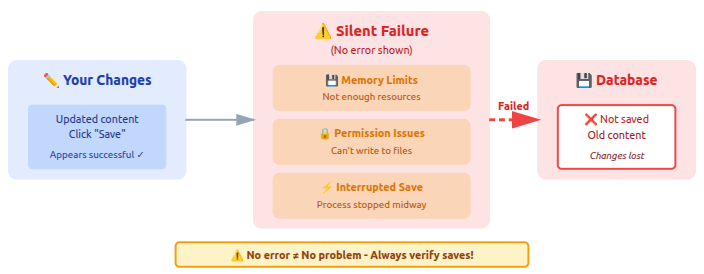
Sometimes updates fail without showing errors.
Why It Causes Issues
System limitations or interruptions.
Why It Hides Changes
- Memory limits: Updates fail due to resource limits
- File permission problems: Files can’t be updated properly.
- Interrupted saves: Changes don’t complete.
How to Fix It
- Increase memory: Allows updates to save correctly.
- Check permissions: Ensures files are writable.
- Re-save carefully: Confirms changes are stored.
Key Point
No error doesn’t mean no problem.
Pro Tip
If changes revert automatically, investigate immediately.

When Changes Appear Only After Some Time
Sometimes your updates are saved correctly, but they don’t show up right away. This usually happens because your website is designed to load faster by showing stored versions first. In many cases, the changes appear automatically after a short delay without you doing anything.
Why Delays Happen
- Cached versions expire slowly: Older versions stay visible until the cache refreshes.
- Network-level storage: Copies of your site are stored across different locations.
- High-traffic optimization: Busy websites prioritize speed over instant updates.
Waiting a short while sometimes solves the issue without any action.
Best Practices to Avoid issues in Future
To avoid running into this problem again, it helps to follow a few simple habits while updating your site. These small steps ensure your changes appear faster and reduce confusion after publishing.
- Clear cache after updates: Forces the latest version to load.
- Use consistent file names wisely: Prevents old files from being reused.
- Publish instead of preview: Only published changes appear live.
- Test changes in private windows: Bypasses stored browser data.
- Keep themes and plugins updated: Reduces conflicts and display issues.
A little habit-building goes a long way.
Conclusion
When WordPress changes don’t show up, it can feel frustrating and confusing, especially when you’re sure you did everything right. But as this guide shows, the issue is rarely serious or permanent. Most of the time, your updates are simply hidden behind caching layers, browser storage, plugins, or system-level optimizations designed to improve performance. By understanding where these delays come from and following a clear troubleshooting process, you can quickly identify the cause and fix it without panic. Whether you manage a small site or a growing one on WordPress, a calm, step-by-step approach will help you keep your site accurate, up to date, and running smoothly.
FAQs
1. Why are my WordPress changes not showing even after clicking Update?
This usually happens due to browser cache, website cache, or plugin caching. Your changes are saved, but an older version of the page is being displayed.
2. Do WordPress changes take time to appear?
Yes, sometimes. Caching systems and network-level storage can delay how quickly updates become visible, especially on optimized or high-traffic sites.
3. Why do my changes appear in preview but not on the live site?
Preview mode shows unsaved or draft content. If changes are not published or cache isn’t cleared, they won’t appear on the live pag
4. Can plugins or themes stop my updates from showing?
Yes. Conflicting plugins or theme settings can override content, styles, or layouts, making it seem like changes didn’t apply.
5. What is the fastest way to check if caching is the problem?
Open your website in a private or incognito window. If the changes appear there, caching is almost certainly the cause.