

Managing a WordPress site often requires updating multiple database entries at once. Whether you’re changing URLs, updating brand names, or fixing outdated content, WordPress Search & Replace helps you make these changes quickly and accurately without editing each entry manually.
This is where WordPress Search & Replace becomes incredibly useful. However, database-wide replacements can also be risky. A single mistake may affect hundreds or even thousands of records. That’s why it’s important to preview changes before applying them.
You can easily search through your WordPress database, review matching entries with Dry Run option, execute replacement after confirming everything is correct using Search & Replace feature in ServerAvatar WordPress Toolkit.
In this guide, you will learn how to use ServerAvatar’s WordPress Toolkit Search & Replace feature, common use cases, and best practices to avoid accidental database modifications.
TL;DR
- WordPress Search & Replace helps update text across the entire database.
- Commonly used during site migrations, URL changes, and rebranding.
- ServerAvatar includes a built-in Search & Replace tool in its WordPress Toolkit.
- The Dry Run Preview feature allows you to review matches before making changes.
- Always verify results before running a live replacement.
- Taking a backup before performing large database changes is highly recommended.
What Is WordPress Search & Replace?
WordPress stores much of its content and configuration inside a MySQL database. This includes:
- Posts
- Pages
- URLs
- Widget settings
- Theme options
- Plugin configurations
- Internal links
- Custom fields
When information needs to be updated globally, editing records one by one is inefficient. Search & Replace feature allows you to:
- Search for a specific text string
- Replace it with new content
- Apply changes across all WordPress database tables
For example:
| Search For | Replace With |
|---|---|
| olddomain.com | newdomain.com |
| HTTP URLs | HTTPS URLs |
| Old Company Name | New Company Name |
| Old Email Address | New Email Address |
No need to manually edit multiple entries, WordPress Toolkit’s Search & Replace feature did this task within few minutes.
When Should You Use Search & Replace?
Search & Replace feature is useful in situations such as:
1. Website Migration
After moving a WordPress website to a new domain, internal URLs still point to previous domain. Example:
Search:
https://oldsite.comReplace:
https://newsite.com2. HTTPS Migration
When enabling SSL, older HTTP URLs may still exist in the database. Example:
Search:
http://example.comReplace:
https://example.com3. Company Rebranding
If business change its name, logo reference, or contact informations, Search & Replace feature quickly update content across the site.
4. Updating Contact Information
Phone numbers, email addresses, and company addresses can be updated globally without editing each page individually.
5. Cleaning Development URLs
Websites moved from staging environments often contain temporary URLs that need replacement before going live.
Why Use Dry Run Before Making Changes?
One of the biggest mistakes WordPress administrators make is applying replacements without reviewing the results first. A replacement operation may affect:
- Content
- Plugin settings
- Widget configurations
- Custom fields
- Theme data
Replacing the wrong text can create broken links, incorrect content, or configuration issues. The Dry Run feature in ServerAvatar helps prevent these problems by:
- Scanning the database
- Finding all matching entries
- Showing what would be modified
- Making no actual changes
This allows you to verify everything before committing the update. Think of it as a safety checkpoint before modifying your database.
Prerequisites
Before starting:
- A WordPress website should already be installed through ServerAvatar.
- You should have access to the WordPress Toolkit.
- Identify the exact text you want to search for.
- Create a database backup before making large-scale replacements.
Best Practice: Dry Run helps to prevent mistakes, but maintaining a latest backup provides recovery option if unexpected error occur.
How to Use Search & Replace Feature in ServerAvatar
ServerAvatar provides a simple interface for performing database-wide replacements directly from the WordPress Toolkit.
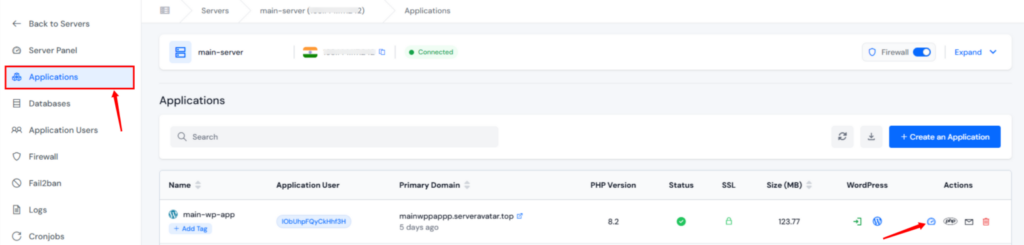
- Log in to your ServerAvatar account and navigate to your server panel by clicking on the server dashboard icon.
- Navigate to the Applications section and click on the application dashboard icon for your WordPress application.
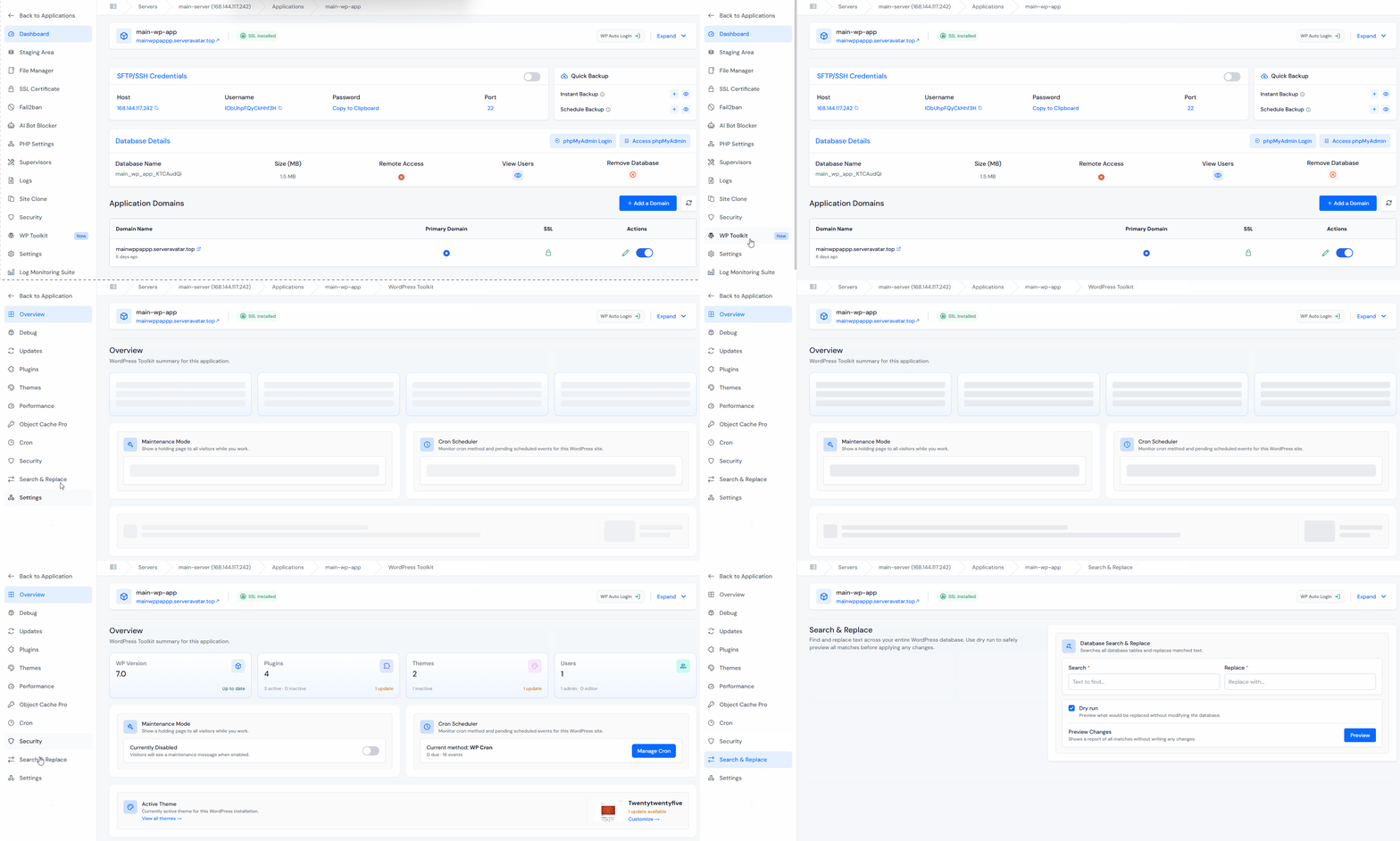
- Navigate to the WP Toolkit section from the left sidebar and go to the Search & Replace section. You will see Search & Replace interface.
- Inside the Search field, enter the text you want to locate. Be precise when entering search values to avoid unintended matches.
Examples:
- https://oldsite.com
- Old Company Name
- old-email@example.com
In the Replace field, enter the new value. ServerAvatar WP Toolkit will replace matching occurrences across database tables.
Example:
Search
https://oldsite.comReplace
https://newsite.comEnable Dry Run
Before proceeding, ensure the Dry Run option remains enabled. Dry Run allows ServerAvatar to:
- Scan the database
- Identify matching records
- Preview potential replacements
- Avoid modifying any data
This is the safest way to validate your search query.
Preview Changes
Click the Preview button. ServerAvatar will generate a report showing:
- Matching entries
- Number of occurrences found
- Records that would be modified
- Replacement summary
Review the results carefully. If the matches look incorrect, adjust your search criteria and run another preview.
Understanding the Dry Run Preview Output
When you run a dry run, you’re looking at a structured report. Here’s what each part means.
Database Table Matches
The preview breaks down results by table. You’ll see entries like:
- wp_posts: post content, titles, excerpts
- wp_postmeta: custom fields and post metadata
- wp_options: site settings, plugin configurations
- wp_comments: comment text and author URLs
- wp_terms: category and tag names
Each table entry shows how many matches were found and previews the actual replacement.
Verify the Results
Before applying changes, confirm:
- Only intended records appear
- No unrelated content is matched
- URLs are correct
- Replacement values are accurate
- Plugin and theme settings will not be affected unintentionally
Taking a few minutes to verify results can prevent significant cleanup work later.
Run the Replacement
Once you are satisfied with the preview, click on the Run Replacement button. ServerAvatar will update the matching database entries.
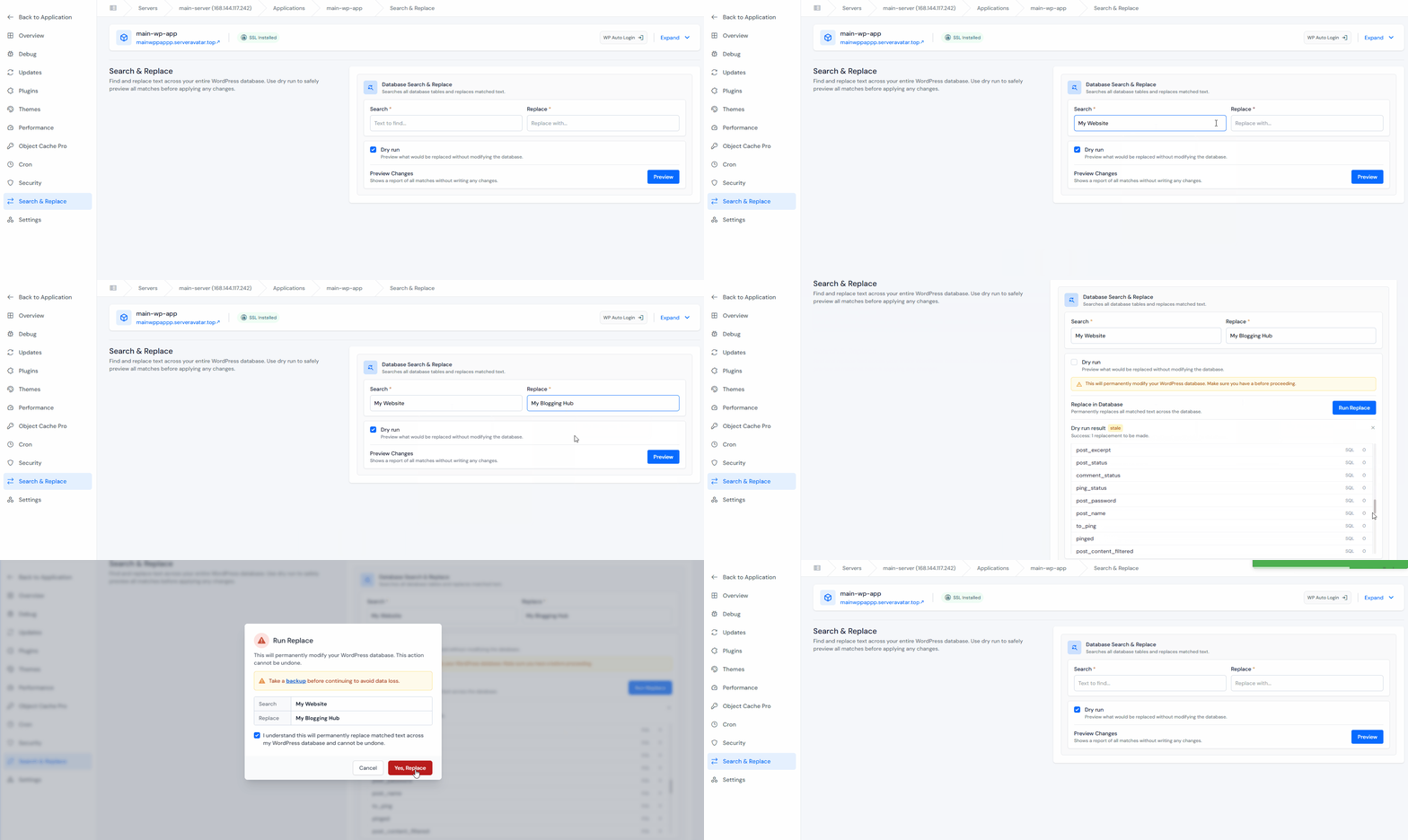
After completion, test your website to ensure everything works as expected.
Example: Updating a Domain After Migration
Suppose you’ve migrated a WordPress site, you can:
| Field | Value |
|---|---|
| Search | https://oldsite.com |
| Replace | https://newsite.com |
| Dry Run | Enabled |
| Action | Preview |
Review the preview results. If everything looks correct run the replacement. This updates internal links, references, and stored URLs throughout the database.
Common Mistakes to Avoid
1. Skipping Dry Run
Applying replacements immediately increases the risk of unwanted changes. Always preview first.
2. Using Generic Search Terms
Searching for common words may affect unrelated content. Specific search values reduce accidental replacements. For example:
Bad Search:
shopBetter Search:
https://shop.example.com3. Forgetting Backups
Even successful replacements should be performed with a backup available. Database changes can be difficult to reverse manually.
4. Not Testing After Changes
After completing a replacement:
- Open multiple pages
- Test forms
- Check menus
- Verify internal links
- Confirm plugin functionality
A quick review helps catch issues early.
Best Practices for Search & Replace Operations
| Best Practice | Why It Matters |
|---|---|
| Take backups | Provides recovery options |
| Use exact search strings | Reduces incorrect matches |
| Run Dry Run first | Prevents accidental changes |
| Review preview results | Validates replacement scope |
| Test website afterward | Confirms successful changes |
| Perform changes during low traffic periods | Minimizes user impact |
Why Use ServerAvatar for WordPress Database Changes?
Many WordPress users rely on plugins or direct database access method for search-and-replace process. ServerAvatar simplifies the process by integrating the functionality directly into the WordPress Toolkit.
Benefits include:
- Centralized WordPress management
- Built-in database search and replace
- Dry Run preview functionality
- Reduced risk of accidental modifications
- Faster maintenance workflows
- No need for additional plugins
This makes routine WordPress maintenance significantly easier and safer.

Why ServerAvatar’s Toolkit Is the Right Choice
There are several ways to do WordPress search and replace; SQL queries, WP-CLI, plugins, and phpMyAdmin. Here’s how ServerAvatar’s approach compares.
| Feature | ServerAvatar Toolkit | WP-CLI | phpMyAdmin SQL | Search Replace Plugins |
|---|---|---|---|---|
| Dry run preview | ✅ Built-in | ⚠️ --dry-run flag | ❌ No | ✅ Most have it |
| Handles serialized data | ✅ Yes | ✅ Yes | ❌ Breaks it | ✅ Yes |
| No Technical knowledge needed | ✅ Yes | ❌ Requires SSH/CLI | ❌ Requires SQL knowledge | ✅ Yes |
| Works from hosting dashboard | ✅ Yes | ❌ Separate access | ❌ Separate tool | ⚠️ Plugin install |
| Auto scans all tables | ✅ Yes | ⚠️ All tables flag | ❌ Manual table-by-table | ✅ Yes |
| Beginner friendly | ✅ Very | ⚠️ Moderate | ❌ Difficult | ✅ Yes |
ServerAvatar’s toolkit wins on simplicity. You don’t need to install a plugin, run SSH commands, or learn SQL syntax. Everything is in your hosting dashboard, the interface is clean, and the dry run preview is built into the workflow by design.
Key Takeaways
- Search & Replace feature helps to modify content across entire database.
- ServerAvatar includes this functionality directly within its WordPress Toolkit.
- Dry Run Preview allows you to verify changes safely before applying them.
- Backups should always be created before large-scale database updates.
- Accurate search values reduce the risk of unintended modifications.
- Testing the website after replacement ensures everything continues working correctly.
Conclusion
Search & Replace feature is most useful tool for handling entire database updates. Whether you’re migrating domains, enabling HTTPS, updating branding, or replacing outdated information, it can save hours of manual work. The challenge is ensuring those changes are made safely.
ServerAvatar’s WordPress Toolkit Search & Replace feature addresses this by providing a Dry Run Preview option that lets you review all potential modifications before anything is written to the database. This extra verification step dramatically reduces the risk of mistakes while making WordPress maintenance faster and more reliable.
FAQs
Does Search & Replace modify all WordPress database tables?
Yes, the feature scans WordPress database tables and updates matching entries where applicable.
What does Dry Run do?
Dry Run previews all potential replacements without making actual database changes.
Can I undo a Search & Replace operation?
The safest rollback method is restoring a database backup created before the replacement.
Is Search & Replace useful for WordPress migrations?
Yes, it is commonly used to update URLs after moving a website to a new domain or server.
Should I always use Dry Run first?
Absolutely, reviewing matches before making database changes is considered a best practice.
Next Steps
Managing WordPress websites involves more than publishing content. From performance optimization and security hardening to database maintenance and application management, keeping everything running smoothly requires the right tools.
ServerAvatar’s WordPress Toolkit brings these management features into a single dashboard, helping you handle updates, caching, cron jobs, security settings, search-and-replace operations, and more without relying on multiple plugins or complex server commands.
You should also read:
- WordPress Toolkit for WordPress Management in ServerAvatar
- How to Create WordPress Blueprints Easily in ServerAvatar
- How to Manage WordPress Cron Jobs with ServerAvatar
About the Author
Meghna Meghwani is a technical writer focused on Linux, Ubuntu, VPS hosting, server management, WordPress, PHP, Node.js, cloud hosting, and DevOps. She creates beginner-friendly tutorials, practical hosting guides, troubleshooting articles, and server security content designed to help developers and businesses manage applications and servers more efficiently.