

You run a PageSpeed test on your WordPress site. Everything looks fine, images are compressed, CSS is minified, and JavaScript isn’t blocking. Then you scroll down and see it: “Reduce initial server response time.” This warning usually points to poor WordPress TTFB (Time to First Byte), meaning your server is taking too long to deliver the first byte of data to visitors.
That’s your TTFB (Time to First Byte) talking. It measures how long your server takes to start sending data after a browser asks for it. And unlike image compression or code minification, you can’t fix TTFB by tweaking your theme. You have to go deeper.
Here’s the uncomfortable truth: TTFB isn’t really a WordPress problem. It’s a server problem. And fixing it means understanding what your server is doing, and why it’s slow.
This guide is for you if you run a WordPress site and want to understand the causes of slow server response times. We’ll cover what TTFB really measures, why WordPress is particularly vulnerable to it, and the concrete steps that actually move the needle. No vague advice. No generic tips. Just the practical stuff.
TL;DR
| Key Takeaway | Summary |
|---|---|
| What is TTFB? | TTFB (Time to First Byte) measures how long your server takes to send the first byte of data, not your website’s overall loading speed. |
| Why is WordPress slow? | WordPress generates pages dynamically for every request, which can increase server response time without optimization. |
| Best ways to reduce TTFB | Enable page caching, upgrade to the latest PHP version, optimize your database, and use object caching for the biggest performance gains. |
| Server Infrastructure Matters | A fast server and quality hosting are essential. Plugin optimizations can’t fully compensate for slow or underpowered infrastructure. |
| Faster VPS Management | Platforms such as ServerAvatar help optimize PHP, caching, and server management, making it easier to achieve lower TTFB without manual server administration. |
What TTFB Actually Means (And Why It Matters)
Let’s start with the basics. When someone types your domain into a browser, a chain of events kicks off:
- DNS lookup: the browser finds your server’s address
- Connection setup: the browser connects to your server
- Server processing: your server builds the page (runs PHP, queries the database)
- Data transfer: the first byte of content travels back to the browser
TTFB is step three. It’s the gap between the browser finishing the handshake and receiving the first byte of actual content. Everything else, rendering, image loading, and scripts running, happens after that first byte arrives.
Google calls 800 milliseconds or less “Good”. Most performance experts worth listening to say you should aim for under 200ms if you want a genuinely fast site. If your TTFB is sitting at 1.5 seconds, no amount of image optimization is going to fix it.
| TTFB Value | Performance Rating | What It Means |
|---|---|---|
| Under 200ms | Excellent | Fast server response and well-optimized infrastructure. |
| 200–500ms | Good | Suitable for most WordPress websites. |
| 500–800ms | Needs Improvement | Some optimization opportunities exist. |
| 800ms–1.5s | Poor | Server response time is affecting page performance. |
| Above 1.5s | Critical | Indicates significant server or application bottlenecks. |
Why does this matter so much for WordPress specifically? Because WordPress doesn’t serve static files. Every page is constructed fresh when someone visits. Your server runs PHP code, pulls content from a MySQL database, combines it with your theme, and builds HTML, all before the first byte leaves. That’s fundamentally different from serving a static HTML file, and it’s why WordPress TTFB is usually higher than static sites.

Why WordPress Struggles With Server Response Time
WordPress has a scaling problem disguised as a performance problem. Out of the box, a standard WordPress site does the following for every single page request:
- Load the core WordPress files
- Load all active plugins
- Load your theme
- Connect to the MySQL database
- Run queries to fetch posts and settings
- Build the page HTML
- Send it to the browser
This entire process repeats on every single visit, even if the content hasn’t changed in months.
This is fine when you have ten visitors a day. It falls apart when you have a few hundred simultaneous visitors, or when your database has accumulated years of bloat, or when your server simply doesn’t have enough RAM to handle the PHP workers needed to process all those requests simultaneously.
The real issue isn’t WordPress itself. WordPress is a content management system doing exactly what it was designed to do. The problem is the environment it runs in, an underpowered server, an unoptimized database, missing cache layers, and misconfigured PHP settings.
Did You Know?
Many WordPress performance issues attributed to plugins are actually caused by inefficient server configurations. Proper PHP tuning, caching, and resource allocation often deliver larger TTFB improvements than adding more optimization plugins.
In a real-world WordPress environment, server response time depends largely on whether the page is cached.
- Uncached pages typically take 1,000–3,000 ms to generate because WordPress builds each page dynamically by running PHP code and database queries.
- This is expected behavior, not a WordPress issue or bug.
- With page caching (server-level or plugin-based), the server delivers a pre-built HTML page instead of generating it on every request.
- As a result, the same page can often be served in 20–100 ms, significantly reducing TTFB.
- Dynamic page generation cannot be completely eliminated for uncached requests.
- The best way to improve performance is to reduce the amount of processing required through caching, database optimization, efficient PHP execution, and high-performance hosting.
- A well-optimized server stack combined with caching provides the biggest improvements in WordPress response time.
How to Measure TTFB Accurately
Before you start making changes, measure properly. This matters more than you think, because if you measure wrong, you’ll optimize the wrong thing.
There are two types of data:
- Lab data comes from controlled tests. Tools like Google’s PageSpeed Insights or GTmetrix simulate a page load and give you metrics. This is useful, but it’s artificial, it’s one visit, one location, one moment in time.
- Field data is real user data collected over days or weeks. PageSpeed Insights shows this alongside lab data, look for the “Field Data” section. This tells you what your actual visitors experience, not a synthetic test.
For diagnosing TTFB (Time to First Byte) issues, using the right testing tools helps identify the actual bottleneck.
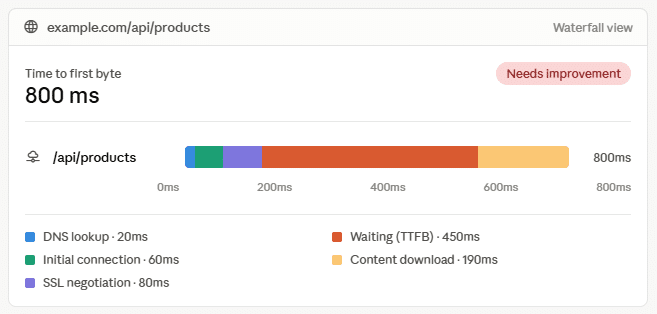
- GTmetrix is useful for detailed TTFB analysis because it provides a waterfall breakdown of the entire loading process.
- The waterfall report helps you identify where delays happen, such as:
- DNS lookup time
- Server connection time
- TLS/SSL negotiation
- Backend processing time
- Actual server response delay
- This breakdown makes it easier to determine whether the issue is with your server, website configuration, or network latency.
- Tools like KeyCDN TTFB Test are helpful because they measure response time from multiple locations worldwide. Example:
- 150ms TTFB from New York: your server is responding quickly nearby.
- 1,200ms TTFB from Sydney: the delay is likely caused by physical distance, not server performance.
- If TTFB varies heavily by location, the solution is usually:
- Use a CDN
- Enable edge caching
- Serve content closer to visitors
- If TTFB is consistently high everywhere, focus on:
- Server resources
- PHP optimization
- Database performance
- WordPress caching
The Eight Fixes That Actually Reduce TTFB
Let’s get into the practical part. These are the changes that produce real, measurable improvements, ordered roughly by impact.
| Optimization Technique | Difficulty | Expected Impact on TTFB |
|---|---|---|
| Full-Page Caching | Easy | Very High |
| Upgrade to PHP 8.x | Easy | High |
| Redis Object Cache | Medium | High |
| Database Optimization | Easy | Medium |
| Replace WP-Cron | Medium | Medium |
| CDN with Edge Caching | Medium | High |
| Optimize Web Server Stack | Advanced | High |
| Audit Heavy Plugins | Easy | Medium |
1. Enable Full-Page Caching
Full-page caching is one of the most effective ways to reduce WordPress TTFB and improve overall website speed.
Without caching:
- Every visitor request runs the complete WordPress process.
- PHP executes scripts.
- The database processes queries.
- WordPress generates the page dynamically before sending a response.
With full-page caching:
- The server saves a ready-to-use HTML version of the page.
- Future visitors receive the stored version instantly.
- PHP processing and database queries are reduced significantly.
Performance impact:
- Cached pages can load in around 20–80ms on a properly optimized server.
- Uncached pages may take 800ms+ on the same setup.
- The improvement can be several times faster, especially for content-heavy websites.
Plugin caching vs server-level caching:
- Caching plugins can help, but server-level caching is usually faster.
- Server-side caching works before WordPress loads, reducing unnecessary processing.
- Tools like FastCGI cache store pages at the server layer instead of relying on PHP-based caching.
When full-page caching works best:
- Blog websites
- Documentation sites
- Portfolio websites
- Landing pages
- Static business websites
When additional caching is needed:
- Online stores
- User dashboards
- Membership websites
- Personalized pages
Dynamic pages often require extra layers such as:
- Object caching
- Database optimization
- CDN caching
- Application-level optimization
Recommended action:
- Enable server-level page caching if your hosting panel supports it.
- If using shared hosting, consider trusted caching solutions such as LiteSpeed Cache or W3 Total Cache.
- Review cache settings regularly to ensure pages are being served efficiently.
If you’re hosting WordPress on a VPS, ServerAvatar lets you configure high-performance server stacks and server-level caching without manually editing web server configurations. This makes it much easier to deliver cached pages with consistently low TTFB.
2. Upgrade Your PHP Version
PHP is the core technology that powers WordPress, and the version you use directly affects website speed, security, and TTFB performance.
- Older PHP versions process requests slower compared to newer releases.
- Modern PHP versions include performance improvements that help WordPress execute code faster.
- Moving from PHP 7.4 to PHP 8.x can significantly reduce PHP execution time on the same server setup.
Why PHP version affects TTFB:
WordPress relies on PHP to:
- Load themes and plugins
- Execute functions
- Process database requests
- Generate page output
Faster PHP execution means:
- Less server processing time
- Faster first-byte response
- Better overall page performance
Common upgrade challenges:
- Some older plugins or themes may not work properly with newer PHP versions.
- Many websites avoid upgrades because they fear compatibility issues.
- Without testing, it can be difficult to identify outdated code.
Best practices before upgrading:
- Check your current PHP version
- Test the upgrade on a staging site first
- Update WordPress, themes, and plugins before switching versions
- Remove outdated plugins that are no longer maintained
- Keep a backup before making changes
Recommended action:
- If your site runs on PHP 7.4 or an older version, plan an upgrade to a supported PHP 8.x release.
- Use a hosting platform that allows switching PHP versions easily per application.
- Test compatibility after upgrading and monitor your site’s performance.
ServerAvatar makes PHP version management simple by allowing you to switch PHP versions for individual applications, helping you test compatibility and adopt newer PHP releases that improve WordPress performance.
Keeping PHP updated is one of the simplest ways to improve WordPress speed, security, and server response time.
3. Switch to Redis Object Caching
Full-page caching improves performance for regular visitors, but it does not help much with dynamic pages.
Pages that usually bypass full-page caching:
- Logged-in user areas
- WooCommerce stores
- Membership websites
- Personalized dashboards
These requests still depend heavily on database queries.
How Redis helps:
- Redis stores frequently used database results in server memory (RAM).
- Instead of running the same database queries repeatedly, WordPress retrieves saved data instantly.
- This reduces:
- Database workload
- PHP processing time
- Server response delays
Performance benefits:
- Complex pages with dozens or hundreds of database queries can become much faster.
- Dynamic content benefits the most from Redis caching.
- Static pages usually see smaller improvements once full-page caching is active.
Setup recommendations:
- Enable Redis from your hosting/server dashboard if available.
- Connect WordPress using a Redis Object Cache plugin.
- Monitor TTFB before and after enabling Redis.
Redis is especially valuable for websites where visitors interact with database-heavy features.
4. Clean Up Your Database
Over time, WordPress databases collect unnecessary data that can slow down queries.
Common database clutter includes:
- Old post revisions
- Deleted posts and comments
- Expired temporary data (transients)
- Unused plugin entries
- Excessive autoloaded options
Why the wp_options table matters:
- WordPress loads data from this table on almost every page request.
- Poorly coded plugins may leave behind large amounts of unnecessary data.
- Too much autoloaded content increases processing time.
Database optimization helps by:
- Removing unused records
- Reducing query execution time
- Improving server response speed
- Keeping database tables efficient
Recommended cleanup steps:
- Use tools like WP-Optimize or database management tools.
- Review large autoloaded entries.
- Remove unused plugins completely.
- Schedule regular database maintenance.
For active websites, quarterly cleanup is a good practice. Less frequently updated sites may need cleanup only occasionally.
5. Replace WordPress Cron With Real Server Cron
WordPress uses a built-in scheduler called WP-Cron to handle background tasks.
It manages:
- Scheduled posts
- Plugin updates
- Backup tasks
- Automated maintenance jobs
The problem with WP-Cron:
- It runs whenever someone visits your website.
- A normal page request may trigger background tasks.
- This creates unexpected CPU usage and slower response times.
A better approach is to use a real server cron job. The benefits include:
- Runs at fixed intervals
- Separates background tasks from visitor requests
- Creates more predictable server performance
- Reduces random TTFB spikes
Setup:
- Disable WordPress’s default cron system.
- Create a server-level cron schedule.
- Run scheduled tasks every few minutes or hours, depending on your needs.
This keeps visitor requests focused only on delivering pages.
6. Use a CDN With Edge Caching
Server optimization improves processing speed, but network distance also affects TTFB.
For Example:
- A visitor far away from your server location will experience extra delay.
- Even a fast server cannot eliminate physical network distance.
A CDN solves this by:
- Storing copies of your website content globally.
- Serving files from locations closer to visitors.
- Reducing network travel time.
Traditional CDNs mainly cache:
- Images
- CSS files
- JavaScript files
For better TTFB improvements, use CDN solutions that support:
- HTML caching
- Edge caching
- Full-page delivery
Benefits:
- Faster global response times
- Lower latency
- Better experience for international visitors
Recommended action:
- Check where your visitors are located.
- If users are far from your server, consider a CDN with edge page caching.
7. Choose the Right Web Server Stack
Your web server handles incoming requests before WordPress starts processing them. Common options include:
- Nginx
- Apache
- OpenLiteSpeed
Nginx:
- Fast and lightweight
- Handles many simultaneous connections efficiently
- Uses fewer resources
Apache:
- Highly flexible
- Supports many legacy configurations
- Can require more server resources
OpenLiteSpeed:
- Built with performance in mind
- Works especially well with WordPress
- Includes powerful caching features
Choosing the right stack:
- For maximum WordPress speed, OpenLiteSpeed is often worth testing.
- If caching and optimization are already done but TTFB remains high, changing server stack can help.
Always choose the setup that matches your website requirements and traffic level.
8. Audit Resource-Heavy Plugins
Plugins can significantly affect WordPress performance. Every active plugin may:
- Execute PHP code
- Run database queries
- Load additional scripts
- Increase server processing time
Common performance-heavy plugins:
- Security scanners
- Backup tools
- Analytics plugins
- Large page builders
- Poorly optimized extensions
How to improve plugin performance:
- Review all installed plugins.
- Remove unused plugins.
- Replace heavy plugins with lightweight alternatives.
- Avoid running unnecessary tools on every page request.
Optimization tip:
Ask:
- Does this plugin need to run on every page?
- Is this feature used frequently?
- Is there a simpler alternative?
Reducing plugin overhead can significantly improve TTFB, especially on resource-limited servers.

How Your Hosting Sets the TTFB Ceiling
Your WordPress optimizations can only go so far if your hosting environment lacks sufficient resources. The server you choose creates the foundation for your website’s response time.
Why hosting affects TTFB:
Your server handles:
- PHP execution
- Database queries
- Plugin processing
- Page generation
- Visitor requests
Limited server resources increase processing time and delay the first response byte.
Shared hosting limitations:
Multiple websites run on the same server. Resources like below are shared between many users:
- CPU
- RAM
- PHP workers
- Disk performance
If another website on the same server experiences heavy traffic:
-
- Server load increases
- Your website slows down
- TTFB can rise unexpectedly
No plugin or configuration tweak can fully solve resource limitations caused by shared infrastructure.
Why VPS hosting improves TTFB:
Moving to a VPS provides dedicated resources. Benefits include:
- Dedicated CPU allocation
- Dedicated memory
- More control over server configuration
- Consistent PHP performance
- Better handling of traffic spikes
Even a basic VPS can outperform heavily loaded shared hosting because your resources are isolated.
Why Server Management Matters Just As Much
Moving to a VPS is only part of the solution. The server still needs to be configured correctly to achieve consistently low TTFB.
For example, performance depends on settings such as:
- PHP-FPM settings
- PHP versions
- Server-level caching
- SSL configuration
- Database optimization
- Web server stack (Nginx or OpenLiteSpeed)
Configuring these manually can be time-consuming, especially for users who don’t manage Linux servers every day.
Platforms like ServerAvatar simplify VPS management by providing an intuitive control panel that helps you deploy WordPress, manage PHP versions, configure server services, and maintain an optimized hosting environment without relying on complex command-line administration.
This allows developers and agencies to focus more on WordPress optimization while reducing the operational overhead of server management.
Managed server solutions:
Platforms like ServerAvatar simplify VPS management by handling complex server tasks. They help manage:
- PHP-FPM configuration
- Caching setup
- Firewall rules
- Database optimization
- Server performance tuning
You still get control over your server while reducing the chances of misconfiguration.
Recommended action:
If your TTFB remains high after the mentioned, your hosting environment may be the bottleneck:
- Enabling caching
- Optimizing WordPress
- Cleaning the database
- Reducing plugin overhead
Consider upgrading from shared hosting to a VPS for a long-term performance improvement.
A faster server is not just a minor upgrade, it changes the performance limits your WordPress site can achieve.
Conclusion
Reducing server response time in WordPress isn’t about applying a single optimization, it’s about improving every layer that contributes to TTFB. From enabling full-page caching and upgrading PHP to optimizing your database, using Redis, and choosing the right web server stack, each improvement helps your server respond faster and deliver a better experience for your visitors.
If you’ve optimized WordPress but still see high TTFB, it’s worth looking beyond the application itself. Your hosting environment and server configuration play a major role in determining performance. Running WordPress on a well-configured VPS and managing it with a platform like ServerAvatar can simplify server optimization, helping you build a faster, more reliable website with consistently lower server response times.
FAQs
What is a good TTFB for WordPress?
Under 200ms is excellent. Under 500ms is generally acceptable for most sites. Above 800ms, Google considers it “needs improvement”, and above 1 second, it’s noticeable to real users. The goal should be as low as your infrastructure allows.
Does TTFB affect SEO?
Yes, indirectly. TTFB feeds into Core Web Vitals metrics like Largest Contentful Paint (LCP). Poor TTFB slows down LCP, which is a confirmed Google ranking factor. Slow TTFB also increases bounce rates because users literally see a blank page for longer.
My TTFB is high even with a caching plugin. Why?
A caching plugin helps, but server-level caching is faster. Also check: is your database bloated? Are resource-heavy plugins loading on every page? Is your PHP version outdated? Is your server underpowered for your traffic? Caching is necessary but rarely sufficient on its own.
Will a CDN fix my TTFB?
It depends on why your TTFB is high. If your server is well-optimized but geographically distant from many visitors, a CDN with edge caching will help significantly. If your TTFB is high because of poor server performance or unoptimized PHP, a CDN alone won’t fix it.
How often should I optimize my WordPress database?
For frequently updated sites (daily posts, active community), quarterly is reasonable. For mostly static sites, twice a year is sufficient. After major plugin removals or theme changes, run a cleanup.
Key Takeaways
- TTFB measures server processing time, not total page load time, treat it separately
- WordPress’s dynamic nature makes TTFB optimization more critical than for static sites
- Full-page caching is the single highest-impact change for most WordPress sites
- PHP 8.3 is significantly faster than older versions, upgrade if you haven’t
- Redis object caching dramatically improves dynamic page TTFB
- Database bloat silently hurts performance, clean it regularly
- Replacing wp-cron with real server cron removes unpredictable load spikes
- A CDN with edge HTML caching solves the geography problem
- OpenLiteSpeed stack outperforms Nginx and Apache for WordPress TTFB specifically
- Plugin quality matters, one bad plugin can ruin your TTFB despite everything else being optimized
- Dedicated VPS hosting sets a higher performance ceiling than shared hosting
For more practical tips and guides on managing your VPS, browse ServerAvatar’s blogs, server management guides, and step-by-step setup documentation.
About the Author
Meghna Meghwani is a technical writer focused on Linux, Ubuntu, VPS hosting, server management, WordPress, PHP, Node.js, cloud hosting, and DevOps. She creates beginner-friendly tutorials, practical hosting guides, troubleshooting articles, and server security content designed to help developers and businesses manage applications and servers more efficiently.