

Have you ever opened a website and noticed a “Website Not Secure” warning in the browser bar? It can feel alarming, confusing, and even a little scary. You might wonder: Is my data at risk? Did something break? Why is this happening now?
The good news is this problem is common, well-understood, and fixable, even if you are not a technical expert. In this guide, we will break everything down without complexity. Just clear steps to help you understand why the “Not Secure” warning appears and how to remove it for good.
What Does Website Not Secure Mean
When a browser marks a site as Not Secure, it means the connection between the visitor and the website is not encrypted. Any data entered on the site, such as contact forms or login details, can be exposed.
Browsers highlight this to protect users. It is simply a signal saying, “This connection is not fully safe yet.”
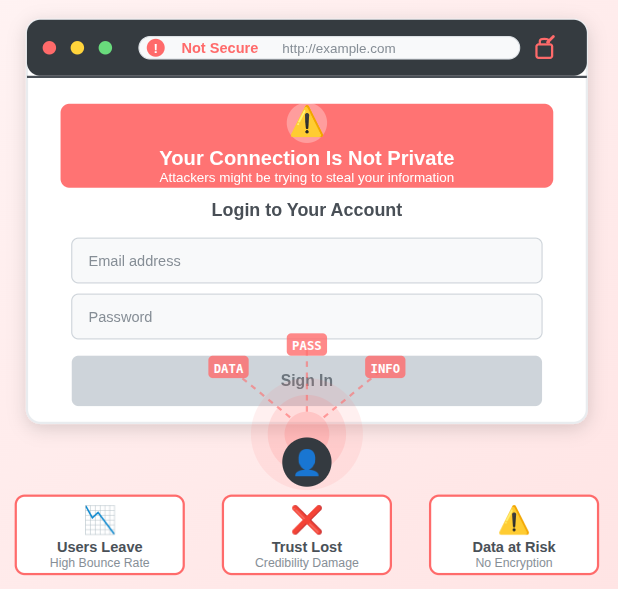
Why Browsers Show Not Secure Warnings
Modern browsers are designed with safety as a top priority. If a website does not meet basic security standards, the browser shows a warning.
This usually happens when:
- The site does not use HTTPS: The website sends data without encryption, making information easier to expose.
- The SSL certificate is missing or expired: Browsers cannot verify the website’s security when the certificate is invalid.
- Some parts of the site are still loading insecure content: Secure pages that load HTTP resources trigger browser safety alerts.
Browsers want users to feel confident, and these warnings act like caution signs.
Modern browsers are designed with safety as a top priority. If a website does not meet basic security standards, the browser shows a warning.
This usually happens when:
- The site does not use HTTPS: The website sends data without encryption, making information easier to expose.
- The SSL certificate is missing or expired: Browsers cannot verify the website’s security when the certificate is invalid.
- Some parts of the site are still loading insecure content: Secure pages that load HTTP resources trigger browser safety alerts.
Browsers want users to feel confident, and these warnings act like caution signs.
How This Warning Affects Visitors
Let’s be honest. When people see a Not Secure message, most of them hesitate. Some leave immediately. Others stop filling forms or making purchases.
This warning can:
- Reduce trust: Visitors may feel unsure about sharing any information on the site.
- Increase bounce rates: Many users leave immediately after seeing a security warning.
- Hurt conversions: Forms, sign-ups, and purchases often remain incomplete due to fear.
- Impact search engine rankings: Search engines favor secure websites over insecure ones.
In simple words, security warnings scare people away, even if your site is safe in other ways.
Understanding HTTP vs HTTPS
The extra ‘S’ stands for Secure. HTTPS encrypts data so that it cannot be read by outsiders. It is like sealing information inside a locked envelope instead of sending it openly.
| Feature | HTTP | HTTPS |
| Full Form | HyperText Transfer Protocol | HyperText Transfer Protocol Secure |
| Security Level | Not secure | Secure and encrypted |
| Data Protection | Data is sent in plain text | Data is encrypted and protected |
| Risk of Data Theft | High risk of interception | Very low risk due to encryption |
| SSL Certificate | Not required | Required |
| Browser Warning | Shows “Not Secure” warning | Shows a lock icon |
| User Trust | Low trust from visitors | High trust from visitors |
| SEO Impact | Not preferred by search engines | Preferred by search engines |
| Website Speed | Normal | Optimized and often faster |
| Best Used For | Non-sensitive content only | All websites, especially with forms or logins |
| Modern Browser Support | Discouraged | Strongly recommended |
| Overall Recommendation | Outdated and unsafe | Standard for modern websites |
Today, HTTPS is no longer optional. It is a basic requirement.
What Is an SSL Certificate
An SSL certificate is what enables HTTPS. It verifies your website’s identity and encrypts data.
Once installed:
- Your site shows a lock icon: The lock symbol reassures visitors that the connection is secure.
- Data stays private: Information exchanged on the website is encrypted and protected.
- Browsers stop showing warnings: Proper SSL setup removes “Not Secure” messages completely.
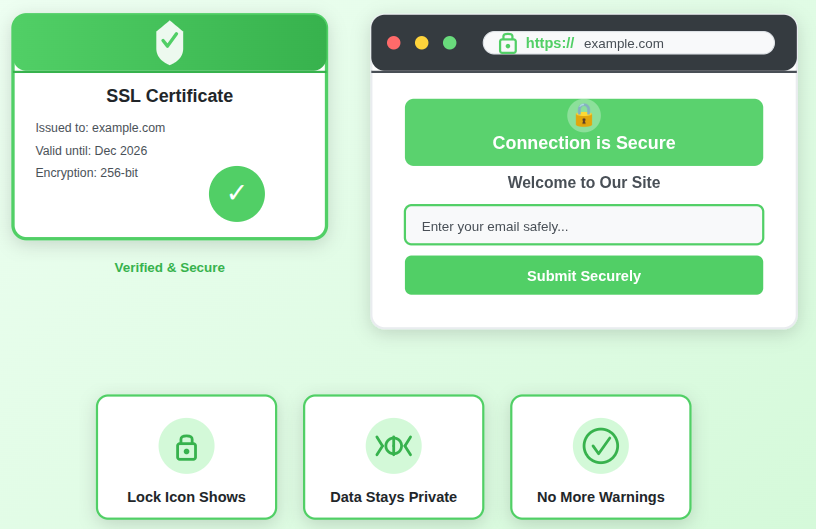
SSL certificates come in free and paid options, and both can fix the Not Secure issue when set up correctly.
Common Reasons for Not Secure Warning
Here are the most common causes:
- No SSL certificate installed: The website lacks basic encryption for visitor data.
- Expired SSL certificate: An outdated certificate causes browsers to flag the site as unsafe.
- Incorrect SSL configuration: Improper setup prevents the certificate from working correctly.
- Mixed content (HTTP and HTTPS together): Secure pages loading insecure elements trigger browser warnings.
Even a small misstep can trigger the warning, but each issue has a clear solution.
How to Check If Your Website Has SSL
You can check this in seconds:
- Look at your website address: The URL reveals whether security is enabled or not.
- If it starts with ‘https://‘, SSL is present: The website is using a secure, encrypted connection.
- If it shows ‘http://‘, SSL is missing: The site is not protected and may show a warning.
You can also click the browser lock icon to see certificate details.
How to Install an SSL Certificate
Installing SSL usually involves:
- Getting an SSL certificate
- Installing it on your server
- Linking it to your domain
This process involves complex terminal-based steps and requires a deep technical expertise.
How ServerAvatar Makes SSL Installation Easy
What is ServerAvatar?
ServerAvatar is a platform to simplify the hosting and management of servers and applications. It simplifies the process of deploying and managing PHP and Node.js based web applications on servers.
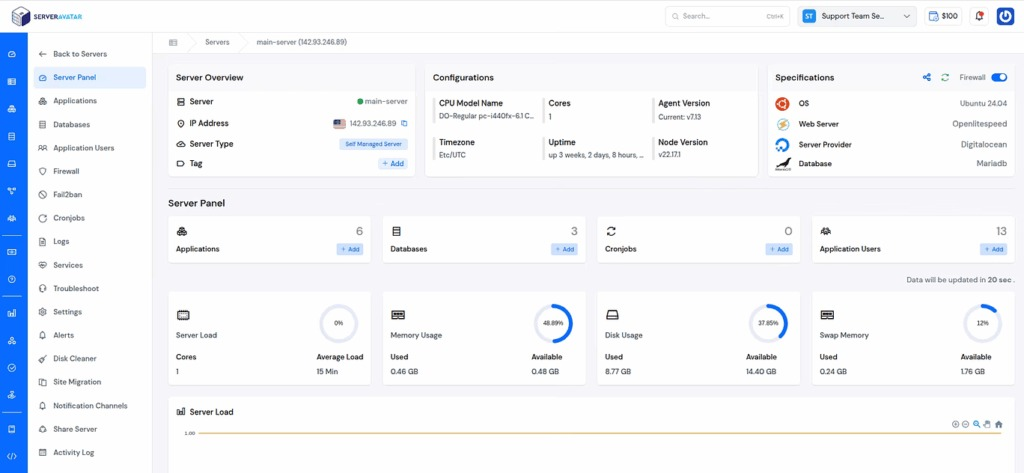
Installing an SSL certificate may sound technical, but with the right platform, it does not have to be complicated. This is where ServerAvatar simplifies the process for website owners.
ServerAvatar offers an automatic and custom SSL installation feature, allowing you to secure your website without manual configuration or command-line work. Whether you are managing a blog, business website, or web application, SSL can be enabled in just a few clicks.
Once SSL is activated through ServerAvatar:
- You can directly force your website from HTTP to HTTPS
- A valid SSL certificate is installed and configured correctly with auto-renewals
- The “Not Secure” warning is removed
- Visitor data is encrypted by default
What makes ServerAvatar especially helpful is that it also handles SSL renewal automatically, so you do not have to worry about certificates expiring and security warnings appearing again later.
In addition, ServerAvatar ensures that SSL is applied properly at the application level, reducing common issues such as incorrect configuration or partial HTTPS setup. This means fewer errors, better browser trust, and a smoother experience for both website owners and visitors.
For users who want a hands-off and reliable way to fix the Website Not Secure warning, ServerAvatar provides a clean, guided approach that saves time and avoids mistakes.
How to install SSL with ServerAvatar?
- First, log in to the ServerAvatar account, and click on the Server Dashboard button to navigate to the server panel.
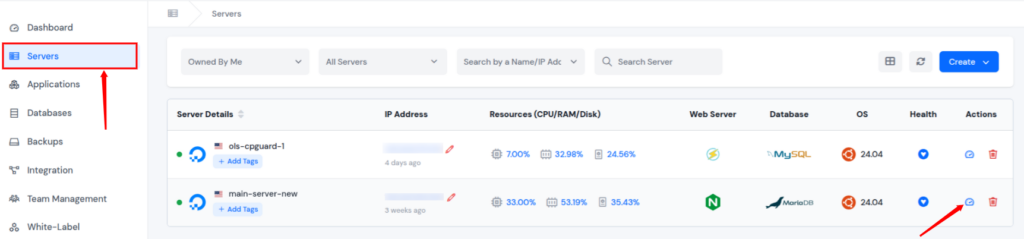
- Click on the Applications section from the left-hand sidebar. Click on the application dashboard icon for the application you want to install the SSL certificate.
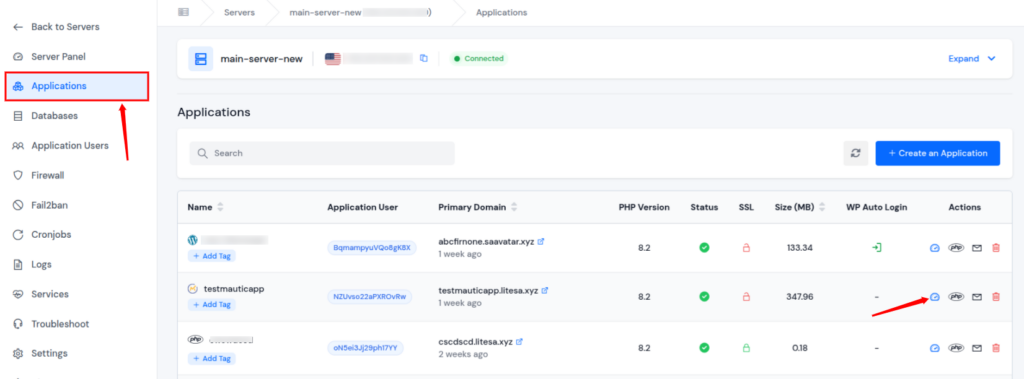
- Click on the SSL Certificate option on the left-hand sidebar of the Application Panel.
- You can see the options for SSL Installation: Automatic SSL Installation and Custom SSL Installation
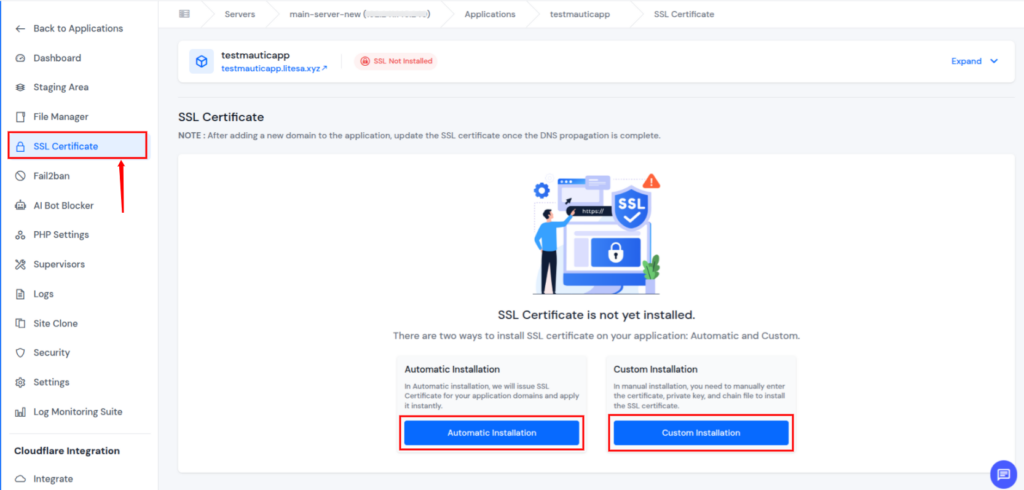
- Automatic Installation only works with verified DNS. If your domain is not verified, the Verify DNS button will appear.
- Once DNS propagation is successful, you can see the Install Automatic SSL button. Click on it to start the installation.
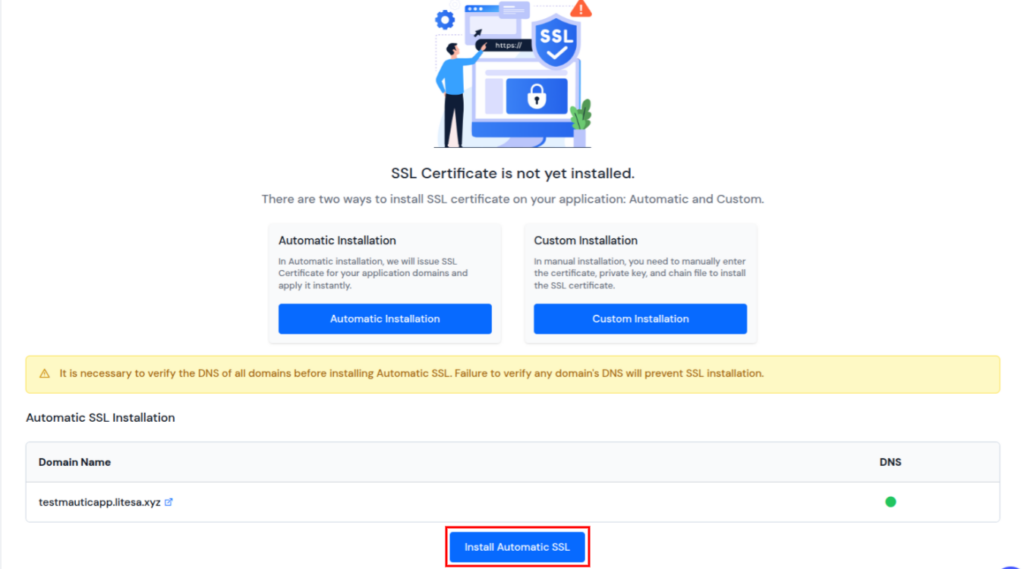
- It will take a few seconds to install the SSL certificate on your website. Once it’s installed, you will see your certificate information in the SSL Certificate section of your application, as shown in the image below.
- Click on the Custom Installation option to install a Custom SSL Certificate. Enter your SSL Certificate, Private Key, and Chain File (CA Bundle) (optional) for a custom SSL Certificate.
- If you would like to force HTTP to HTTPS redirect, select Force HTTP to HTTPS.
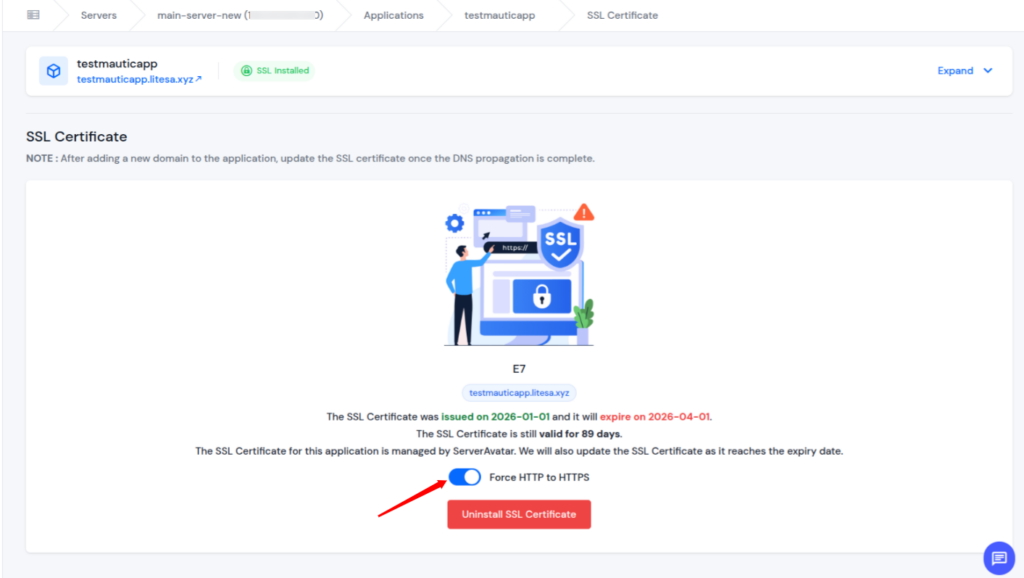
- You can check the details for the SSL Certificate with the auto-renewal of SSL Certificate.
Fixing Mixed Content Issues
Mixed content happens when:
- The site uses HTTPS: The main website connection is secure.
- Some images, scripts, or files still load via HTTP: Insecure resources weaken overall site security.
Browsers see this as a security risk.
How to Fix It?
- Update all resource URLs to HTTPS: Ensure every file loads securely.
- Replace insecure links inside themes and content: Remove outdated HTTP references.
Once everything loads securely, the warning disappears.

Updating Website URLs to HTTPS
After installing SSL, your website should fully switch to HTTPS.
This includes:
- Internal links: All page links should point to HTTPS versions.
- Media files: Images and downloads must load securely.
- Form actions: Forms should submit data over encrypted connections.
Leaving old HTTP links behind can confuse browsers and trigger warnings.
Redirecting HTTP to HTTPS
Redirects ensure that:
- Visitors always land on the secure version: Redirects prevent access to unsafe URLs.
- Search engines index the correct URLs: Proper redirects help maintain SEO value.
A proper redirect sends all HTTP traffic automatically to HTTPS, closing the door on security warnings.
Checking SSL Expiry and Renewal
SSL certificates expire. When they do, browsers show warnings again.
To avoid this:
- Check expiry dates regularly: Monitoring prevents sudden security warnings.
- Enable auto-renewal if available: Automatic renewal avoids certificate lapses.
- Set reminders for manual renewals: Timely updates keep the site secure.
This small habit prevents big trust issues.
Testing Your Website After Fix
Once changes are done:
- Clear browser cache: Old data may hide recent security changes.
- Test pages in different browsers: This confirms consistent security across platforms.
- Check the lock icon and security status: Visual confirmation ensures SSL is active.
Testing confirms that everything is working as expected and no warnings remain.
How to Prevent This Warning in the Future
Prevention is easier than fixing problems later.
Best practices include:
- Always renewing SSL on time: Valid certificates prevent trust issues.
- Avoiding insecure third-party scripts: External files can introduce security risks.
- Monitoring website security regularly: Ongoing checks help catch problems early.
Think of it as routine maintenance for your digital space.
Final Checklist Before Going Live
Before you relax, make sure:
- SSL is installed and active: Encryption is properly enabled.
- All pages use HTTPS: No unsecured URLs remain.
- No mixed content errors exist: Every resource loads securely.
- Redirects are working properly: Visitors are guided to safe pages automatically.
This checklist ensures your website stays trusted and warning-free.
Conclusion
Seeing a “Website Not Secure” warning can be worrying, but as this guide shows, it is a problem with a clear and practical solution. In most cases, the warning appears because a website is missing proper SSL protection, using outdated certificates, or loading insecure content. Once these issues are addressed, the warning disappears, and visitor trust is restored.
By switching from HTTP to HTTPS, installing a valid SSL certificate, fixing mixed content, and ensuring timely renewals, you can protect your website and the people who visit it. ServerAvatar makes this process much simpler by offering automatic SSL installation, renewal, and HTTPS enforcement without complex technical steps.
A secure website does more than remove browser warnings. It builds confidence, improves user experience, and supports better search engine visibility. Taking a little time to secure your website today helps create a safer and more trustworthy online presence for the long term.
FAQs
1. Is SSL required even if my website does not collect user data?
Yes, modern browsers expect all websites to use HTTPS, regardless of whether they collect personal information.
2. Can a free SSL certificate fix the Not Secure warning?
Yes, free SSL certificates work perfectly when installed and configured correctly on your website.
3. How often should an SSL certificate be renewed?
Most SSL certificates need renewal every few months or yearly, depending on the provider, unless auto-renewal is enabled.
4. Does fixing the Not Secure warning help with SEO?
Yes, secure websites are trusted more by search engines, which can positively impact rankings and visibility.
5. Why does my website still show a “Not Secure” warning after installing SSL?
This usually happens when some parts of the website, such as images or scripts, are still loading over HTTP instead of HTTPS.