

Let me be direct: if you’re running an outdated version of WordPress right now, your site is a liability. I’m not trying to sound dramatic, but I’ve seen what happens when a critical vulnerability is discovered while someone is still using an older WordPress release. It isn’t pretty, hacked redirects, injected malware, and SEO rankings disappearing overnight. That’s why it’s essential to upgrade WordPress version regularly. Keeping your site up to date is one of the simplest and most effective ways to protect its security, performance, and stability.
The good news is that checking and upgrading your WordPress version is not complicated. There are multiple ways to do it, from a point-and-click dashboard to command-line tools for the automation-inclined. The method you choose doesn’t matter as much as the habit itself. What matters is that you actually do it.
This guide walks you through every way to check your current WordPress version and every way to upgrade it, including the ServerAvatar WordPress Toolkit for those who prefer not to touch code at all. I will also walk you through what to do before you upgrade, because skipping that step is the mistake most people make.
TL;DR
- Why it matters: Outdated WordPress is the #1 entry point for site hacks
- Check your version: Dashboard footer, source code,
version.phpfile, WP-CLI, or ServerAvatar WordPress Toolkit - Upgrade options: One-click WordPress admin dashboard, WP-CLI, or ServerAvatar WordPress Toolkit
- Never upgrade without a backup first
- Test on staging before touching production
Why WordPress Version Updates Matter
WordPress ships major releases roughly three to four times a year, with security patches dropping even more frequently. Nowadays, the threat landscape has only intensified; automated exploit kits now actively scan for known vulnerabilities in outdated WordPress installations within hours of a patch being released. If you’re not updating, you’re leaving the door open.
But it’s not just about security. Newer WordPress versions bring meaningful performance improvements. WordPress 6.4 and 6.5 introduced significant query optimization and reduced database overhead. Staying current means your site runs faster without you having to do anything else. New block editor features, improved media handling, and accessibility improvements all stack up over time.
There’s also the compatibility angle. Plugin and theme developers follow WordPress core releases closely. The moment a popular plugin drops support for an older version, you either update WordPress or you lose access to that plugin’s updates, a forced choice nobody wants to make under pressure.
How to Check Your Current WordPress Version
You would think this is obvious, but I have worked with site owners who had no idea they were running WordPress 5.8 on a 2026 server. Here are the ways to check, from easiest to most technical.
1. Check from the WordPress Dashboard
This is the fastest method and requires no tools beyond your browser.
- Log in to your WordPress admin panel.
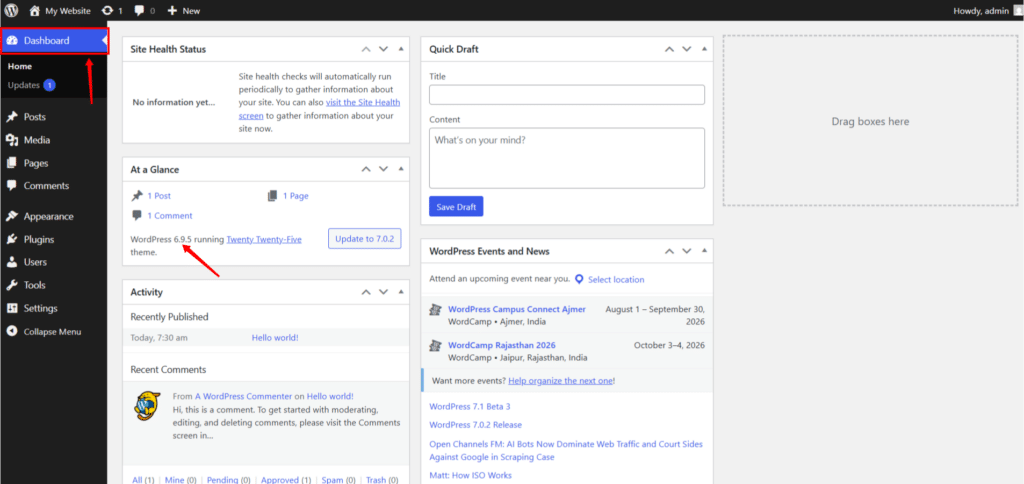
- Scroll to the Home section in the WordPress admin dashboard. You can see the version in the “At a Glance” widget.
- It looks subtle, but that’s your answer.
Best for: Anyone with admin access to WordPress who wants a five-second check.
2. Check the Page Source in Your Browser
If you don’t have WordPress admin access but can view the site, you can still find the version number in the HTML source.
- Right-click anywhere on the page and click on the View page source (or use
Ctrl+U/Cmd+Option+U). - In the source code, search for the word “generator”, you are looking for a line that looks like this:
<meta name="generator" content="WordPress 6.5.3" />- That
contentattribute tells you exactly which version that site is running.

Note that on some hardened WordPress installations, this meta tag is intentionally removed for security reasons. If you don’t see it, that doesn’t mean the site isn’t WordPress, it just means they have hidden the version number, which is actually a smart security practice.
Best for: Quick version checks on any WordPress site you can visit but don’t have admin access to.
3. Check the wp-includes/version.php File
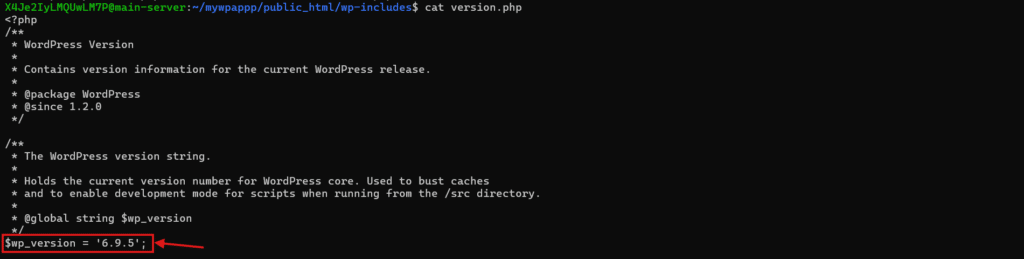
This is the most reliable method when you have file-level access. The WordPress version is stored in a dedicated PHP file at wp-includes/version.php
You can access this via your hosting panel’s file manager, or via SSH:
grep "wp_version" /path/to/your/wordpress/wp-includes/version.phpThis outputs something like:
$wp_version = '6.9.5';The file also contains $wp_db_version and $required_php_version , useful context if you’re troubleshooting compatibility issues at the same time.
Best for: Developers and sysadmins who have SSH or FTP access and want exact, unambiguous version data.
4. Check Using WP-CLI
If you have SSH access to your server and WP-CLI is installed, checking the WordPress version takes one command. Navigate to your WordPress root directory, the one containing wp-config.php , and run:
wp core versionThat’s it. WP-CLI will return the version number in plain text. If you’re managing multiple WordPress sites, you can check all of them quickly by scripting this across your server’s web directories.

To verify WP-CLI is available on your system:
wp --infoThis shows the WP-CLI version, PHP version, and operating system information, useful context when you’re diagnosing why an update might behave differently than expected.
Best for: Developers and sysadmins managing WordPress via the command line, especially those with multiple installations.
5. Check Using ServerAvatar WordPress Toolkit
If your WordPress site is managed through ServerAvatar, checking the version is even more streamlined. Open the WordPress Toolkit from your ServerAvatar panel. You can easily see the WordPress version.
- Navigate to the application panel and click on the WP Toolkit section from the left sidebar.
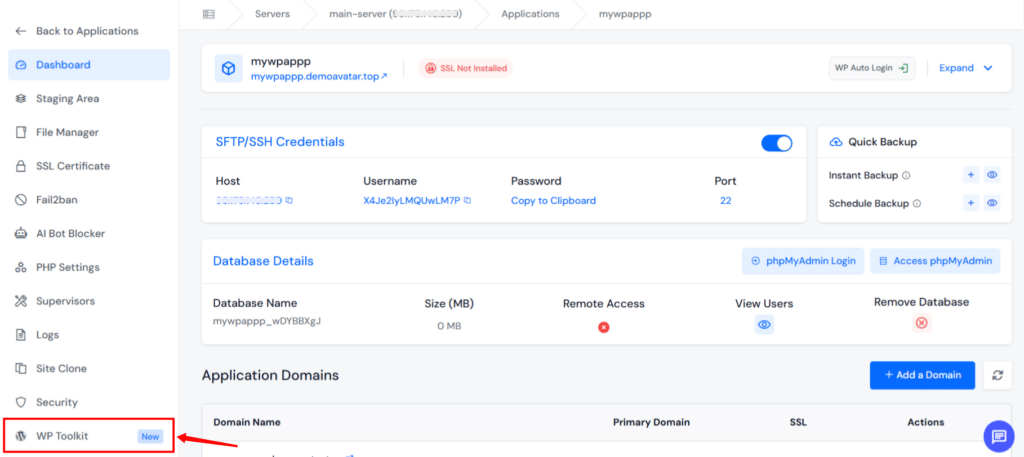
- You can see the current WordPress version in the Overview Tab; it also shows a new version if available.
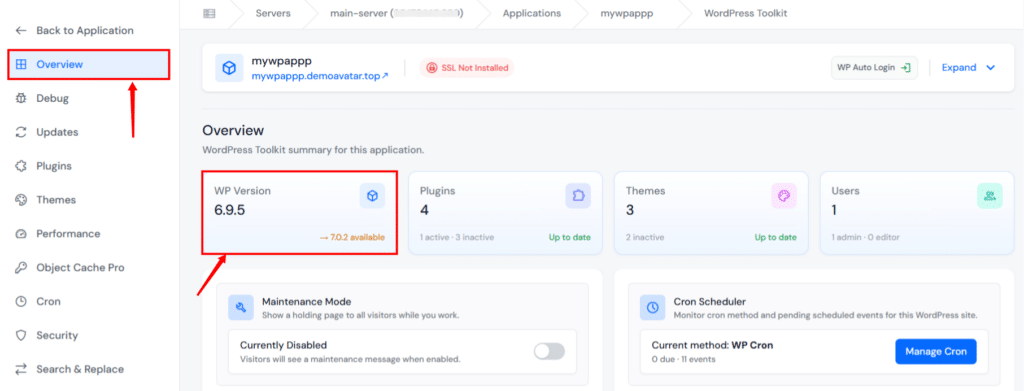
- You can also see the current WordPress version in the Updates tab. It also shows you the current WordPress installed version, whether a new version is available, and what version number you’re running at a glance.
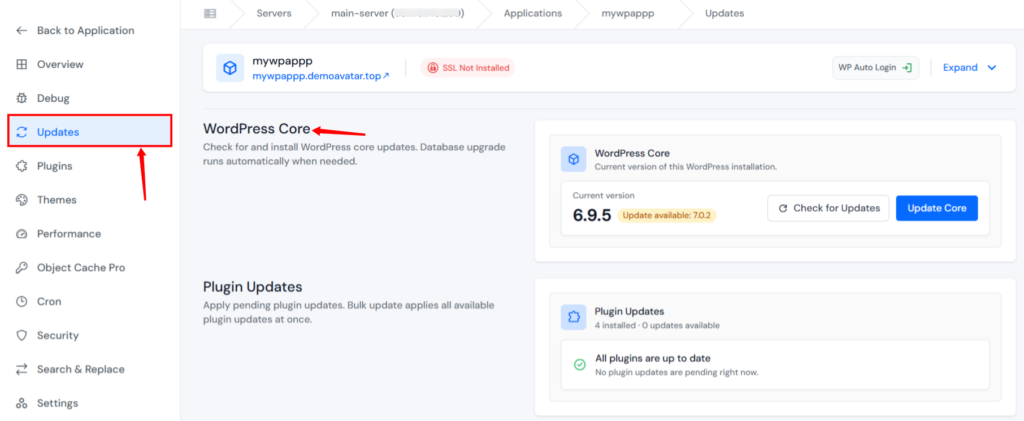
- There’s no hunting around for meta tags or digging through files. The panel gives you the full picture: core version, plugin update count, theme update count, and database update all on one screen.
This is particularly useful when you manage multiple WordPress sites. Instead of checking each one individually.
Best for: ServerAvatar users who want a unified dashboard view of all their WordPress sites’ update status.
How to Upgrade Your WordPress Version
Now that you know what you are running, let’s talk about getting the current version. I have organized these methods from simplest to most hands-on, so you can pick the approach that matches your comfort level.
Method 1: Upgrade from the WordPress Dashboard (One-Click)
The built-in automatic update is the simplest path.
- Log into your WordPress admin panel and click Updates in the left sidebar.
- If a new version is available, you’ll see a prominent message to Update.
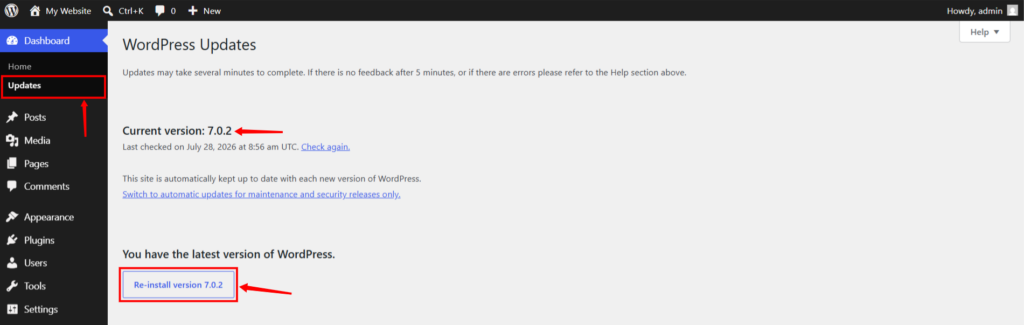
- WordPress will download the new version, apply it, and redirect you back to the dashboard. Depending on your hosting environment and connection speed, the whole process takes two to five minutes. Don’t close the browser tab or navigate away until it completes.
Best for: Single-site owners with no staging requirements and low risk tolerance.
Method 2: Upgrade Using WP-CLI
WP-CLI gives you much more control over the upgrade process. If you’re comfortable with the command line, these commands let you handle everything from basic updates to very specific version targeting.
Standard upgrade to latest version:
wp core updateThis fetches the latest stable WordPress release from wordpress.org and applies it.
Upgrade to the latest minor version only:
Sometimes you don’t want a major release, you just want to patch to the latest minor version within your current major line. For example, updating from WordPress 6.4 to 6.4.4 rather than jumping to 6.5.
wp core update --minorThis is useful when you’re in a period right after a major release and want to wait a few weeks before adopting the new major version.
Specify a particular version:
wp core update --version=6.4You can pin to any specific WordPress version. Passing --version=nightly pulls the absolute latest development build, not something I’d recommend for production sites, but occasionally useful for testing compatibility ahead of a new release.
Downgrade (force update to an older version):
If you need to go backward, say, a plugin broke after a major upgrade, and you need to revert quickly, use the --force flag:
wp core update --version=6.3.2 --forceWordPress will resist this command if the requested version is older than the installed version, so --force overrides that safety check. I have used this in emergencies when a client needed to get their site functional while the plugin developer pushed out a compatibility fix.
Update with a local zip file:
If you’re updating from a zip you’ve already downloaded (rather than WP-CLI fetching from wordpress.org):
wp core update wordpress-6.5.3.zipThis method installs the ZIP file directly without requiring you to download first.
Change language during upgrade:
WordPress ships in English by default. If you need to install or switch to a different locale during the upgrade, add the --locale flag:
wp core update --locale=fr_FRThe fr_FR part is the locale code, you can find the right code for your language on wordpress.org’s language page.
One common issue: If you see the error “Error: Another update is currently in progress”, WordPress has left a lock flag in the database. You can clear it with:
wp option delete core_updater.lockJust make sure another update isn’t actually running before you delete that lock, clearing it while a real update is in progress mid-file-write can leave your site in a corrupted state.
Best for: Developers and sysadmins who want speed, precision, and the ability to script updates across multiple sites.
Method 3: Update Using ServerAvatar WordPress Toolkit
For users who prefer a visual interface over the command line, or who manage multiple WordPress sites, ServerAvatar’s WordPress Toolkit offers the most streamlined upgrade path.
- From your WordPress application panel, navigate to the WordPress Toolkit by clicking on the WP Toolkit from the left sidebar.
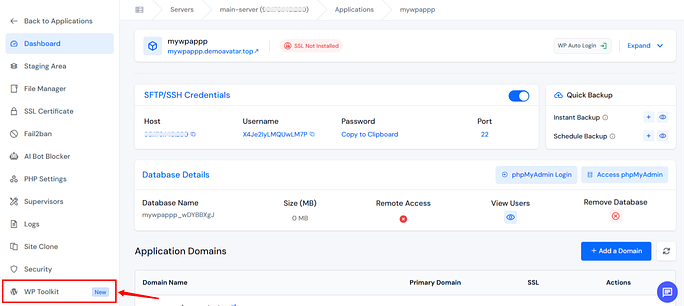
- Navigate to the Updates tab. The WordPress Core section displays your current WordPress core version alongside any available update.
- You’ll see the Update Core button right there, clicking it triggers the core update without you having to log into WordPress admin at all.
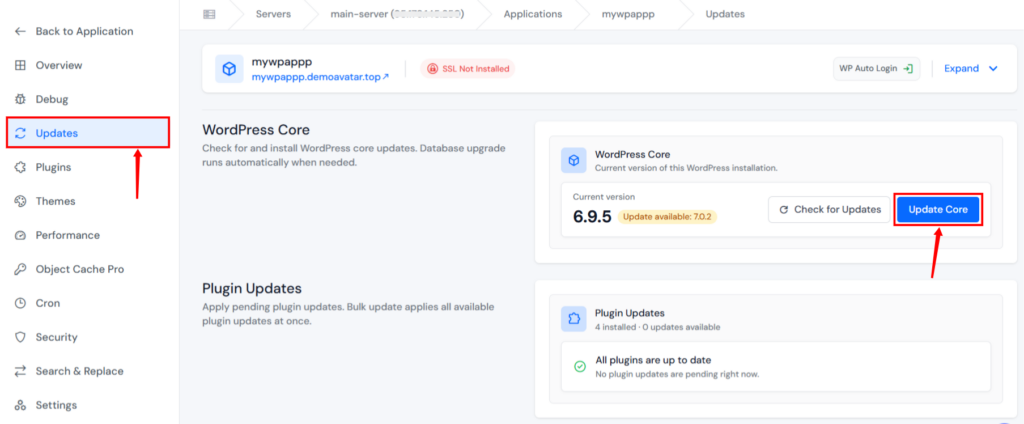
What’s useful here is the visibility: the Updates tab shows you not just the core WordPress version, but the status of your plugins and themes at the same time. You can handle core updates, plugin updates, and theme updates from one place.
While the WordPress Toolkit makes updates easier, ServerAvatar’s Staging feature lets you test WordPress core, plugin, and theme updates on a separate copy of your site before deploying them to production. For WordPress environments, this approach removes the friction that makes people delay updates in the first place.
If you’re new to staging, check out our Complete Guide to Setting Up a Staging Environment.
To explore everything included in the toolkit, read WordPress Toolkit for WordPress Management in ServerAvatar.
If you frequently deploy similar WordPress sites, learn how How to Create WordPress Blueprints Easily in ServerAvatar can help you standardise and speed up your deployments.
Best for: ServerAvatar users managing one or more servers and WordPress sites who want a centralized, visual update management panel.
Which WordPress Upgrade Method Should You Choose?
There isn’t a single “best” way to upgrade WordPress. The right method depends on your technical experience, the number of websites you manage, and whether you prefer a graphical interface or command-line tools.
The comparison below can help you decide which approach best fits your workflow before following the step-by-step instructions.
| Method | Ease of Use | Speed | Automation | Best For |
|---|---|---|---|---|
| WordPress Dashboard | Easy | Fast | Limited | Beginners, single-site owners |
| WP-CLI | Advanced | Very Fast | Excellent | Developers, system administrators, automation |
| ServerAvatar WordPress Toolkit | Easy | Fast | Excellent | Managing multiple WordPress sites from one dashboard |
Post-Upgrade Checklist: What to Do After Updating WordPress
Updating WordPress is only half the job. Before you consider the process complete, take a few minutes to verify that your website is functioning as expected. A quick post-update check can help you catch compatibility issues early and prevent small problems from affecting visitors.
1. Clear Your Website Cache
Clear all cached content after the update. Cached files may continue serving older assets or pages, making it appear as though the update didn’t apply correctly.
2. Test the Login Area
Sign out and log back into the WordPress admin dashboard. Confirm that you can access important areas such as Posts, Pages, Plugins, Themes, and Settings without errors.
3. Verify Plugins and Themes
Open the Plugins and Themes pages to ensure everything is active and functioning normally. If any extensions were automatically disabled during the update, investigate the cause before re-enabling them.
4. Test Important Website Features
Visit your website as a regular visitor and test key functionality, including:
- Contact forms
- Search functionality
- Navigation menus
- Image galleries
- User registration or login (if applicable)
For eCommerce websites, place a test order to verify that the checkout process, payment gateway, and order confirmation emails are working correctly.
5. Review Error Logs
Check your PHP and web server error logs for any new warnings or fatal errors that appeared after the update. Even if the website appears to work normally, the logs can reveal hidden compatibility issues before they become larger problems.
6. Confirm Your Backup Completed Successfully
If you created a backup before upgrading, make sure it completed successfully and is available for restoration if needed. A backup is valuable only if you can successfully restore it when needed.
7. Monitor Your Website
Check your site’s performance, error logs, and user feedback. Some plugin conflicts or scheduled task issues only become noticeable after the website has been running for some time.

Troubleshooting Common WordPress Update Issues
Even with a perfect backup and a clean staging test, updates occasionally hiccup. Here are the issues I run into most often and how to handle them.
1. “Briefly unavailable for scheduled maintenance” message stuck.
WordPress drops a .maintenance file in your root directory during an update and is supposed to delete it when done. If the update is interrupted, connection drops, PHP times out, that file stays, and your site shows the maintenance message to everyone. Fix it by deleting the file via SSH or your file manager:
rm /path/to/your/wordpress/.maintenanceYour site should come back immediately. Then re-run the update.
2. Error: “Another update is currently in progress.”
As mentioned earlier, clear the lock:
wp option delete core_updater.lockThen retry the update.
3. White screen of death after upgrade.
This usually means a plugin or theme is incompatible with the new WordPress version. Boot into safe mode by renaming your wp-content/plugins folder to wp-content/plugins-old via SSH or file manager, this disables all plugins without modifying the database.
If the site comes back, reactivate plugins one by one to identify the culprit. If it doesn’t, the issue is in your theme. Switch to a default theme like Twenty Twenty-Six to confirm.
4. Update fails mid-download.
Check your server’s available disk space, WordPress needs enough room to download the new version’s zip file before extracting it. Also verify your PHP max_execution_time isn’t too low, large WordPress downloads can time out on shared hosting with strict resource limits.
Key Takeaways
- Outdated WordPress is the leading cause of WordPress site compromises, update regularly
- You can check your version via the dashboard footer, page source,
wp-includes/version.php, WP-CLI, or ServerAvatar WordPress Toolkit - Back up before upgrading, always, without exception
- WP-CLI offers the most control: minor-only updates, specific version targeting, locale switching, and force downgrades
- ServerAvatar’s WordPress Toolkit brings all update management into a single visual panel
- Test on staging before upgrading production, especially for major releases
- After upgrading, monitor your site for the first 24 hours, plugin conflicts don’t always show up immediately
Conclusion
Checking and upgrading your WordPress version isn’t glamorous work, but it’s one of the highest-leverage things you can do for your site’s security and performance. The methods I’ve covered here give you options at every skill level, from the dashboard clicker to the WP-CLI power user to the ServerAvatar panel.
Pick the method that fits your workflow, make updating a habit (I treat it like a monthly calendar reminder), and always back up first.
If you’re managing multiple WordPress sites and want a cleaner way to handle updates, backups, and staging environments without juggling different tools, ServerAvatar’s WordPress Toolkit is worth exploring.
FAQs
What happens if I don’t update WordPress?
Outdated WordPress versions accumulate known vulnerabilities. Hackers use automated tools that scan for these gaps within hours of a public disclosure. Beyond security, you’ll eventually hit plugin and theme compatibility walls, developers drop support for older WordPress versions, leaving you stuck on old software or forced into a rushed upgrade under pressure.
How often should I check for WordPress updates?
At minimum, check monthly and after every major WordPress release announcement. If you’re on a managed host like ServerAvatar, the Updates tab makes this a five-second check. For high-traffic or high-value sites, subscribe to the WordPress release announcements, they go out with every major and security release.
Should I update plugins and themes at the same time as WordPress core?
Yes, but do it one at a time. Update WordPress core first, verify your site works, then update plugins, then themes. Updating everything simultaneously makes troubleshooting a nightmare if something breaks, you won’t know which update caused the issue.
Is it safe to update WordPress on a live site without staging?
For minor version updates (e.g., 6.5.2 to 6.5.3), it’s generally safe on a well-maintained site with a recent backup. For major releases, always use a staging environment first. ServerAvatar’s one-click staging clone makes this practical even if you’re not a developer.
What is the current latest stable WordPress version?
WordPress 7.0.2 is the current major release as of mid-2026, with 6.5.x minor patches available. Check wordpress.org/news for the definitive latest version number.
About the Author
Meghna Meghwani is a technical writer focused on Linux, Ubuntu, VPS hosting, server management, WordPress, PHP, Node.js, cloud hosting, and DevOps. She creates beginner-friendly tutorials, practical hosting guides, troubleshooting articles, and server security content designed to help developers and businesses manage applications and servers more efficiently.