Security
WordPress sites are frequent targets for automated attacks, spam, and file-based exploits. The Security page in WP Toolkit provides server-level hardening options and a core file integrity check, so you can reduce common attack surfaces without manual server configuration.
These controls apply to the selected WordPress application only.
Accessing Security
Step 1: Log in to your ServerAvatar account.
Step 2: Open the Server Dashboard → Applications → select your WordPress application.
Step 3: In the application panel sidebar, open WP Toolkit → Security.
Block XML-RPC Requests
XML-RPC is a WordPress interface used by some remote services (for example, the WordPress mobile app, Jetpack, or pingbacks). Attackers also use xmlrpc.php for brute-force and spam campaigns because it can process multiple login attempts in one request.
Blocking XML-RPC stops traffic to xmlrpc.php at the server level. Legitimate integrations that depend on XML-RPC will stop working until you allow it again.
In the Block XML-RPC Requests section, set the toggle to block or allow remote XML-RPC access.
Keep XML-RPC blocked unless you use a service that requires it.

Block PHP Execution in Uploads
The wp-content/uploads directory is intended for media files. If an attacker uploads a PHP file disguised as media and the server executes it, they can run arbitrary code on your site.
Blocking PHP execution in uploads prevents scripts from running in that directory. This is recommended for all production sites.
In the Block PHP Execution in Uploads section, set the toggle to block or allow PHP execution in the uploads folder.
Only allow PHP in uploads if a specific plugin documents that requirement. Re-enable blocking after the plugin work is complete.

Verify Checksums
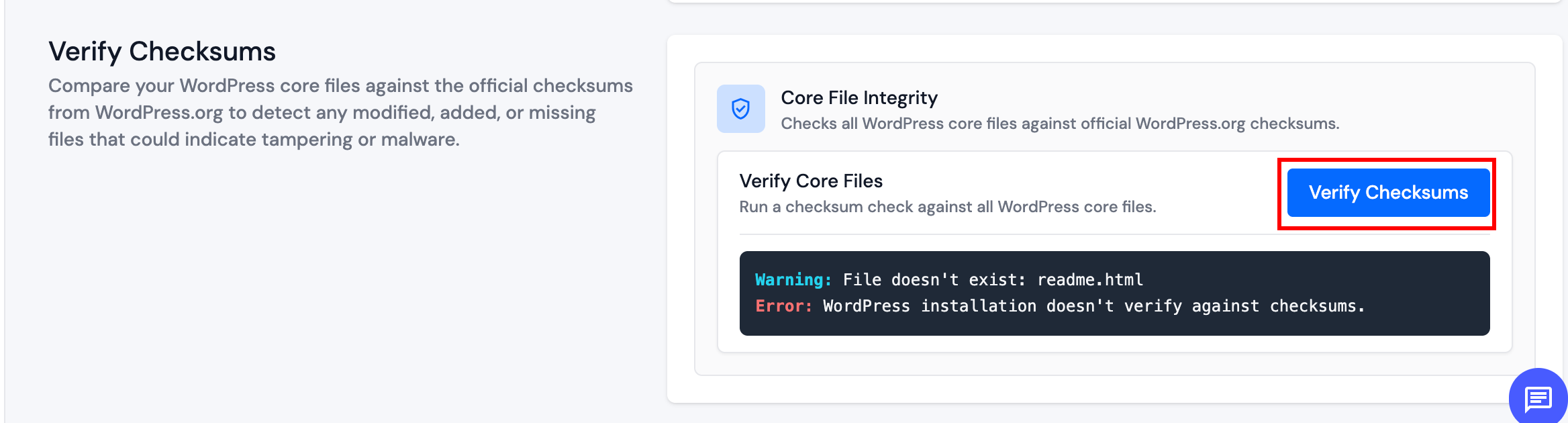
WordPress publishes official checksums for each core version. Comparing your installation against those checksums helps detect modified, missing, or unexpected core files. Differences may indicate incomplete updates, manual edits, or unauthorized changes.
In the Verify Checksums section, click Verify Checksums and review the output when the scan completes. The report lists files that do not match the official release for your WordPress version.
If verification reports unexpected differences, investigate before dismissing the results. Restore from backup or reinstall core if files may have been compromised.
Security Best Practices
- Keep WordPress core, plugins, and themes updated.
- Block XML-RPC and PHP in uploads unless a required integration needs them.
- Run checksum verification after suspected compromises or failed core updates.
- Use Fail2ban and server-level security settings for additional protection.