Overview
The Overview page is the default landing view when you open WP Toolkit for a WordPress application. It gives a quick snapshot of site health: WordPress version, plugin and theme counts, user roles, maintenance mode, cron scheduling, and the active theme.
Use Overview to spot pending updates and perform common actions before diving into other WP Toolkit sections.
WP Toolkit is available only for WordPress applications when the WordPress Toolkit add-on is active.
Accessing Overview
Step 1: Log in to your ServerAvatar account.
Step 2: Open the Server Dashboard → Applications → select your WordPress application.
Step 3: In the application panel sidebar, click WP Toolkit. The Overview section opens by default.
Summary Cards
Four cards at the top provide at-a-glance metrics.
WP Version shows the installed core version and whether a core update is available. If an update exists, follow the link to Updates.
Plugins shows total plugins, how many are active or inactive, and how many plugin updates are pending.
Themes shows total themes, inactive count, and pending theme updates.
Users shows total WordPress users and a breakdown of admin and editor accounts.

Maintenance Mode
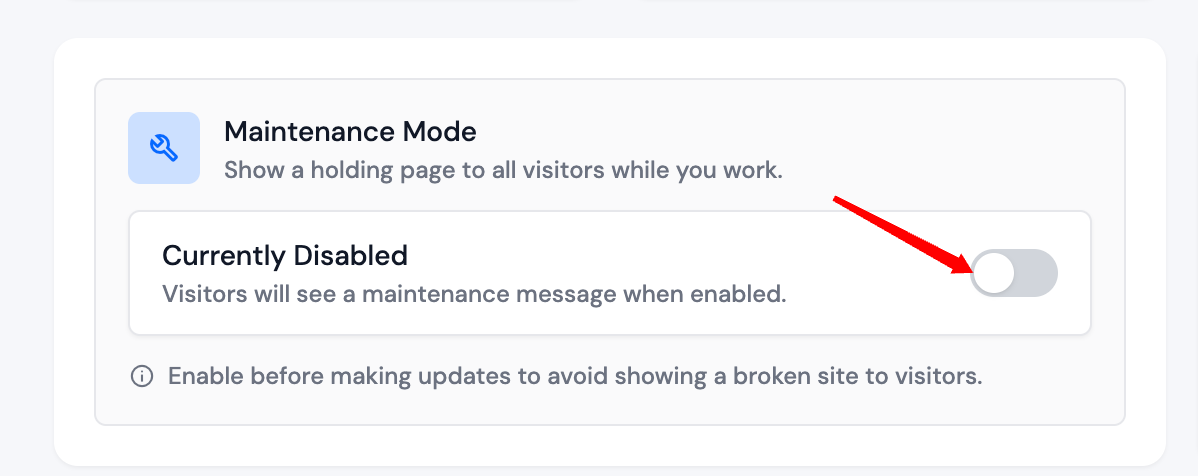
Maintenance mode shows a holding page to visitors while you perform updates or structural changes, so users do not see a broken or half-updated site.
The card shows Currently Enabled or Currently Disabled. Use the toggle to change the state.
Enable maintenance mode before major updates on live sites.
Cron Scheduler
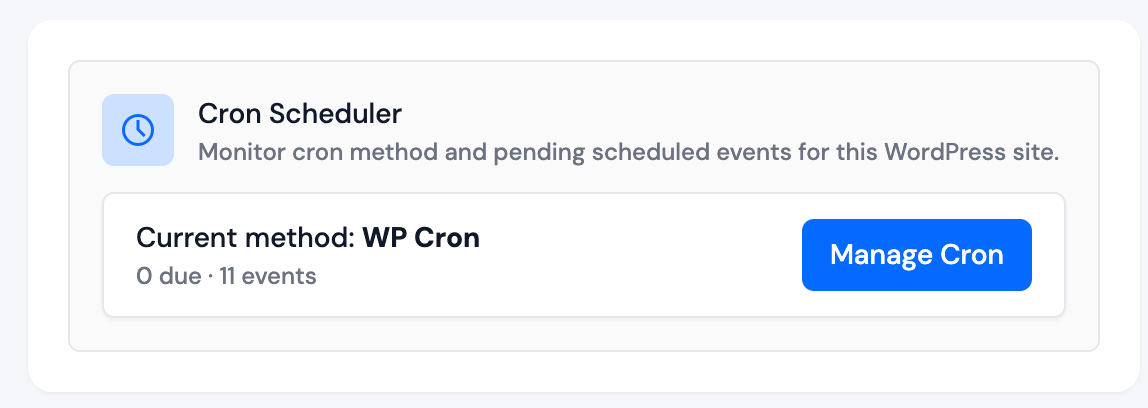
The Cron Scheduler card shows how WordPress scheduled tasks are configured for this site.
- Current method displays WP Cron or Server Side Cron.
- When Server Side Cron is active, WP Cron manual actions are handled by the server scheduler. The card notes that WP Cron manual actions are disabled on the Cron page until you switch back to WP Cron.
- When WP Cron is active, the card shows how many events are due and the total number of events.
Click Manage Cron to open the Cron page, where you can change the execution method or run due events.
Active Theme
The Active Theme section shows the theme currently driving the site’s design, including a preview screenshot when available from WordPress.org.
- View all themes → opens Themes for installation, activation, or updates.
- Customize → opens the WordPress customizer for the live site in a new tab.
