Updates
Keeping WordPress core, plugins, and themes up to date is essential for security patches, bug fixes, and compatibility with new WordPress releases. The Updates page in WP Toolkit brings all pending upgrades for one application into a single view, so you can review versions and apply updates without opening the WordPress admin dashboard.
Updates are fetched from WordPress.org for core, plugins, and themes installed on the site.
Accessing Updates
Step 1: Log in to your ServerAvatar account.
Step 2: Open the Server Dashboard → Applications → select your WordPress application.
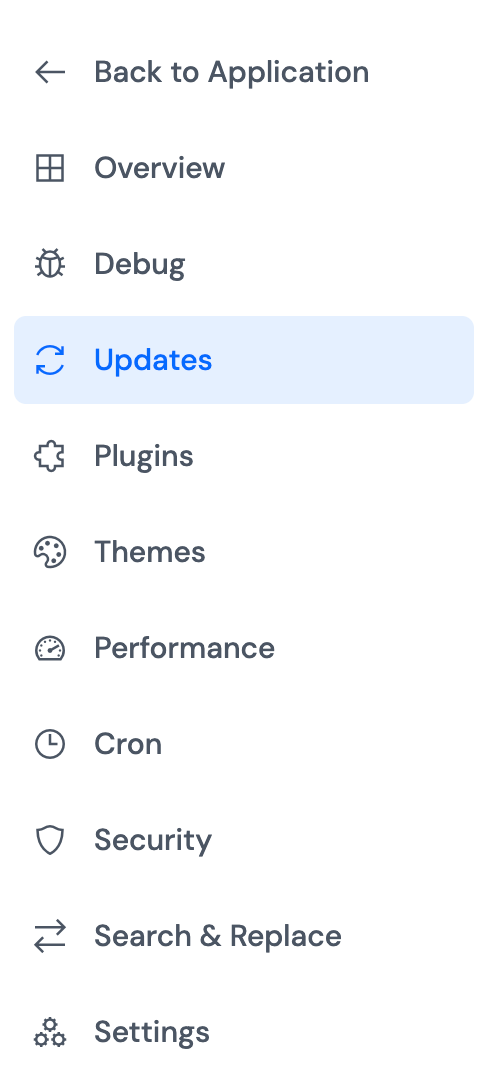
Step 3: In the application panel sidebar, open WP Toolkit → Updates.
What the Updates Page Includes
The Updates page is organized into four areas:
| Section | Purpose |
|---|---|
| WordPress Core | Check and install the latest WordPress version |
| Plugin Updates | Update one or all plugins with pending releases |
| Theme Updates | Update one or all themes with pending releases |
| Database Update | Run the database upgrade routine when required after a core update |
If no updates are pending, each section shows that components are up to date. Use Check for Updates on core to refresh availability after installing new plugins or themes.
WordPress Core
WordPress core is the foundation of your site. Core updates include security fixes, new features, and stability improvements.
The WordPress Core section displays the version currently installed and whether a newer release is available. When an update exists, you will see the target version before installing.
Click Check for Updates to refresh core update data from WordPress.org.
Click Update Core when an update is available. ServerAvatar installs the new core files. If WordPress requires a database upgrade after the version change, complete it in the Database Update section on this page.
Take a backup before updating WordPress core on production sites. Test major version upgrades on staging when possible.

Plugin Updates
Plugins extend WordPress with features such as forms, SEO, caching, and e-commerce. Outdated plugins are a common source of security vulnerabilities.
The Plugin Updates section lists only plugins that have a pending update. Each row shows the current version and the version available. Use Update on a single plugin, or Update All to apply every pending plugin update at once.
When all plugins are current, the section confirms that no plugin updates are pending.
For full plugin management (install, activate, or uninstall), use Plugins.

Theme Updates
Themes control the appearance and layout of your site. Theme updates may include security fixes, compatibility with new WordPress versions, or design improvements.
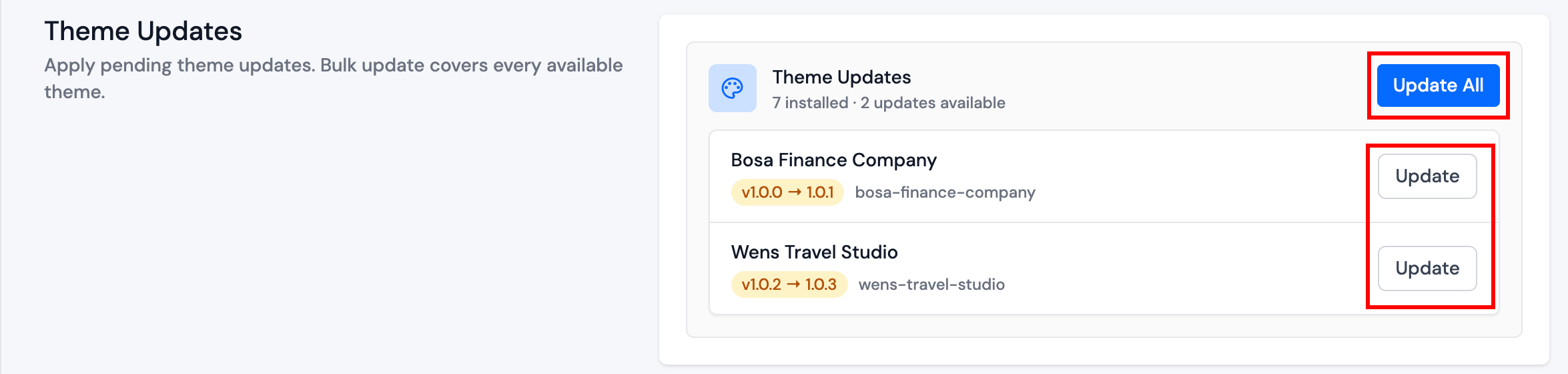
The Theme Updates section lists themes with available updates. Update themes individually or use Update All to update every theme that has a pending release.
Updating a theme does not change which theme is active. To switch the live design, use Themes.
Database Update
After some WordPress core upgrades, the database schema must be updated. WordPress stores posts, settings, and user data in the database; a core version change may require new tables or column changes.
The Database Update section shows whether a database upgrade is required. If no upgrade is needed, the section confirms that the database is up to date.
When an update is available:
Step 1: Leave Dry run enabled and click Preview Changes to see what would run without applying any changes.
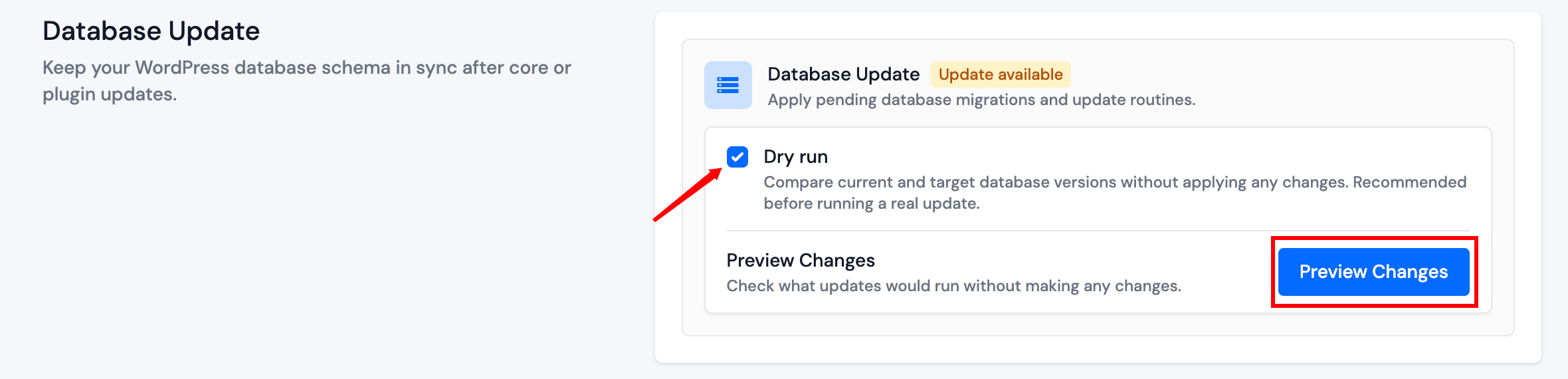
Step 2: Review the Dry run result output. Confirm the pending routines look correct.
Step 3: Uncheck Dry run, then click Update Database.
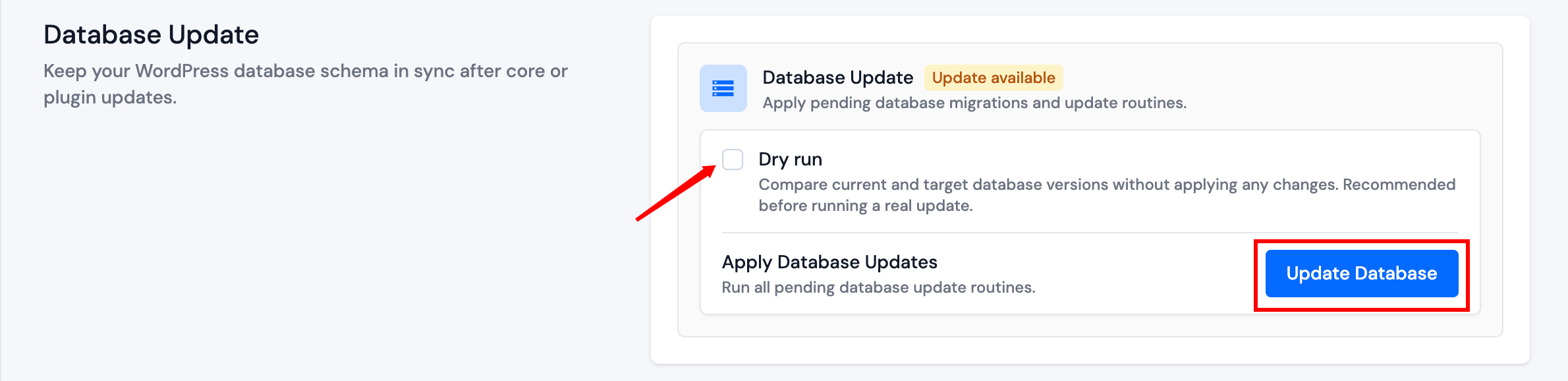
Step 4: Confirm the upgrade in the dialog when prompted.
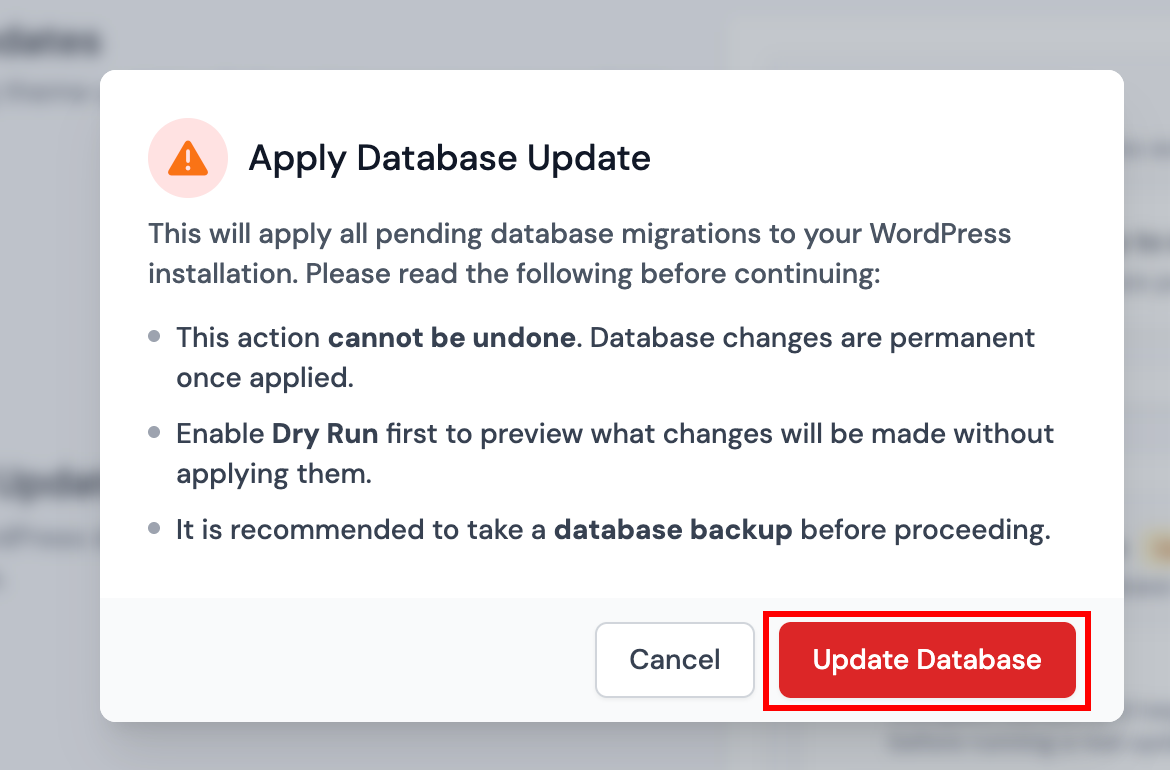
Take a backup before applying a live database update on production sites.
Recommended Update Order
For production sites, follow this order to reduce downtime and conflicts:
Step 1: Enable maintenance mode on live sites.
Step 2: Back up the application and database.
Step 3: Update WordPress Core, then run Database Update if prompted.
Step 4: Update plugins, then themes.
Step 5: Verify the site front end and admin area, then disable maintenance mode.
Review plugin and theme compatibility with the target WordPress version before major core upgrades. When in doubt, update on a staging copy of the site first.