Themes
A WordPress theme controls how your site looks and how content is laid out on the front end. Only one theme can be active at a time. The Themes page in WP Toolkit lets you install themes from WordPress.org, switch the active theme, and update or remove themes you no longer need.
Accessing Themes
Step 1: Log in to your ServerAvatar account.
Step 2: Open the Server Dashboard → Applications → select your WordPress application.
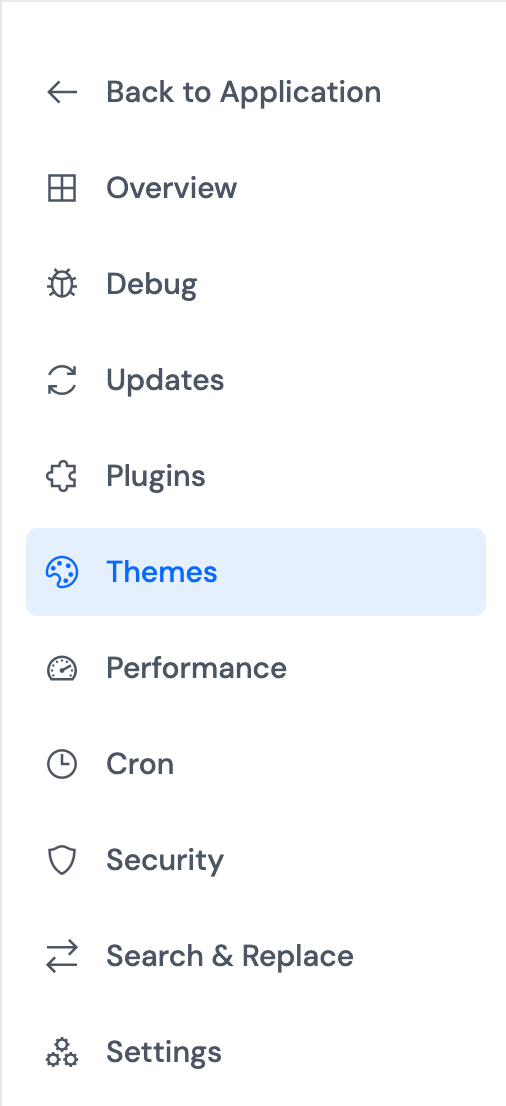
Step 3: In the application panel sidebar, open WP Toolkit → Themes.
Summary Statistics
Summary cards show how many themes are installed, which theme is active, and how many updates are available. Theme updates can also be managed from Updates.

Installed Themes
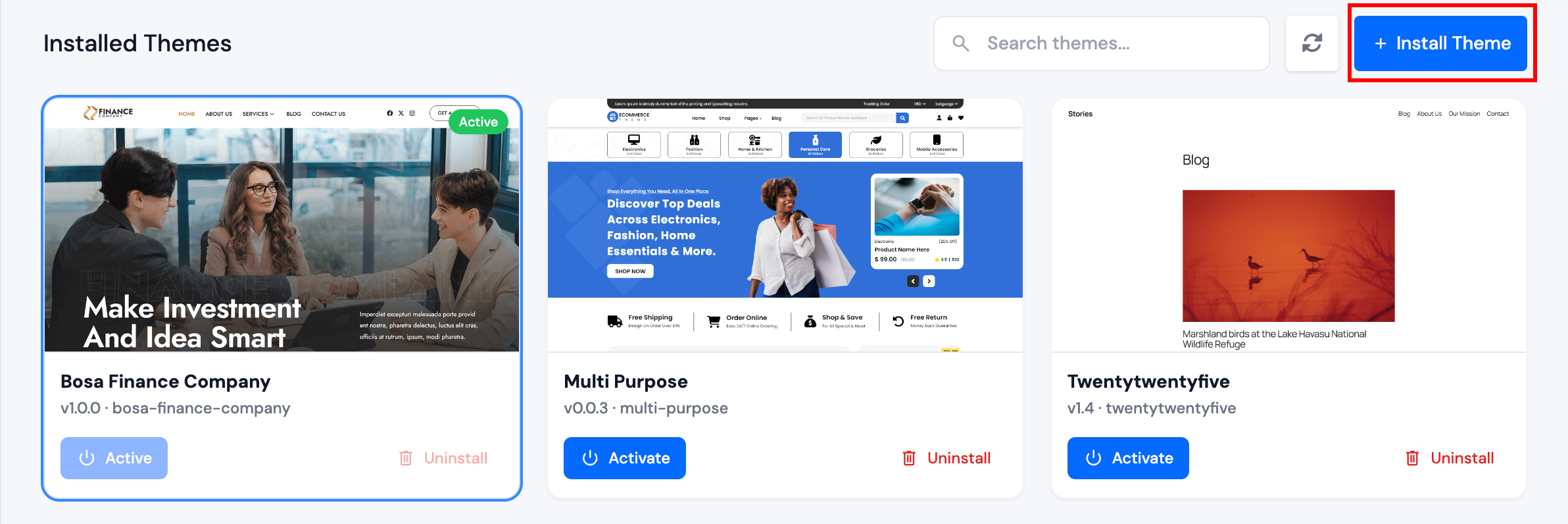
Each theme entry shows the name, version, update status, screenshot when available, and whether it is the active theme.
Filter by all, active, inactive, or updates available. Search by theme name to find a specific theme quickly.

Install a Theme
Step 1: Click Install Theme.
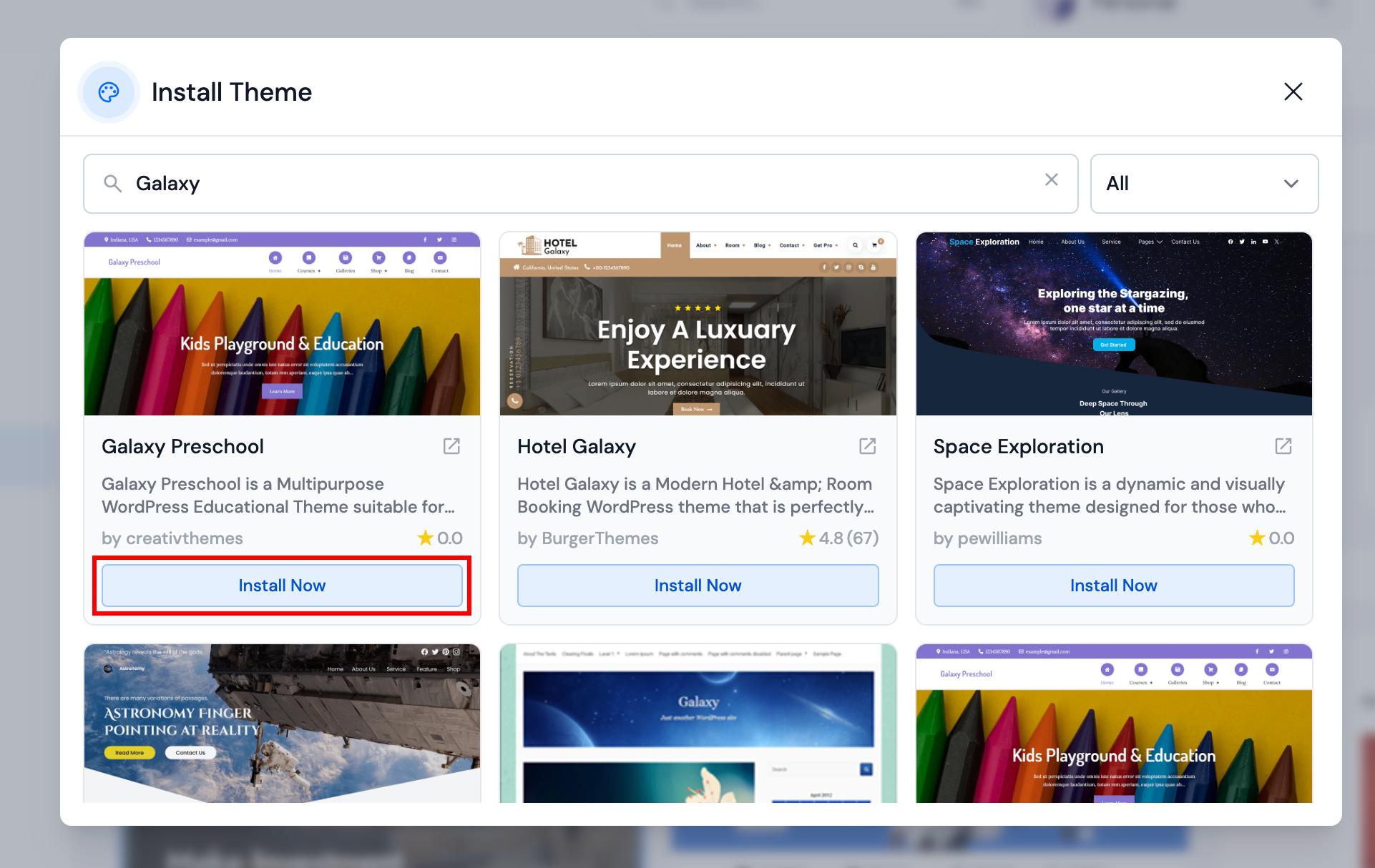
Step 2: Search the WordPress.org theme directory or use the browse filter, then click Install Now on the theme you want.
Manage Themes
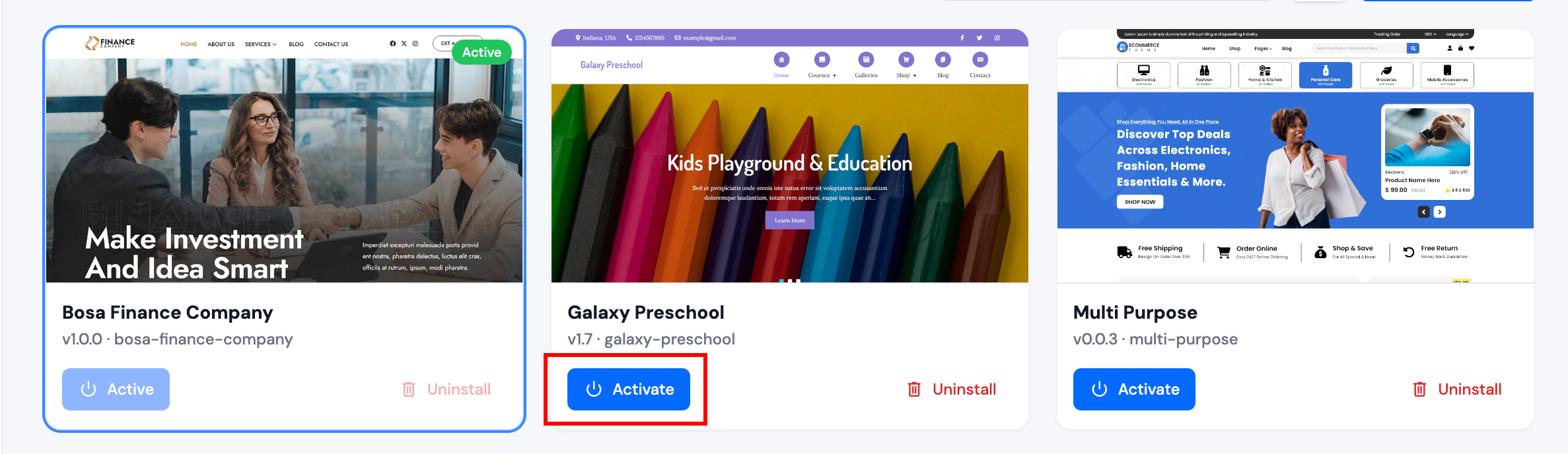
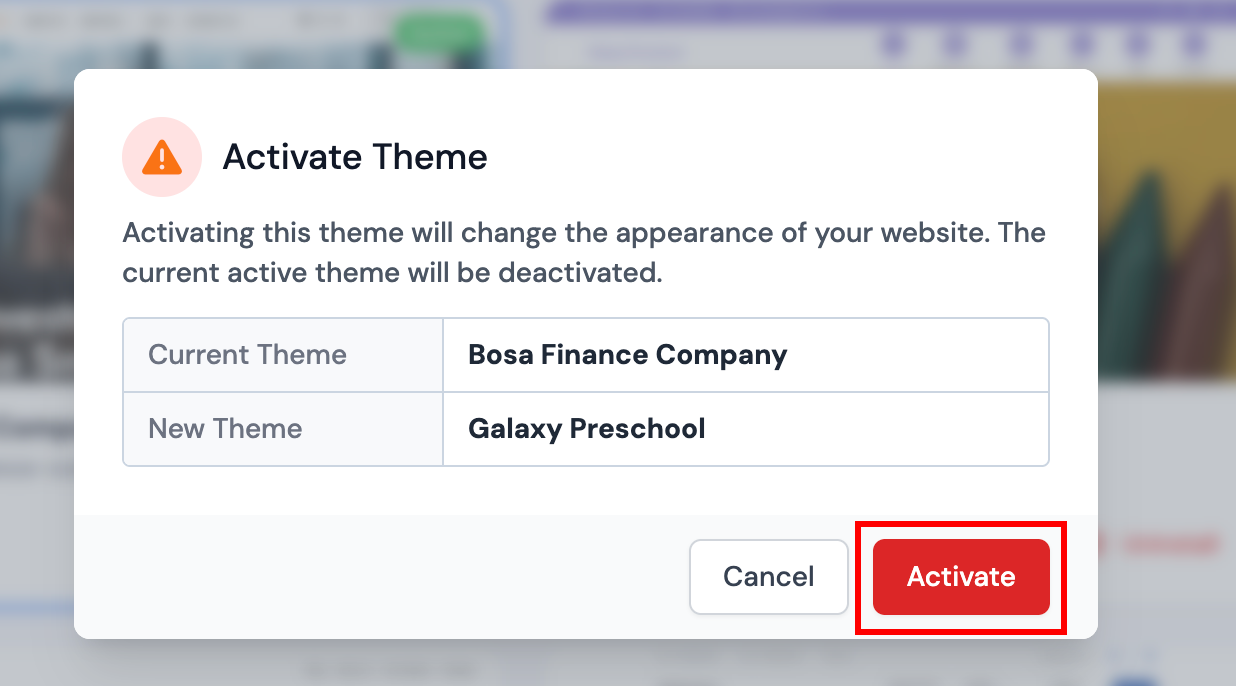
Activate: Click Activate on the theme you want to use, then confirm in the dialog. WordPress switches the live site design to that theme.
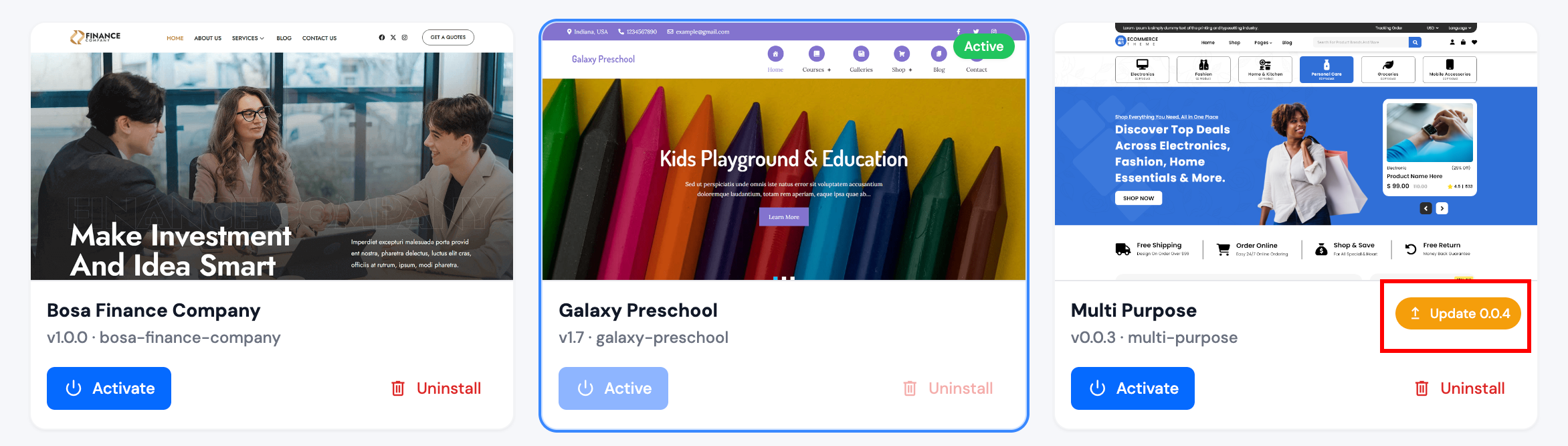
Update: Click Update when a newer version is available, or use Update All on the Updates page.
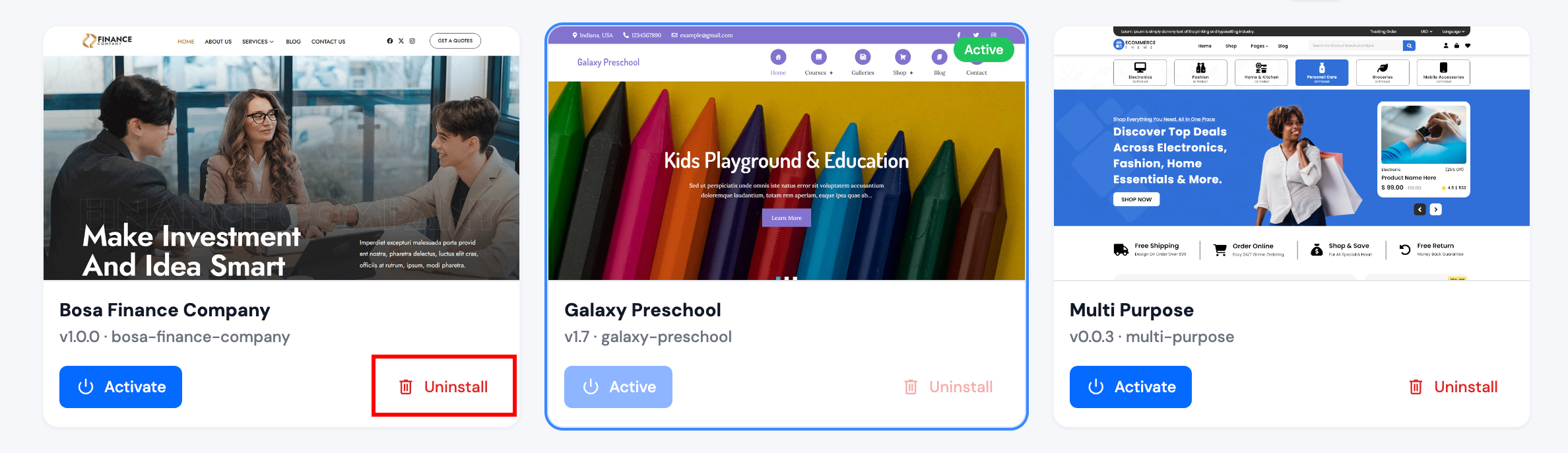
Uninstall: The active theme cannot be uninstalled until another theme is activated. Click Uninstall and confirm for themes you no longer need.
The active theme is also shown on the Overview page.
Uninstalling removes the theme files from the server. Back up custom or child themes before removal.