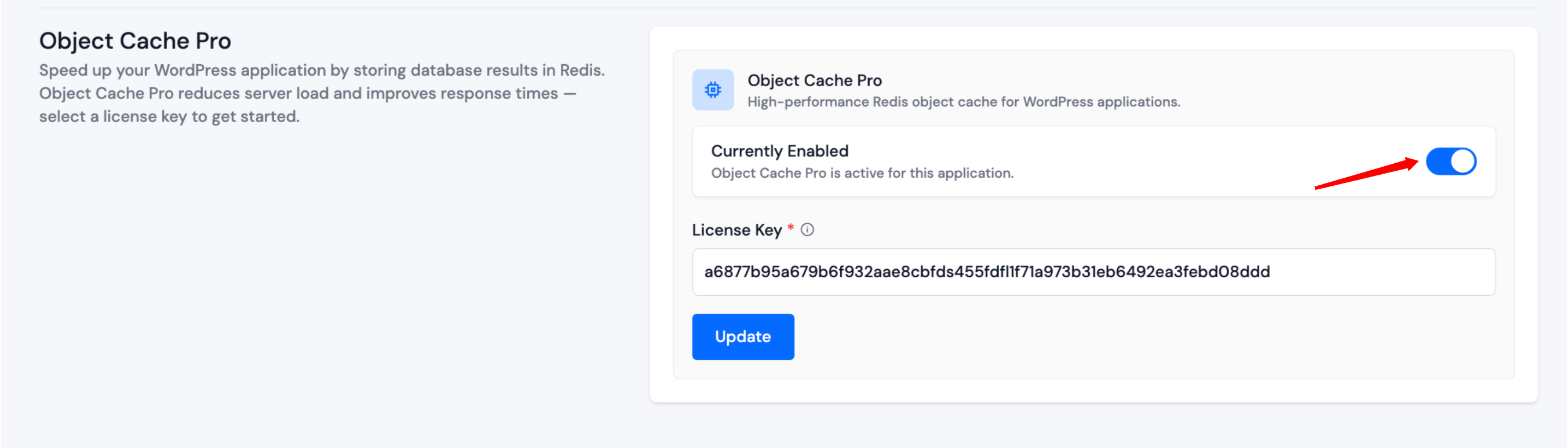
Object Cache Pro
Object Cache Pro adds a Redis-backed object cache to your WordPress site. It stores database query results in memory so pages load faster and your server handles fewer repeated database calls.
You need a valid Object Cache Pro license key for each application you enable it on.
Object Cache Pro is available only for WordPress applications when the WordPress Toolkit add-on is active.
Access Object Cache Pro
Step 1: Log in to your ServerAvatar account.
Step 2: Open the Server Dashboard → Applications → select your WordPress application.
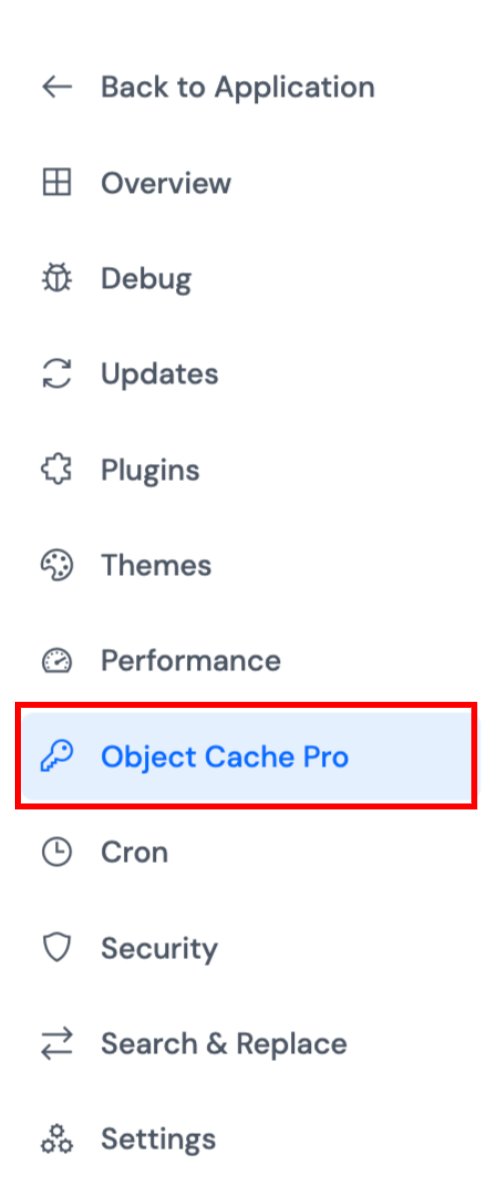
Step 3: In the application panel sidebar, open WP Toolkit → Object Cache Pro.
Enable Object Cache Pro
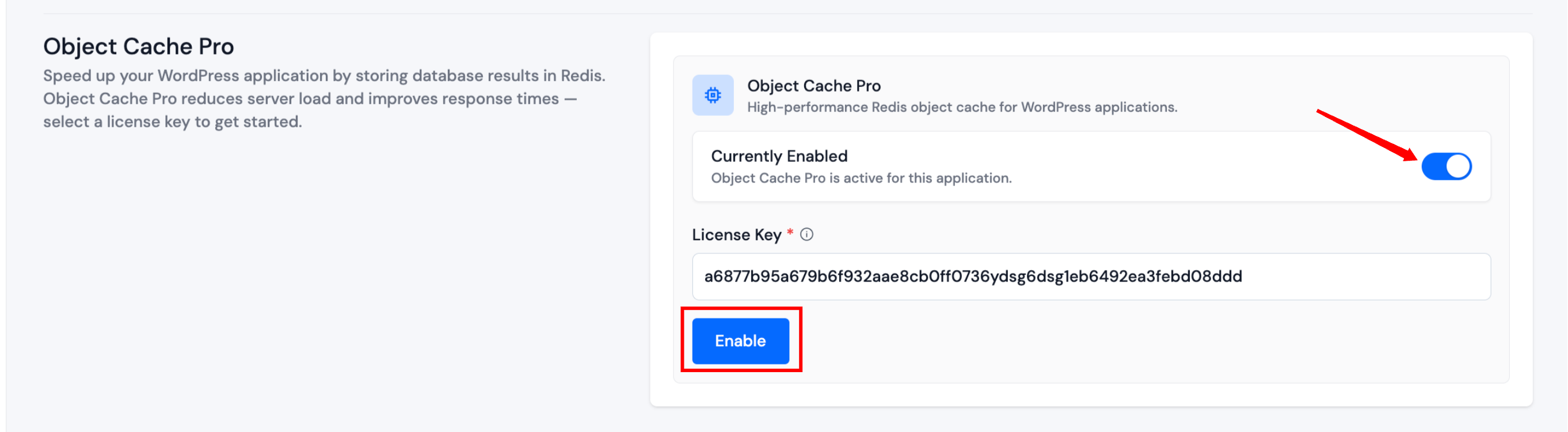
Step 1: Turn on the Object Cache Pro toggle.
Step 2: Paste your License Key in the field that appears.
Step 3: Click Enable to install and activate Object Cache Pro on the application.
After a successful enable, the status shows as active. To change the license key later, update the field and click Update.
Disable Object Cache Pro
Turn the toggle off when Object Cache Pro is already enabled on the site. ServerAvatar disables the integration for that application.