Search & Replace
When you move a WordPress site to a new domain, switch from HTTP to HTTPS, or clone an application, URLs and other text are stored throughout the database (posts, options, and metadata). The Search & Replace tool in WP Toolkit finds and replaces text across the entire WordPress database from ServerAvatar.
This is commonly used after migrations. It is not a substitute for a full migration plugin when moving complex sites, but it works well for straightforward URL and text changes.
Accessing Search & Replace
Step 1: Log in to your ServerAvatar account.
Step 2: Open the Server Dashboard → Applications → select your WordPress application.
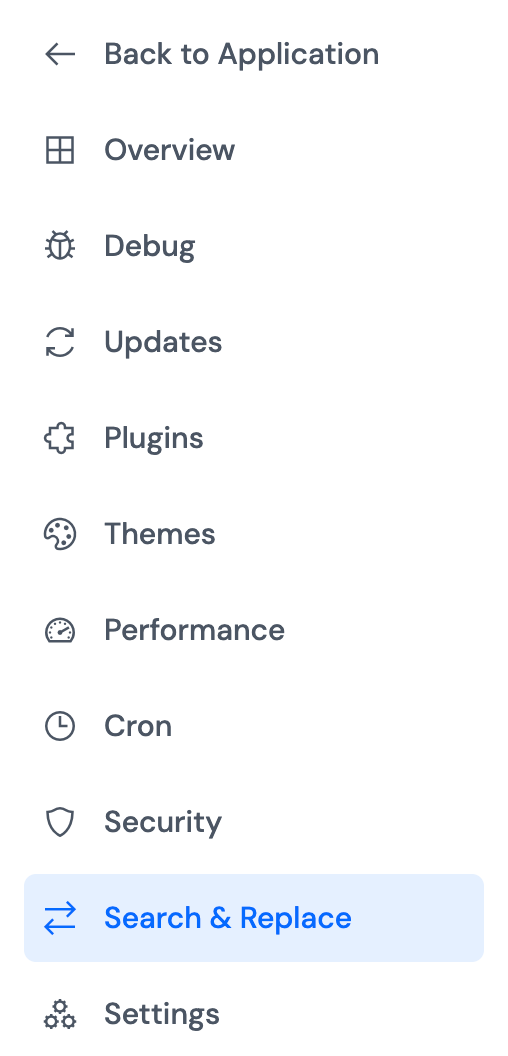
Step 3: In the application panel sidebar, open WP Toolkit → Search & Replace.
How Search & Replace Works
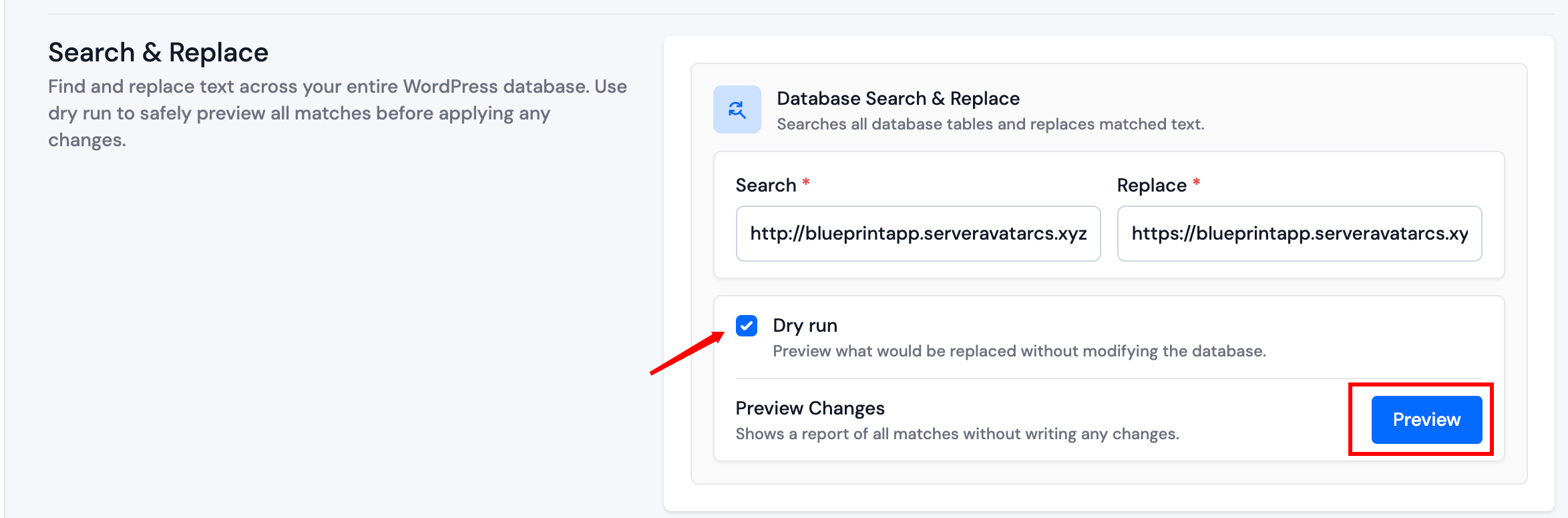
Step 1: Enter the text to find in the Search field (required).
Step 2: Enter the replacement text in the Replace field (required).
Examples:
https://oldsite.comreplaced withhttps://newsite.comhttp://oldsite.comreplaced withhttps://newsite.com
Step 3: Leave Dry run enabled for the first run. Click Preview to preview matches without changing the database.
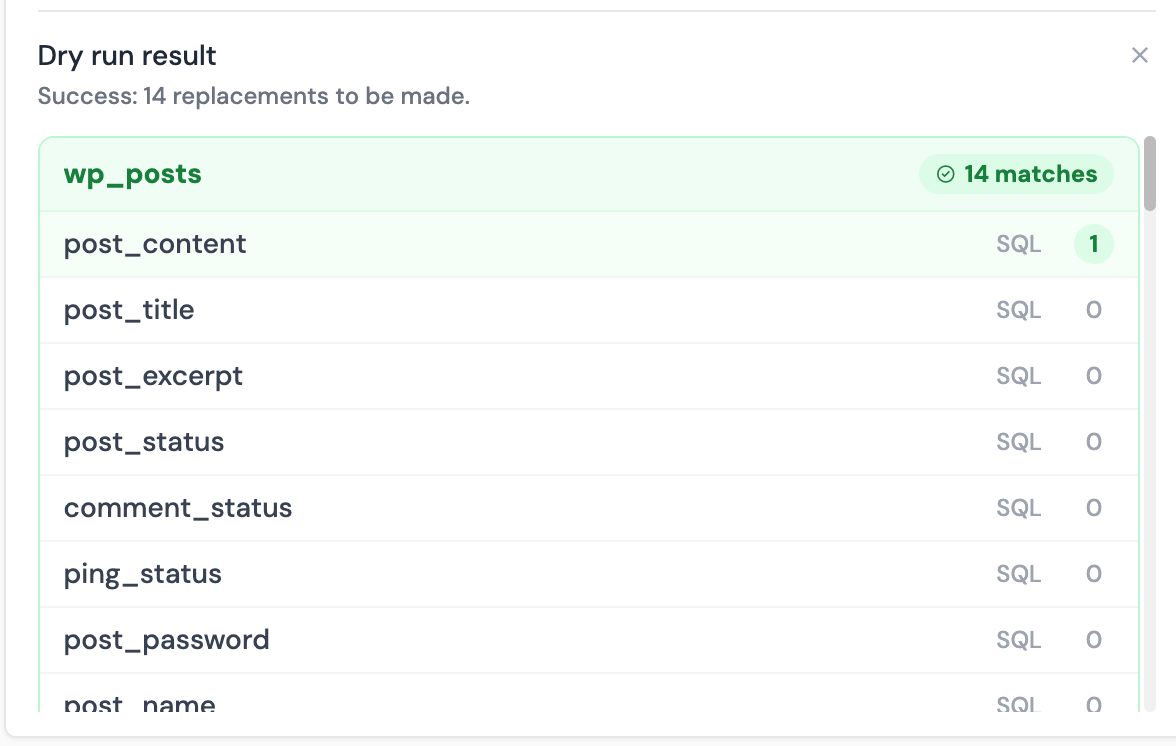
Step 4: Review the Dry run result output. Confirm the number of replacements and affected areas look correct.
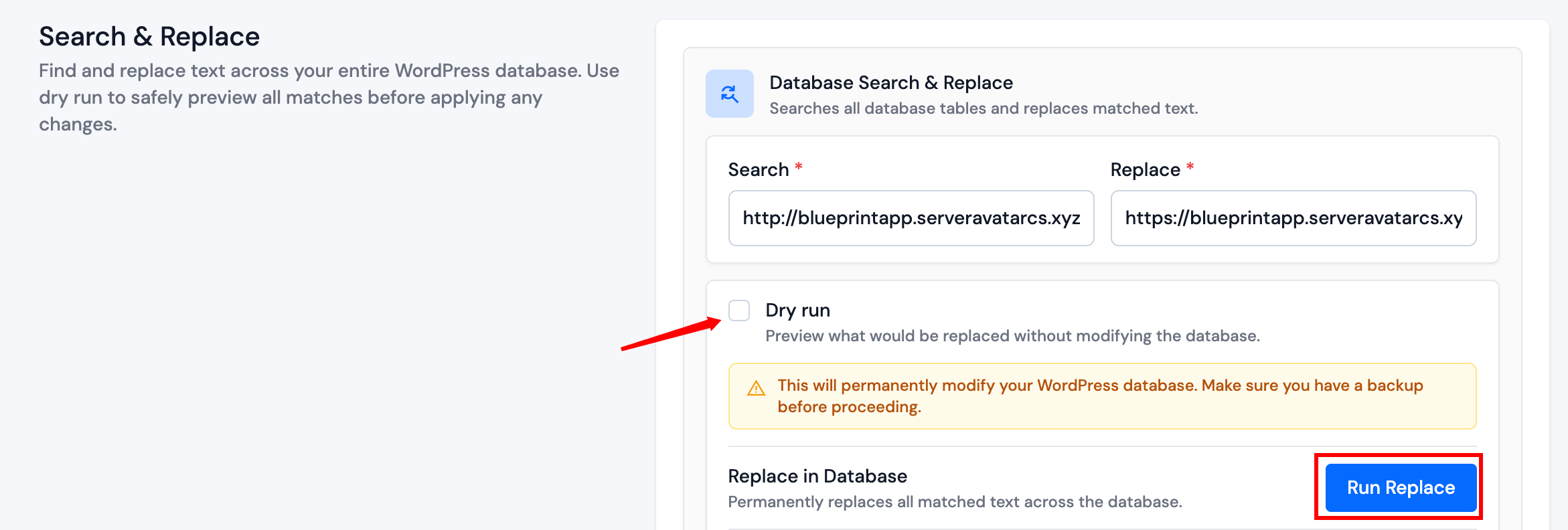
Step 5: Uncheck Dry run only when you are ready to apply changes permanently, then click Run Replace.
Step 6: Confirm in the dialog by clicking Yes, Replace to apply changes to the database.
Always back up your application and database before a live (non-dry-run) search and replace on production sites. An incorrect search string can break serialized data in options and make the site unusable.
Dry Run vs Live Replace
Dry run shows what would change without writing to the database. Click Preview to run a dry run. Use it every time before a live replace.
Live replace permanently updates matching values in the database. With Dry run disabled, click Run Replace, then confirm with Yes, Replace in the dialog. A warning is shown on the page when dry run is disabled.
When to Use This Tool
- Migrating a site to a new domain or HTTPS URL
- Updating URLs after cloning to staging
- Fixing stored URLs in post content or options after a rename
For full application cloning, see Clone Application. Combine cloning with search and replace when the new environment uses a different domain.