Settings
WordPress stores general site preferences in the database: language, timezone, how dates and times are displayed, PHP memory limits, permalink structure, and whether search engines should be discouraged from indexing the site. The Settings page in WP Toolkit lets you change these options for the current application without opening the WordPress admin Settings screens.
Changes apply only to this application. To preset values for new WordPress sites, use WordPress Blueprints.
Accessing Settings
Step 1: Log in to your ServerAvatar account.
Step 2: Open the Server Dashboard → Applications → select your WordPress application.
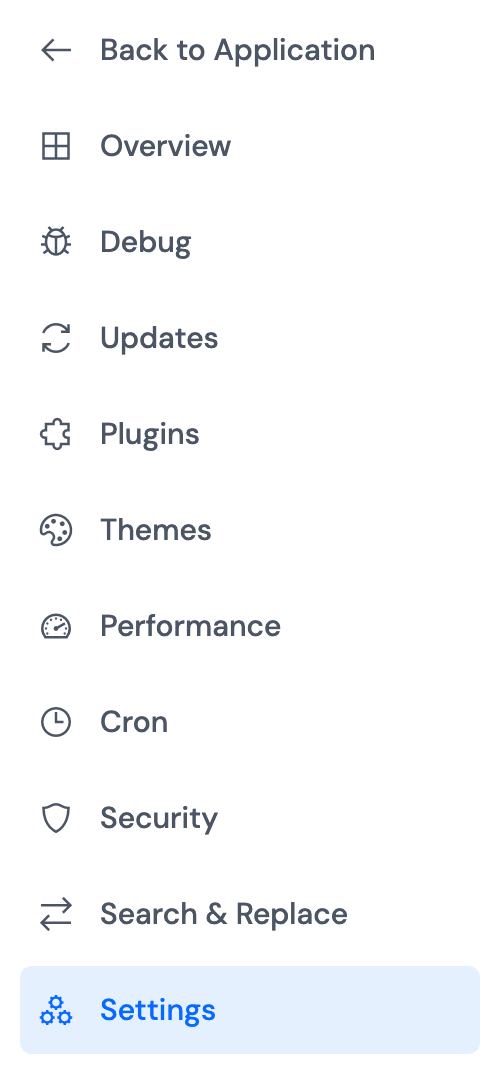
Step 3: In the application panel sidebar, open WP Toolkit → Settings.
Site Language
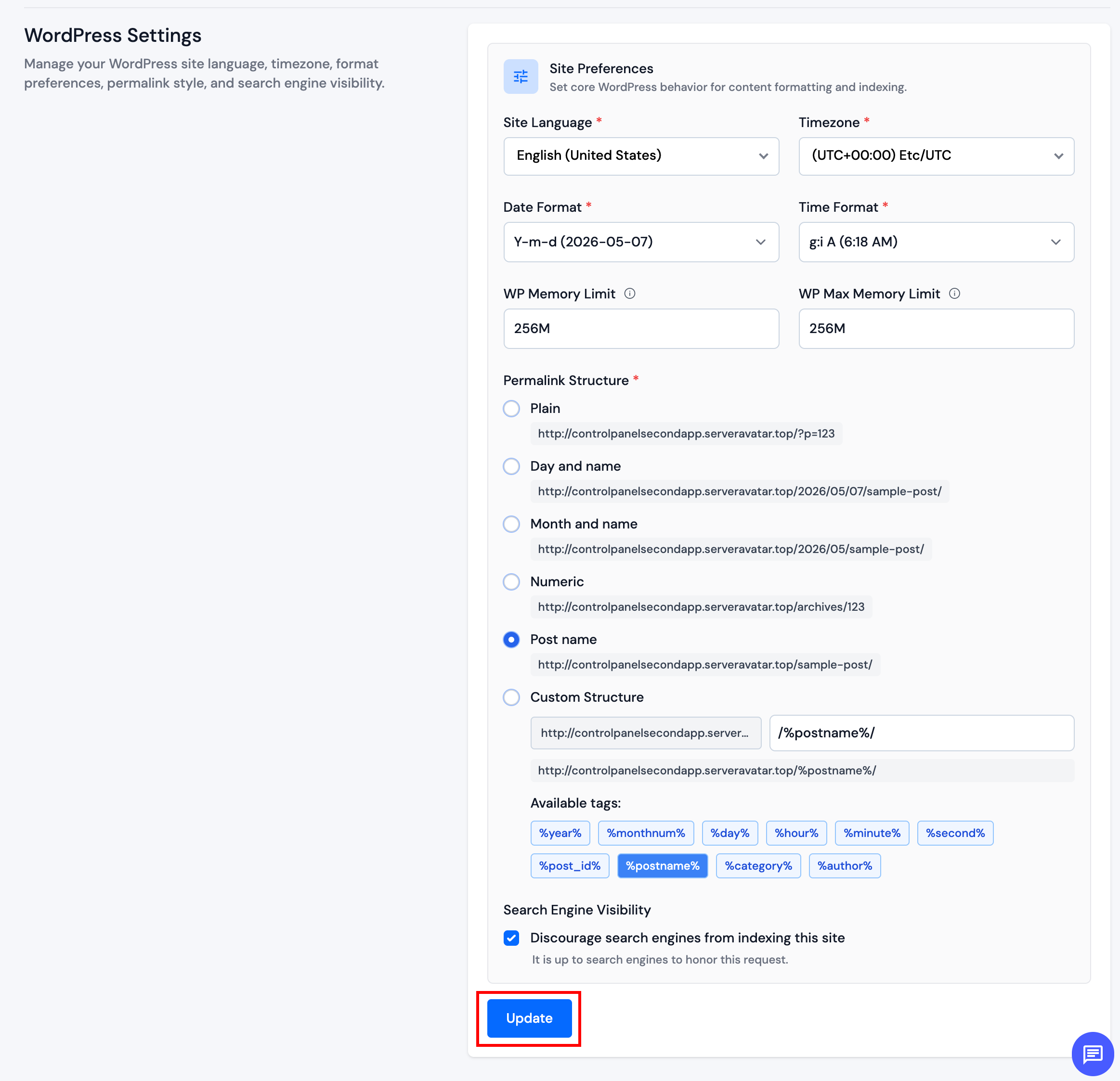
Sets the default language for the WordPress installation and affects the admin interface locale where language packs are installed.
Select the language from the dropdown and save the form.
Timezone
Controls how WordPress displays scheduled posts, comment times, and other date-based output. Choose the timezone that matches your audience or business location.
Date and Time Format
Date format defines how dates appear on the site (for example, month/day/year or year-month-day).
Time format defines 12-hour or 24-hour time display.
Select the formats that match your site’s style and save.
WP Memory Limit
WP Memory Limit sets the PHP memory available to WordPress for front-end requests and general site operations.
Enter a value in PHP memory format, such as 256M or 512M. Increase this limit if plugins or themes report memory exhaustion errors on the public site.
WP Max Memory Limit
WP Max Memory Limit sets the PHP memory available to WordPress in the admin dashboard and other back-end contexts.
Enter a value in PHP memory format, such as 256M or 512M. This limit is often set higher than WP Memory Limit when large imports, plugin updates, or admin tasks need extra memory.
The server’s PHP memory_limit must be equal to or greater than the values you set here. If a limit does not take effect, check the application or server PHP configuration.
Permalink Structure
Permalinks are the permanent URLs for posts and pages. The structure affects SEO and readability.
Common options include plain query strings, date-based URLs, numeric IDs, and post name slugs. You can also define a custom structure using tags such as %year%, %monthnum%, and %postname%.
After changing permalinks, flush rewrite rules on the Performance page if URLs return 404 errors.
Search Engine Visibility
When Discourage search engines from indexing this site is enabled, WordPress sets the blog_public option to ask search engines not to index the site. This is useful for staging, development, or pre-launch sites.
Search engines are not required to honor this setting.
Update Settings
Update the fields you need, then click Update at the bottom of the form. Values are written to the WordPress database for this application.
Maintenance mode can be toggled from the Overview page. Standard application Settings in the application panel may include additional WordPress options outside WP Toolkit.